
Activities, tasks, and reports
Plan field work, organize personal tasks, produce work orders, and complete service reports.
Last updated: 2026-09-14
Module structure
Calendar schedules customer work; Personal Tasks organizes internal actions; Activity List provides global tables and work-order PDFs; Reports records completed work, materials, attachments, and signature. Activities may link to customers, tickets, teams, and operators, while tasks never create tickets or customer history.
Calendar and navigation
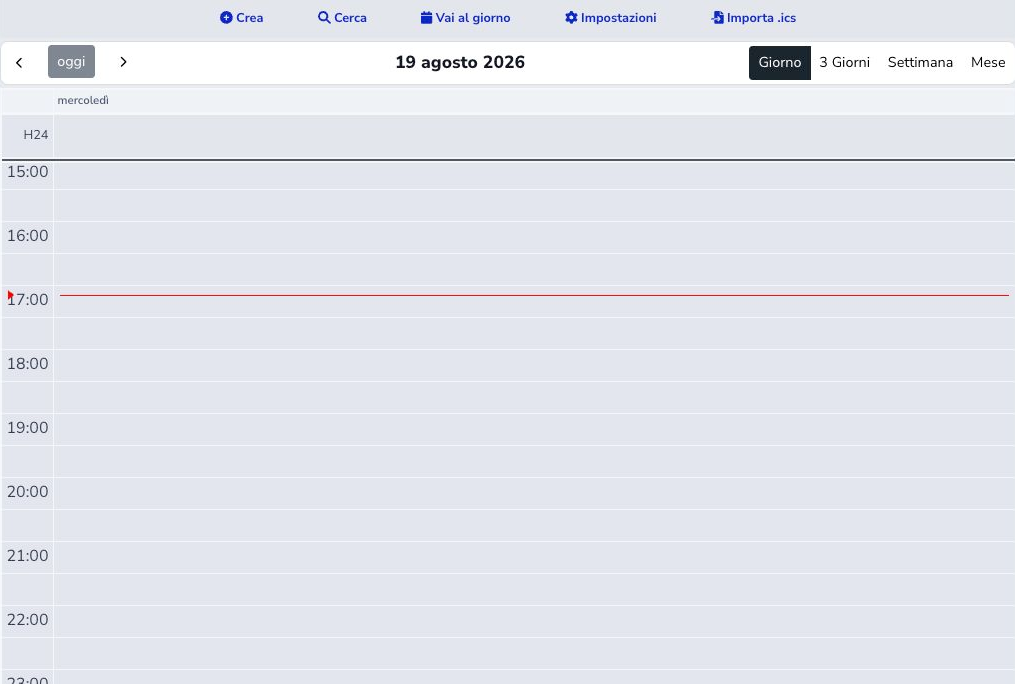
Day, three-day, week, and month views support previous/next navigation, today, direct date selection, search, team visibility preferences, and ICS import. Timed and all-day events occupy separate calendar areas.
Create an activity: type and customer
Start from Calendar or the customer record and choose the activity type. The type determines color, authorized operators, internal reminder policy, and whether a CRM customer is mandatory.
When required, search and select the correct customer before entering operational details. Verify the active tenant and customer identity; creating a generic or customer-free activity simply to bypass a required relationship makes later reminders and history unreliable.
Address, contacts, and customer reminders
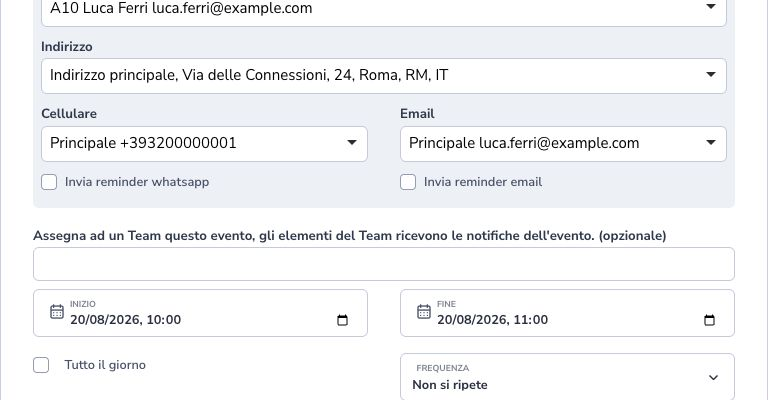
Customer selection loads authorized installation or additional addresses, telephone numbers, and email contacts. Choose the address where work will actually occur, or enter a dedicated operational address only when the activity is not represented by an existing CRM location.
WhatsApp, SMS, and email reminders are independent. WhatsApp and SMS switches appear only when the corresponding default provider is selected; Meta also requires an assigned, enabled number. The email switch appears when a valid SMTP account is selected in Activities settings. Select a verified recipient and an advance time of 15 minutes, 30 minutes, 1 hour, or 2 hours. These reminders are for the customer; team notifications have separate settings.
Official WhatsApp Meta requires the approved activity reminder template. The message contains the customer name, appointment date and time, activity type, and the additional reminder text configured for that type. The internal operational description is not sent. If the template is missing or unapproved, no free-text substitute is sent. Email requires an SMTP account selected in the module general settings.
SMS reminders use the selected mobile number and the sender already configured in the provider. The ISP name is not repeated in the text. Example: Promemoria: assistenza tecnica il 15/09/2026 alle 16:00. Per variazioni contattaci. The Italian message fits a single SMS of up to 160 characters: special characters and emoji are normalized or removed, and only the activity type is shortened when necessary, preserving the full date and time. Neither operational details nor the additional type reminder text are included. Check that the SMS provider is configured and has sufficient credit.
Saving schedules the reminder and does not confirm delivery. Unsuccessful sends allow up to three attempts in total. Before sending, the system checks that the reminder is still enabled, that the activity, time, and recipient remain valid, and that the appointment has not already started. A reminder still awaiting delivery is discarded if the activity is cancelled, deleted, or rescheduled, or if its recipient changes.
Teams, operators, and conflicts
Assign the responsible Activity team and one or more authorized operator accounts. Team membership supports notification and filtering, while direct account assignment records individual responsibility.
Review availability and overlap warnings before saving. A conflict warning is operational evidence, not an automatic prohibition: resolve it by changing time or assignee, or document the authorized exception. Do not assign a team merely to make the event visible if nobody owns the work.
Schedule and recurrence
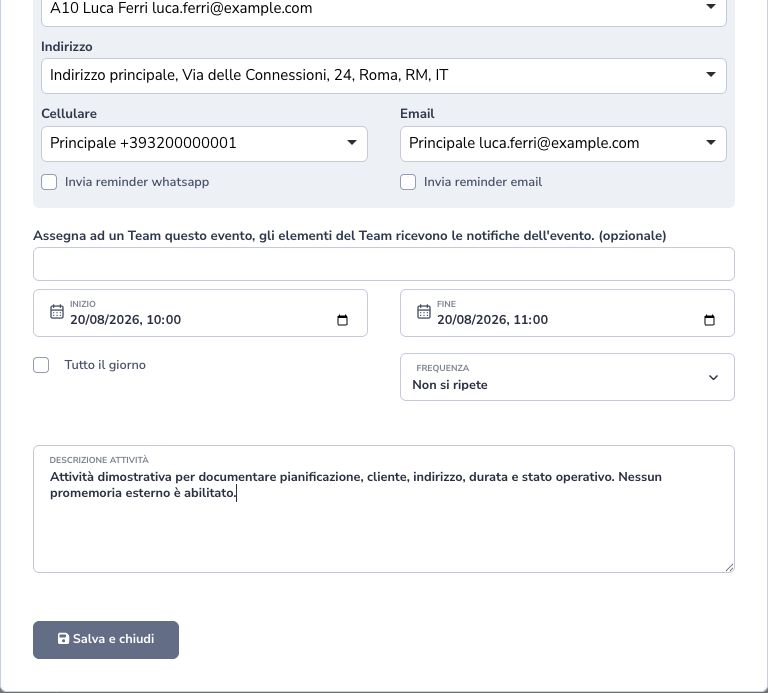
Start and end set duration; All day uses a date. Recurrence supports daily, weekly, monthly, and yearly cycles with an interval and end date. Creation generates child occurrences through the final date.
Moving an event updates its time. Cancellation records reason, time, and operator and can be restored; deletion is distinct and should not replace historical cancellation.
Save and verify the activity
Before saving, review type, customer, address, contacts, assignees, team, description, start, end, recurrence, and reminder switches. A successful confirmation proves that the record was stored, not that messages were delivered or external calendar clients received it.
Reopen the activity from the calendar and verify its position, duration, status, links, and responsible operators. For recurring work, inspect several generated occurrences including the final date.
Customer record and availability
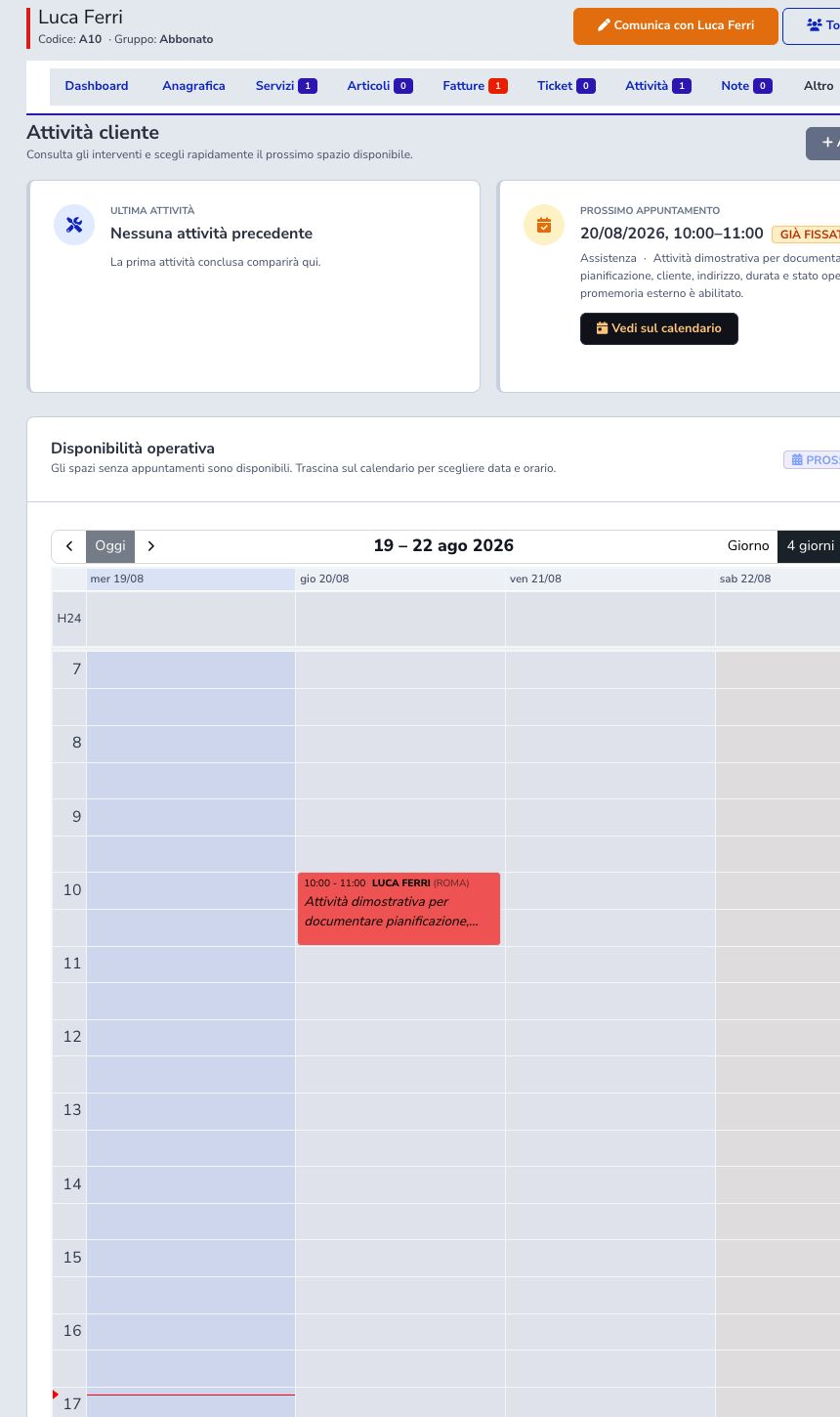
The customer record lists its activities, next appointment, filters, edit action, work-order PDF, and link to the general calendar. Use it to confirm that the new event belongs to the intended customer and remains visible in chronological history.
Compare the same time in the team calendar to verify availability and conflicts. Customer history and calendar occupancy are two views of the same saved activity and should remain consistent.
Activity list and work orders
The global Activity List contains customer, address, start and end, status, description, teams, type, and responsible operator. Use filters to create an operational work queue rather than relying only on calendar placement.
Work orders can be viewed, downloaded, or sent as PDF. Check customer, address, appointment, instructions, recipients, and latest version before delivery; the work order prepares execution but does not prove that the activity was completed.
Plan → assign → optional reminders → perform → work order/report → retain or cancel.
ICS import
ICS import brings external calendar events into the selected context. Before saving, review time zone, daylight-saving conversion, all-day interpretation, start and end, recurrence rules, title, description, and any customer or team relationship that must be added locally.
Search for existing occurrences and import a small sample first. Re-importing the same calendar file can create duplicates if the workflow cannot match the original external identifier.
Personal tasks
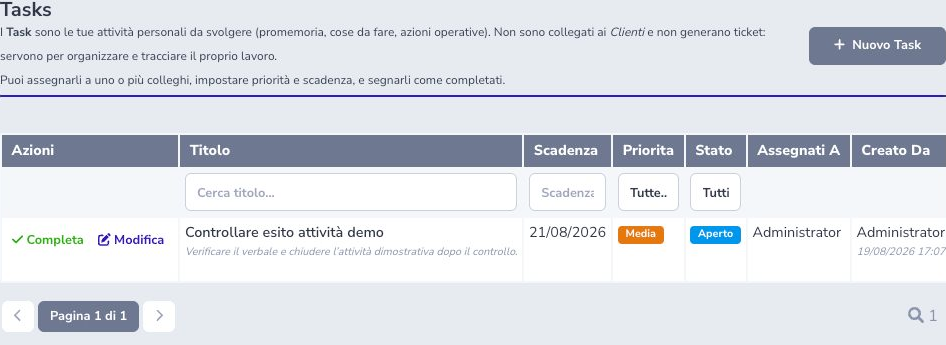
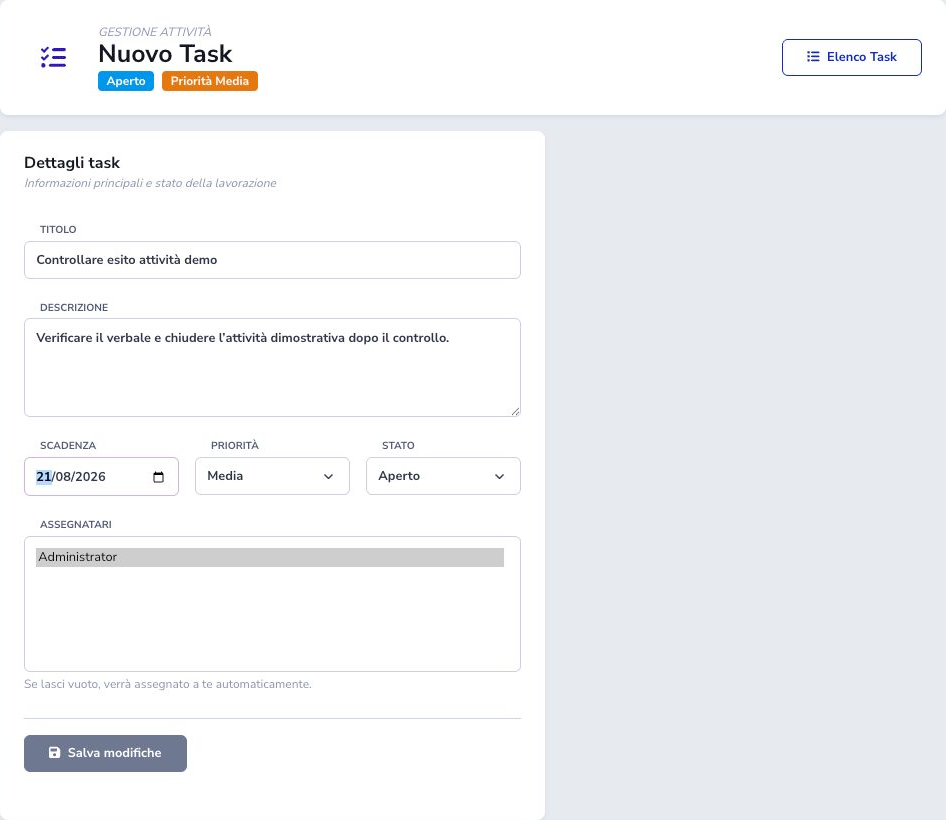
Tasks are internal and contain title, description, due date, Low/Medium/High priority, Open/In progress/Completed status, and one or more assignees. Empty assignees default to the creator. The list records creator, latest action, and closer.
Executed task lifecycle
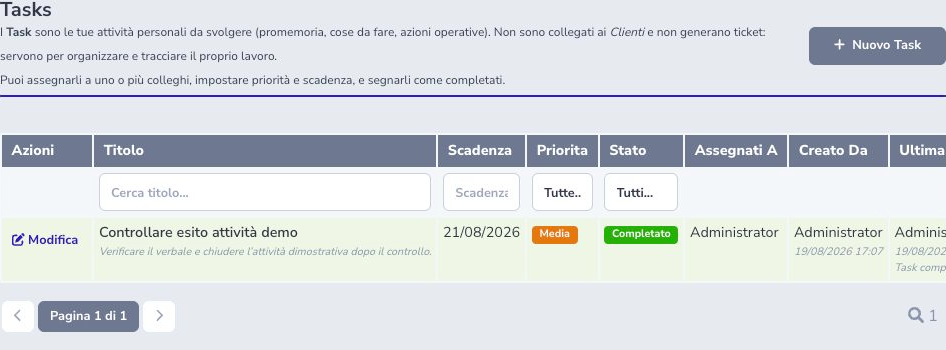
The demonstration task “Controllare esito attività demo” was created with a due date, Medium priority, and Administrator assignment. Completing it required confirmation and recorded Completed status, operator, date, and timeline action. Reopen, comments, edit, and delete are also supported.
Service reports and statuses
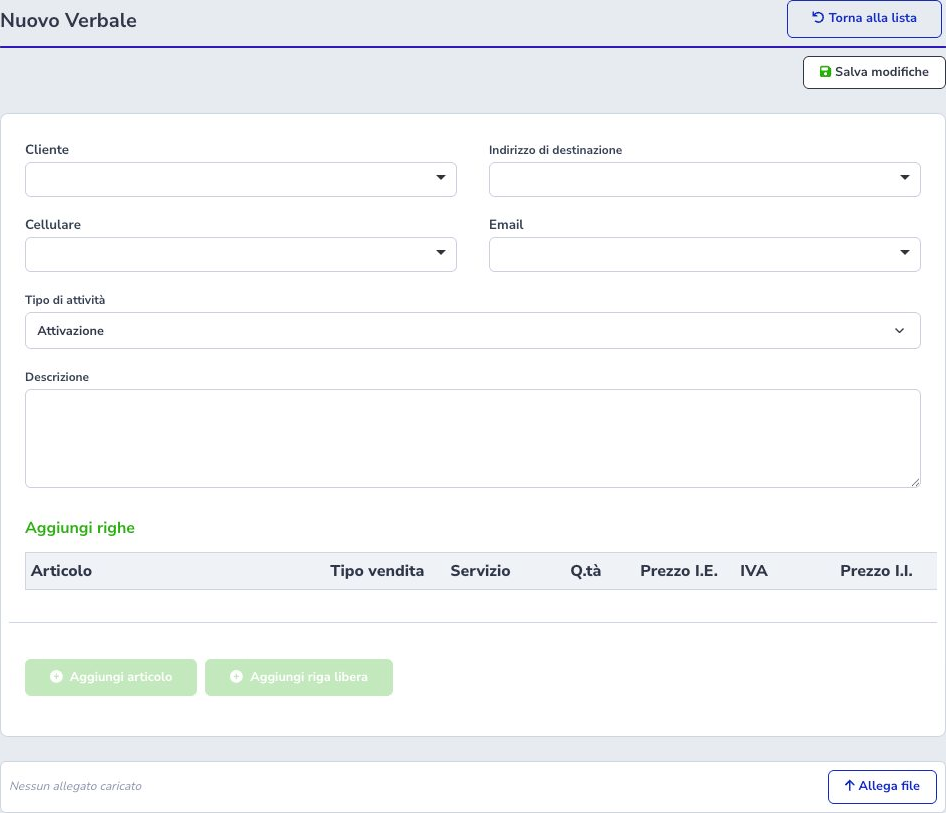
Reports separate In progress from History and use In progress, To complete, and Completed states. The list can be filtered by status and reports number, customer, address, creation date, latest update, operator, and available actions. A report stores customer, address, contacts, activity type, operator, description, stock items, free lines, attachments, custom fields, and signature.
Use In progress for operational drafts and History for completed evidence. Do not treat a scheduled activity as a completed service report until the required work, materials, fields, and signature have been reviewed.
Complete a service report
Fill customer, address, contacts, activity type, operator, work description, custom fields, attachments, and every material or free line. Lines include sale type, linked service, quantity, net price, VAT, gross price, and total.
Stock articles may create customer sales and inventory movements, so verify warehouse, quantities, serial numbers where required, VAT, and totals before completion. Attach only necessary evidence and keep customer data out of filenames and notes when possible.
Signature, completion, and report PDF
A customer signature records the signer action, description, and time. Where policy permits, an authorized no-signature path can complete the report, but the reason and operator must remain clear. Do not collect a signature before the final work and lines have been reviewed.
After completion, open the generated PDF and verify pages, customer, work, materials, totals, signature, and attachments. PDF can be downloaded or sent by email or WhatsApp; confirm recipient, consent, channel outcome, and privacy. Completion may lock or trigger downstream movements, so correct errors through the supported workflow.
General settings and SMTP profile
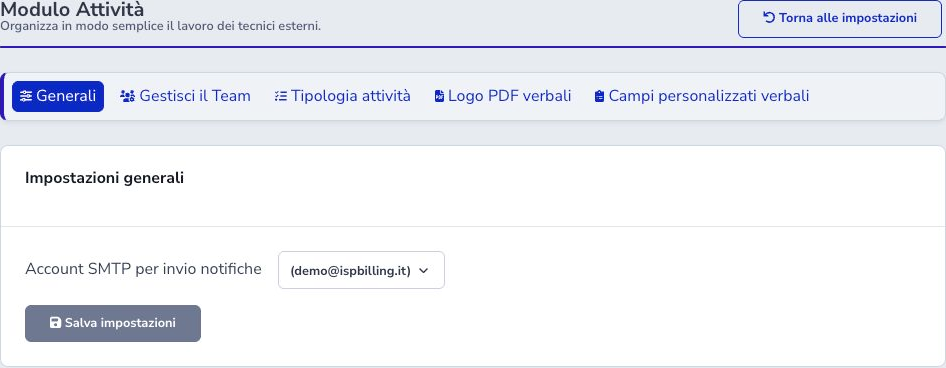
Before enabling reminders, work orders, and service reports, open Settings → Activities → General and select an SMTP profile that has already been configured and tested. This setting chooses the transport for module email; it does not create or repair the server credentials.
Verify sender identity, authentication, reputation, one authorized test recipient, and the SMTP outcome log. A broken profile does not prevent calendar planning but can make email notifications fail. SMS, WhatsApp, and push depend on their own providers and recipient preferences.
Teams
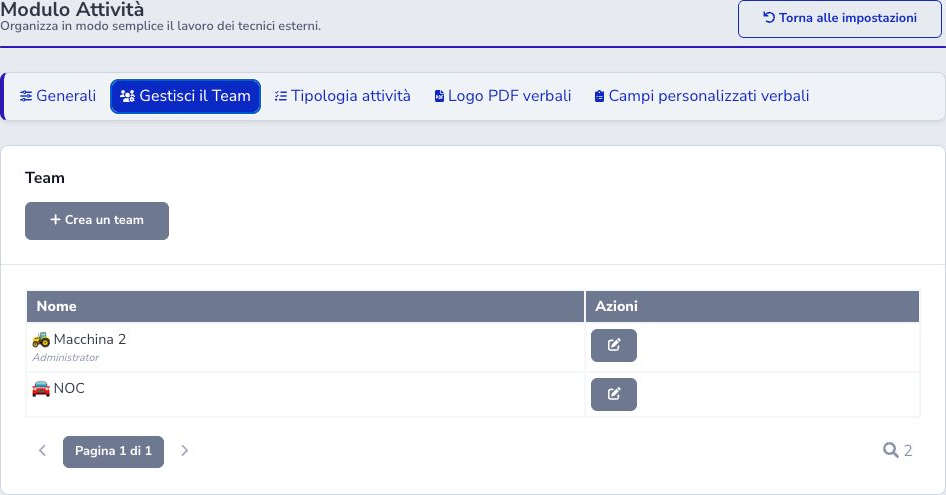
Activity teams define a recognizable name, emoji, and member accounts. They group responsible operators for calendar filters and notifications without replacing the individual assignee on a specific activity.
Review membership when staff roles change and test notifications with an authorized activity. Removing an account from a team does not automatically reassign existing scheduled work.
Activity types and internal reminders
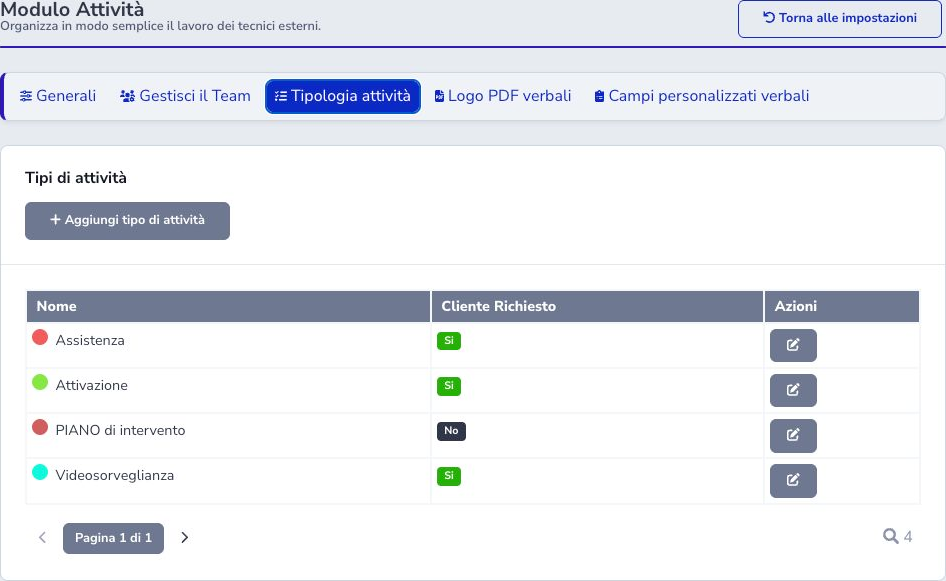
Types define name, color, allowed accounts, internal reminder lead time, reminder footer, whether a customer is required, and disabled state. Use distinct types when workflows, permissions, or reminder behaviour differ.
Disable an obsolete type instead of rewriting its historical meaning. Configure the internal lead time and footer for useful operator context, then test that authorized accounts see and receive the intended reminder.
PDF template and custom fields
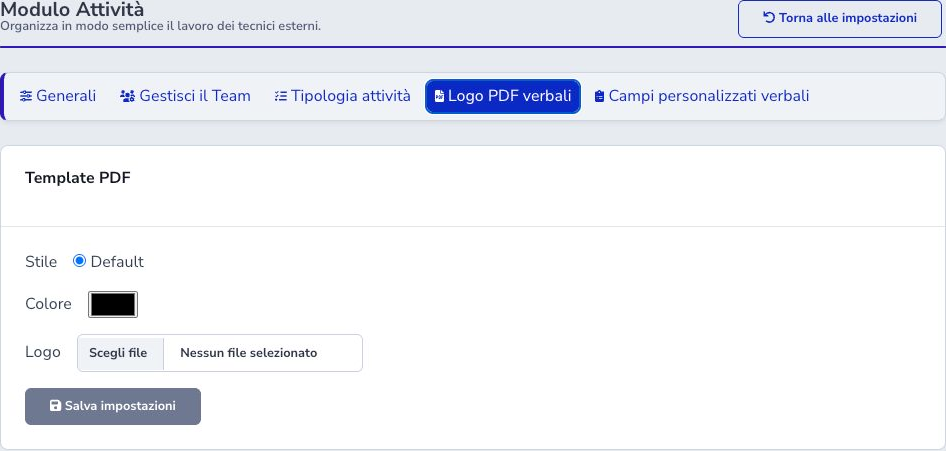
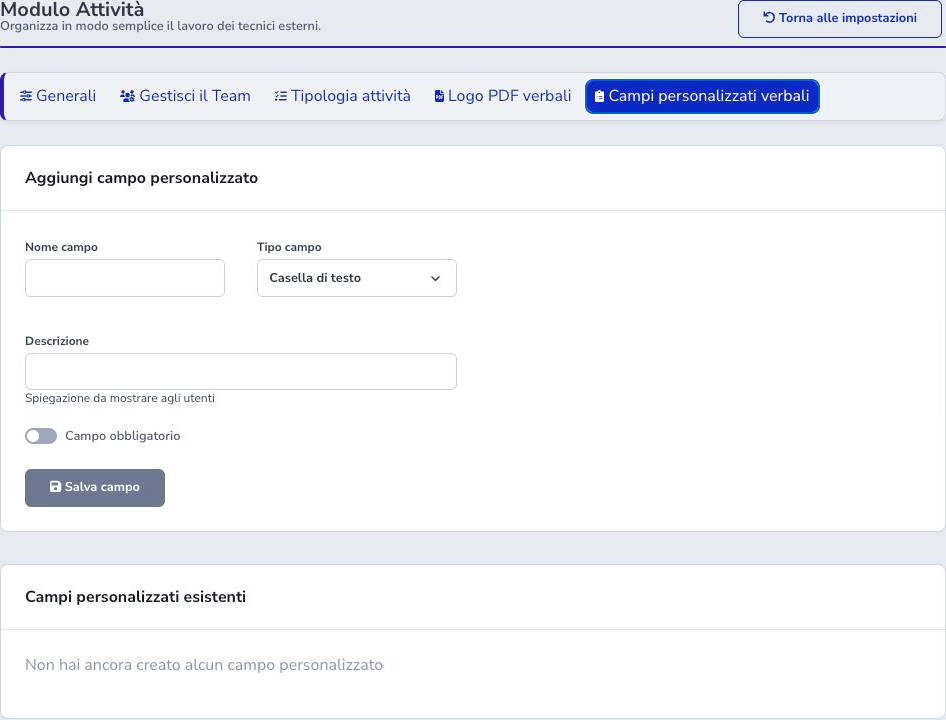
Report PDF settings control style, color, and logo. Custom fields support text, link, date, password, checkbox, dropdown, and textarea with description and required flag. Never use report password fields to store operational credentials.
Automation and API
CLI jobs send customer reminders and deduplicated internal notifications. API-key-protected endpoints list activities, retrieve one activity, and list teams. Calendar preferences store hidden teams for each operator.
Operational checklist
- Choose the correct activity type
- Verify customer, address, and contacts
- Check team conflicts
- Confirm start, end, and time zone
- Use recurrence with an end date
- Enable reminders only for authorized contacts
- Cancel rather than delete when history matters
- Separate tasks, customer activities, and tickets
- Verify report inventory, VAT, and totals
- Protect signatures and attachments
- Review PDF and final state