
Aruba Electronic Invoicing
Monitor SDI delivery and notifications, acquire supplier invoices, manage deadlines, and record payments.
Last updated: 2026-08-20
Two separate directions
FE Notifications follows sales documents sent through Aruba and SDI. Supplier Invoices acquires purchase documents and manages reading, deadlines, payments, suppliers, and Cashbook links. An issued invoice, SDI notification, and received invoice remain distinct records.
Permissions and prerequisites
Every route requires an authenticated account, active Aruba FE module, and read or write permission. Read grants dashboards, lists, notifications, and downloads; write controls synchronization, restoration, manual records, payments, reading state, deletion, and export.
Provider credentials are confidential and module activation alone does not prove that the external account is ready.
FE Notifications dashboard
The dashboard counts rejected documents requiring correction, ignored duplicates, total submissions, invoice-linked and unlinked submissions, and received notifications, with total/today scopes where available.
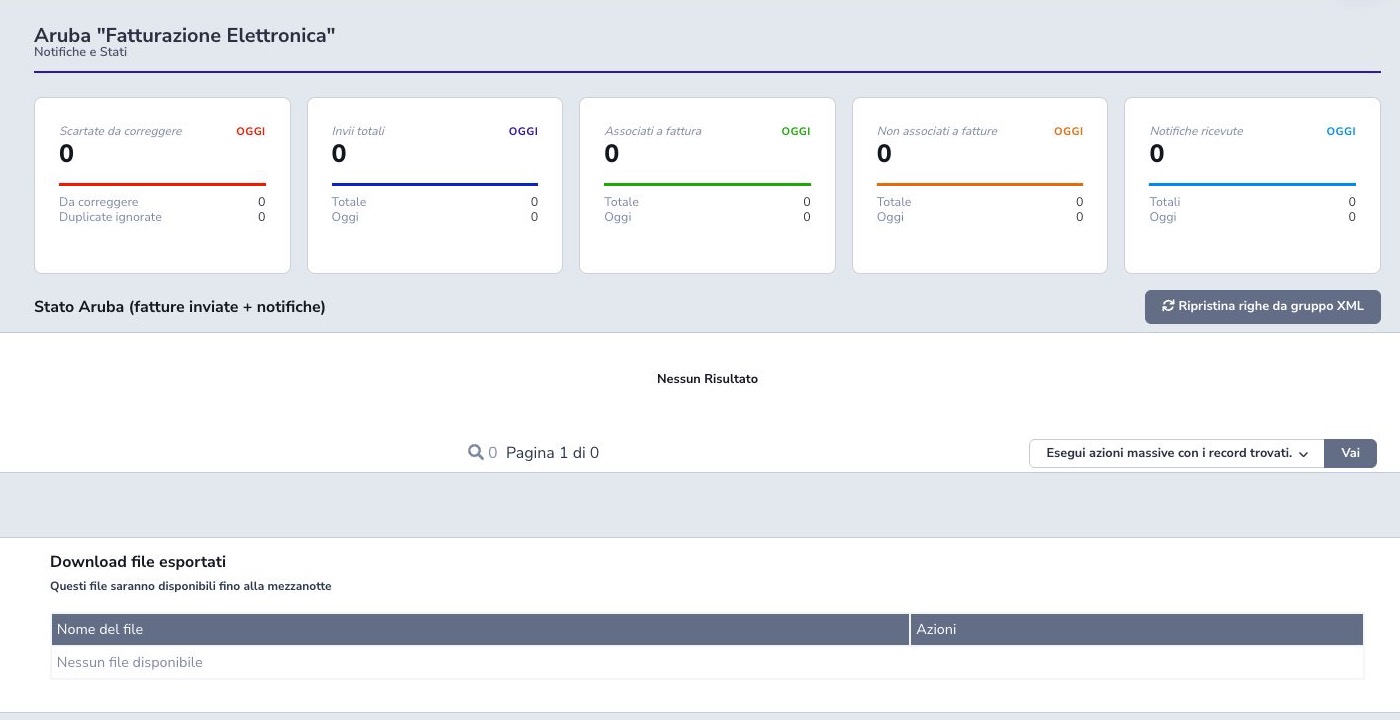
Submission state and SDI notifications
The outgoing table combines the ISP Billing invoice, customer, document and SDI dates, total, document type, current transmission state, notification count, and latest error. Open the notification history before changing a rejected source document.
Distinguish local preparation, upload, SDI acceptance, delivery or inability to deliver, rejection, and any final state exposed by the integration. A notification is evidence about one transmission and does not replace the accounting document. Correct the underlying fiscal data, regenerate only through the supported flow, and preserve the rejection history.
Restore from an XML group
The restoration page groups XML generations by stable group identifier, date, and document quantity and prepares a controlled prefill. Select the exact group that corresponds to the missing local records and compare its count and period before confirmation.
Restoration is for recovering a known generation group; it must not duplicate an existing submission, resend a rejected document unchanged, or bypass the normal correction path. Afterward, reconcile restored rows with invoices, SDI identifiers, notifications, and provider history.
Supplier invoice archive
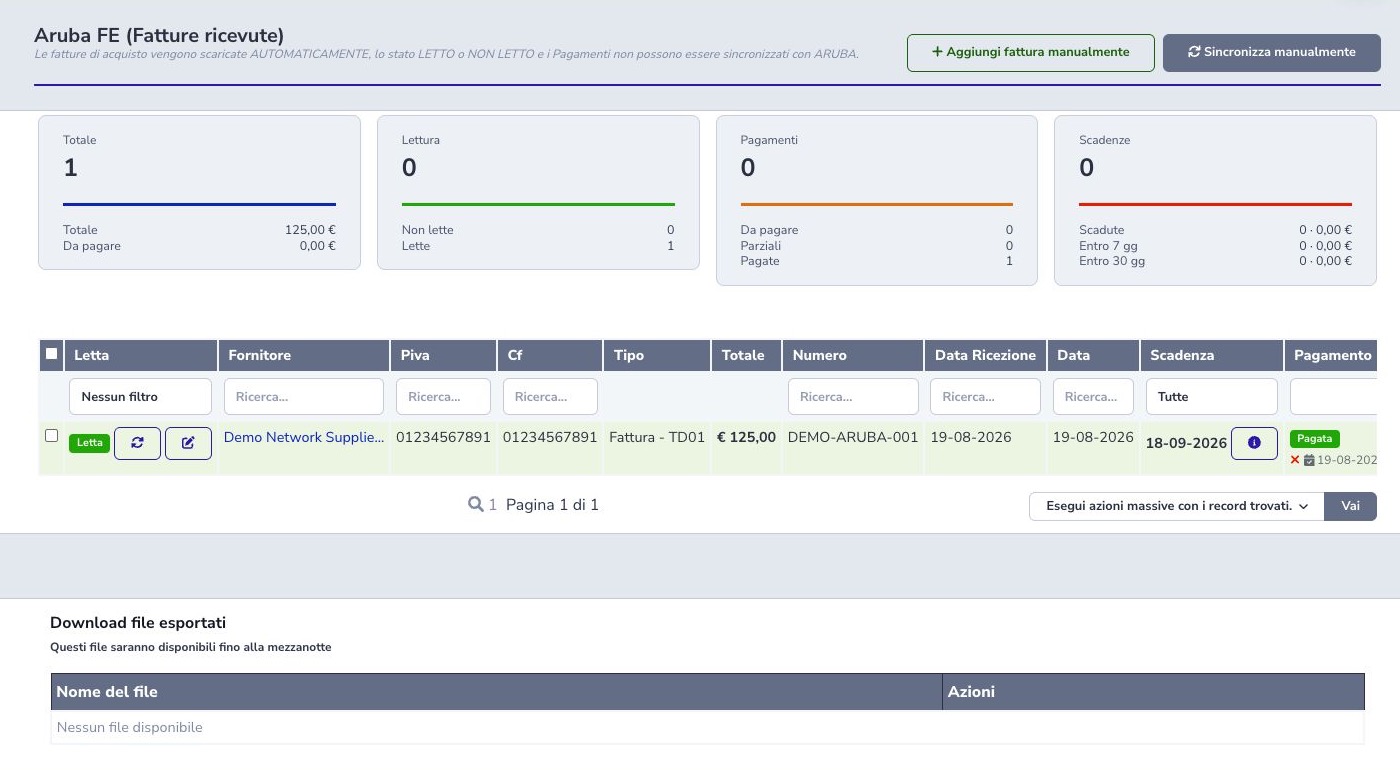
Purchase invoices download automatically. Summary cards cover document count and total, outstanding amount, read/unread, unpaid/partial/paid, overdue, due within 7 days, and due within 30 days.
Reading and payment states are local and cannot synchronize back to Aruba.
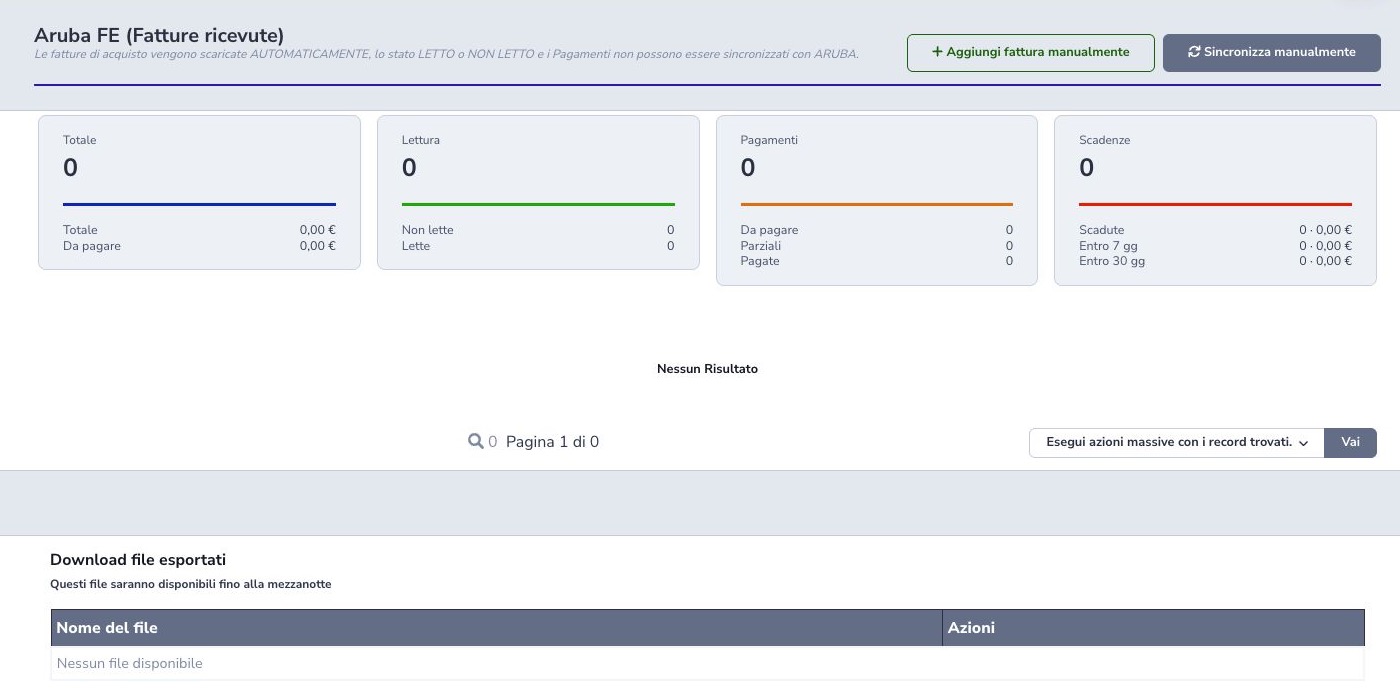
Manual synchronization
Manual synchronization asks for confirmation and start/end dates, then runs in the background. The example started 19 August 2026 and received the background-job confirmation. Start acceptance is not completion: return later and inspect documents, duplicates, errors, and supplier matching.
Manual purchase invoice
A manual document can use an existing CRM supplier or occasional name and optional VAT/tax identifiers. It requires number, date, and total and supports type, receipt date, deadline, method, terms, multiple attachments, and note.
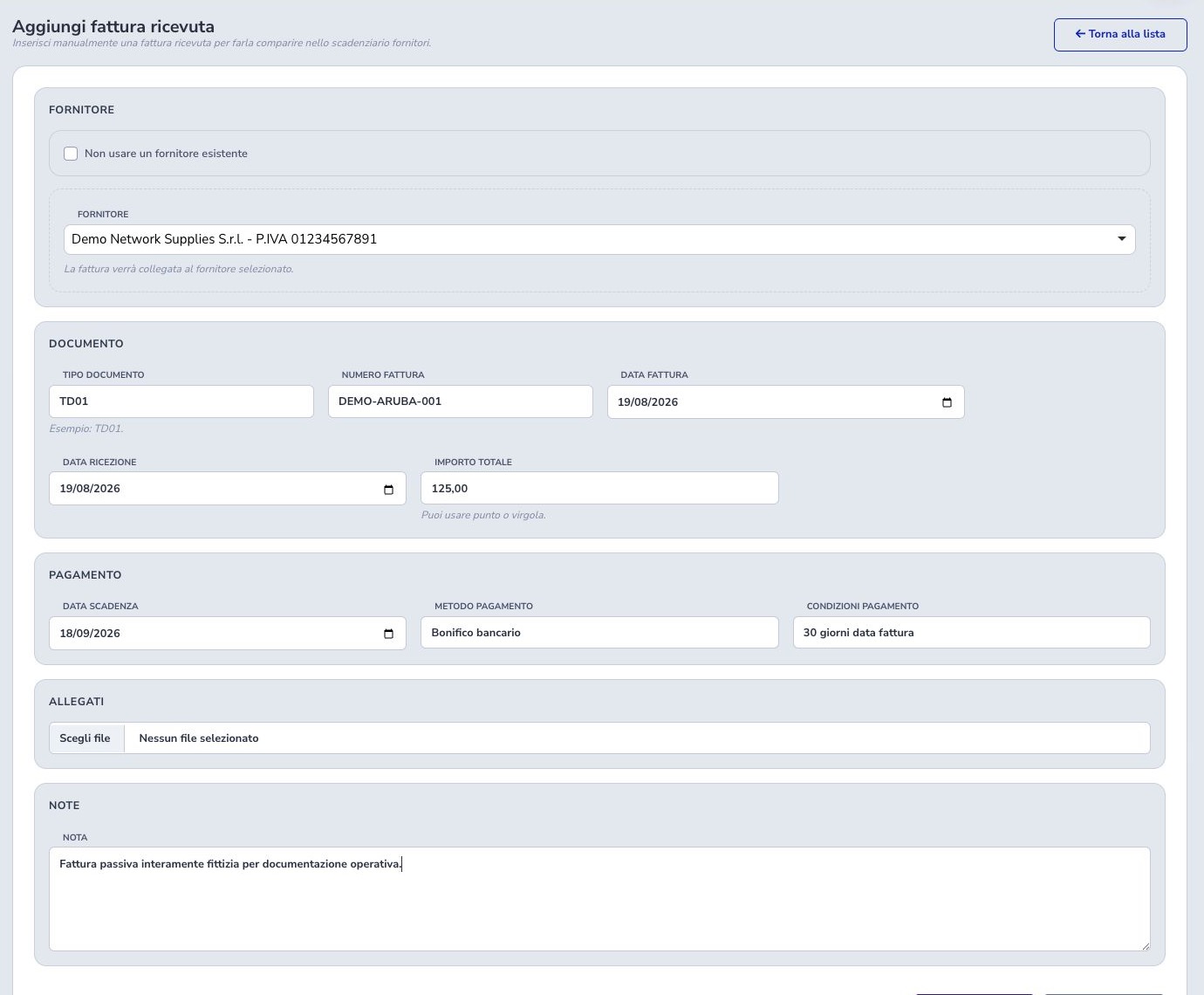
Executed creation
The example saved TD01 document DOC-001 for €125.00 with a 18 September 2026 deadline. The archive displayed one read, unpaid record, full outstanding balance, deadline within 30 days, and XML/PDF actions.
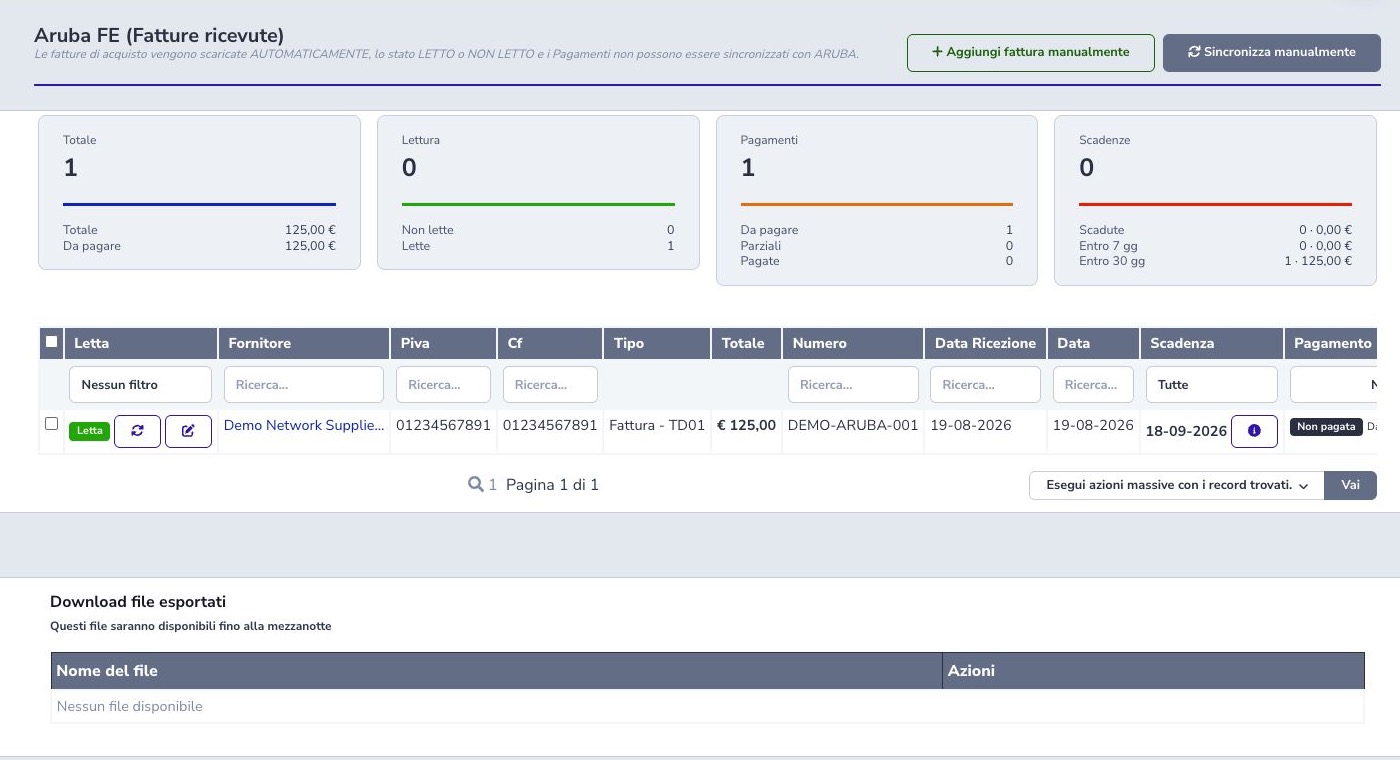
Edit a manual purchase invoice
Edit reopens the stored values, including receipt date, deadline, and internal note. Review the current data first, change only the required fields, and save.
Return to the archive and reopen the document to verify persistence of dates, amount, terms, note, and attachments. Editing applies only to manually created invoices and does not rewrite documents acquired from Aruba.
Reading state and bulk actions
Read is a local operational flag meaning that an operator reviewed the supplier invoice. It does not mean that the document was approved, accounted for, scheduled, or paid, and it is not synchronized back to Aruba.
Use bulk read or unread actions only on a reviewed filtered set. Confirm the selected count and avoid marking documents merely to clear a dashboard indicator, because other operators may rely on unread status as their work queue.
Columns, filters, and deadlines
Rows expose supplier and fiscal identifiers, document type, total, number, receipt and issue dates, deadline, payments, XML, PDF, and attachments. Text, read state, payment state, overdue or upcoming deadline, supplier, and date filters can be combined.
Use the summary cards and filters to identify unpaid, partial, overdue, due within seven days, or due within thirty days. Verify the actual contractual deadline when XML data or a manual record is incomplete; a filtered list is an operational aid, not approval to pay.
Record a supplier payment
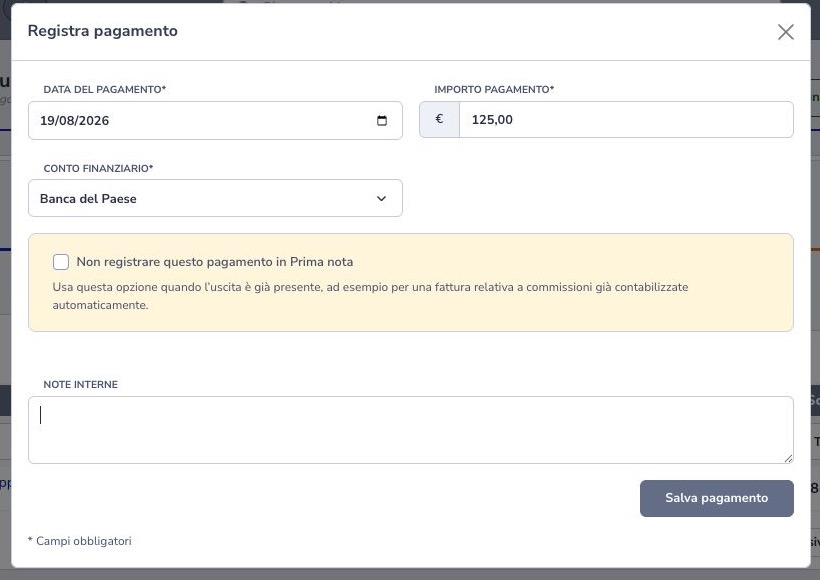
The payment action requires date, amount, financial account, optional exclusion from Cashbook, and an explanatory note. Enter only a verified movement and check that amount and date correspond to the bank or cash evidence.
An amount below the remaining balance produces Partial state; reaching the document total produces Paid. Do not enter a second payment to correct a wrong account or date—use the supported cancellation or correction flow and retain the audit trail.
Payment and Cashbook link
Unless explicitly excluded, a supplier payment creates or synchronizes the linked Cashbook expense. Exclude it only when the real expense has already been recorded through another supported Cashbook process; otherwise the financial movement would be missing.
After saving, compare supplier invoice balance, payment entry, financial account, Cashbook amount, date, and reference. The verified full-payment example changed the invoice to Paid and created the corresponding supplier expense; a previously entered manual forecast was removed to prevent duplication.
Partial payments and reverse charge
Multiple payments determine Unpaid, Partial, or Paid. Removing a payment recalculates state and synchronizes Cashbook. Recognized reverse-charge documents may default to the taxable amount paid to a foreign supplier while displaying integrated Italian VAT.
XML, PDF, and attachments
Each row can expose the original XML, a readable PDF rendering, and any document attachments available through the integration. The XML is the structured fiscal source; the PDF is a consultation representation and attachments remain separate files.
Restrict downloads to authorized users, preserve integrity, and use approved storage and retention. Do not place supplier invoices, fiscal identifiers, bank details, or attachment URLs in public documentation or ordinary diagnostic logs.
Delete manually created invoices
Only invoices created manually in ISP Billing may be deleted through this workflow. Provider-acquired documents belong to the synchronized fiscal archive and are not ordinary editable placeholders.
Before deleting a manual invoice, check its supplier, recorded payments, Cashbook links, deadlines, attachments, exports, and reports. Remove or correct dependent movements through their supported actions first, document the reason, and confirm that the invoice is genuinely a duplicate or erroneous local record.
Export issued and received XML
The notifications dashboard exports linked issued-invoice XML, while Supplier Invoices exports received documents. They are separate archives and produce separate ZIP files. A date range of no more than seven days is mandatory: document or SDI-send date for outgoing files, receipt or document date for incoming files.
Background processing reports a pending request, ready ZIP, or error file under exported downloads. Each export is capped at 2,000 rows; narrow dates and filters when the result is larger. Inspect the ZIP contents before transferring or retaining it.
Submission limits and waiting documents
Manual and automatic submissions respect Aruba service availability. If a document cannot be sent immediately, it appears as Waiting to send and resumes automatically without repeating the request, even when automatic generation and submission are disabled.
In the invoice list, the Electronic invoice column shows Waiting to send. Select the same value in the column filter to find waiting documents. Status unavailable requires a check with support and does not confirm submission.
To try sending a single waiting invoice immediately, open its details and click Send now next to the XML document. The action respects the Aruba limit: when sending is not yet available, the message shows the estimated wait. An outcome belonging to an earlier version is labelled Previous submission outcome.
Waiting does not mean Sent: check the subsequent Sent status and SDI outcomes. While waiting, the document cannot be edited, deleted or manually marked as sent. An actual error returns it to To be sent: check the document before requesting submission again.
Missing fiscal details and documents requiring correction
Before generating a document, the customer country and fiscal identifiers are checked. Italian recipients must have at least a tax code or VAT number; foreign recipients need the identifier required for that recipient.
When required details are missing, open Billing → XML errors, complete the invoice fiscal details and regenerate the document. Existing files are also checked before submission through Aruba. A document requiring correction does not prevent other documents from being processed; Aruba service limits and availability still apply.
The presence of identifiers does not confirm their correctness or SDI acceptance. Do not mark a document as sent to clear an error.
Automatic SDI submission
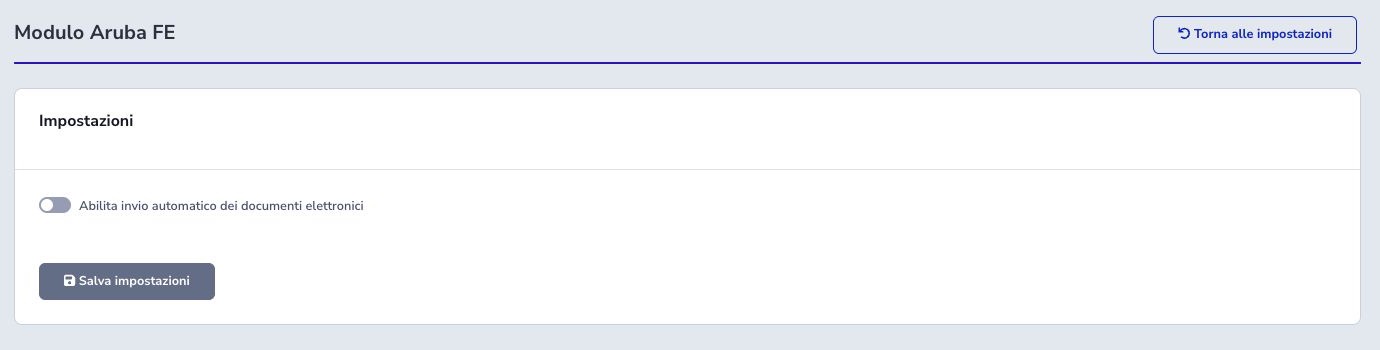
Settings can enable automatic electronic-document submission and choose zero through ten days after creation; zero means the same day. This changes external behavior and must be enabled only after validating environment, credentials, eligible documents, and review time.
Scheduled automations
Scheduled processes retrieve passive supplier invoices, collect outgoing notifications, and may submit eligible electronic documents after the configured delay. Each task needs the intended environment, active module, valid credentials, non-overlapping scheduling, and monitored logs.
Check last execution, processed count, errors, locks, and resulting documents. Starting or completing the scheduler proves only that the job ran; it does not prove SDI delivery, supplier matching, or accounting reconciliation.
Callbacks
Aruba callbacks can create a received invoice, create a notification, update invoice state, or update usage information. The supported authorization and fiscal identity select the tenant, while file name, SDI identifier, and structured content locate or update the matching record.
Treat callbacks as repeatable external events: authenticate them, separate tenants, process stable identifiers idempotently, and preserve useful event chronology. An accepted HTTP callback is not by itself the final fiscal outcome; verify the document and notification state produced inside ISP Billing.
Historical recovery
Historical supplier-invoice recovery is a guarded background procedure with a record limit, optional selection of only missing or zero-state items, throttling, and a lock against concurrent runs. Use it to repair an incomplete archive, not as the normal daily synchronization.
Choose a bounded period or count, monitor progress, and afterward reconcile requested range, returned count, duplicates, XML files, supplier associations, document dates, totals, and errors. Do not launch overlapping recoveries when a previous run is still active.
Operator checklist
- Separate issued and received invoices
- Validate permissions and provider setup
- Read SDI rejection details
- Use the correct XML group
- Verify background completion
- Avoid supplier duplicates
- Validate number, dates, total, and deadline
- Separate Read from approved or paid
- Post payments to the correct account
- Handle partial and reverse-charge payments deliberately
- Reconcile Cashbook
- Protect XML, PDF, and attachments
- Delete manual records only when appropriate
- Control automatic submission