
Contracts
Create, generate, attach, sign, and audit customer and service contracts.
Last updated: 2026-09-26
Module purpose
Contracts manages more than PDF files. A record may retain its source mode, template, generated content, customer, service lines and prices, status, signature, attachments, payment method, custom values, and operational history.
A contract can be generated from an ISP Billing template or acquired as an externally prepared PDF. Both modes create a uniquely coded practice available to authorized operators.
List, search, and status
The list shows status, contract code, name, customer, and creation date. Search by customer or filter Non-signed, Signed, and Cancelled records. Open the code or name for full details; the customer link opens the CRM record.
A filtered status is not legal proof. Review the document, signature, dates, attachments, and event history.
Prepare the module before first use
Complete Issuer details, PDF template, attachment library, and at least one contract model before creating operational records. Also verify payment gateways, referenced customer fields, service catalog, and—where required—OTP Service and Resellers.
These settings feed every later document. A correction does not automatically rewrite PDFs already delivered, so keep recognizable versions and run one complete fictional contract before commercial use.
Issuer and PDF rendering
Issuer settings hold company name, fiscal identifiers, country, province, address, street number, postal code, e-mail, and phone of the contracting entity. PDF Template configures style, color, recommended 400×200 PNG logo, and reusable footer.
Generate a sample after each change and inspect margins, contrast, logo, page breaks, and readability. Keep customer-specific terms out of a global footer.
Build a contract model
A model has a clear name and may be exposed to resellers or classified as a Form instead of a Contract. Compose A4-oriented HTML or upload a base PDF; when conversion cannot handle its compression, resave the source as PDF/A.
Insert placeholders for identity, address, contacts, customer code, date, custom fields, contracted services, and payment methods from the side panel. Test long values, companies, and individuals. The service-list placeholder depends on Contract Details configured in each service model.
A model may include shared attachments and create tasks for selected accounts when signing completes. Expose only partner-approved models to resellers.
Disable and reactivate a model
In Contracts → Settings → Create and manage models, each model shows an Active or Disabled status. Use the Status filter to find either. After Disable or Reactivate, close the success message: the page reloads to show the saved status. Operators with write access to Contracts settings can select Disable on the row and confirm: the model stays in the library but cannot be selected for new contracts, in the wizard, in the reseller portal or as a replacement model.
Existing contracts, including unsigned ones, retain their assigned model and remain manageable under the usual permissions and status rules. Disabling a model does not cancel contracts, remove documents or change services or signatures. If the model is disabled while an unsaved new contract is open, select an active model before saving.
Select Reactivate and confirm to allow new uses again; reseller access still requires the separate reseller setting. This applies to Contract and Form models in HTML and PDF formats; reusable pages remain separate. Saving content changes does not reactivate a disabled model. Duplicating it creates a new active model.
Bank account and mandate placeholders
At the bottom of the placeholder panel, Bank account and mandate inserts the account selected on the contract into models and reusable pages. The buttons work in HTML text and when placing placeholders on a base PDF.
- Account holder:
{payment_account_holder} - Full IBAN:
{payment_iban} - BIC:
{payment_bic} - Account holder address:
{payment_account_address} - Account holder city:
{payment_account_city} - Account holder province:
{payment_account_state} - Account holder postal code:
{payment_account_postal_code} - Account holder country:
{payment_account_country} - Mandate ID:
{payment_mandate_id} - Mandate acceptance date:
{payment_mandate_date} - Mandate acceptance date and time:
{payment_mandate_datetime}
Dates use DD/MM/YYYY and DD/MM/YYYY HH:mm:ss. Mandate ID and date come from the corresponding saved account fields; technical provider identifiers are not substituted for them. The full IBAN is included; BIC and other optional values remain blank when unavailable.
To populate a mandate, select the payment method and the specific customer bank account on the contract. The values identify the account holder, who may differ from the customer. No alternative account is selected automatically and customer profile addresses are not used as substitutes. A missing, deleted or incompatible account leaves the placeholders blank.
These placeholders also work in a reusable page conditional on SEPA payments: the page inclusion rule is evaluated first, then account values are inserted. Missing values or invalid dates remain blank; inspect the PDF before signing. Values reflect the associated account when the document is generated and do not change previously saved or signed PDFs.
Include a page based on payment
When creating or editing a Reusable page, choose Include this page: Always keeps the usual behaviour; Only for these payment methods requires at least one selected method. Then insert the page reference into the contract model as usual: configuring the condition alone does not add the page to any model.
The page is included when the payment method actually selected on the individual contract matches any selected method. A different method, or no method, excludes the content. For example, select SEPA direct debit and PAAV SEPA direct debit on a SEPA mandate page: it appears for those payments and not for bank transfer or cash. The methods must be selectable in the contract; the page condition does not enable new payment methods.
Existing pages remain set to Always. Duplicating a page preserves its condition; switching back to Always removes the restriction. Previously selected methods that are later disabled remain visible with an inactive label, preserving the rule for contracts that still use them.
To exclude a page break together with the content, place it inside the reusable page. Breaks inserted separately in the model remain; the condition does not remove physical pages from an uploaded base PDF. For HTML contracts, OTP Service signature points inside an excluded page are not part of the generated document.
The condition applies to subsequent document generations. It does not rewrite previously saved or signed PDFs. To retain different versions of the conditions, duplicate the page and link the new version to the intended models before changing a shared page.
Worked example: a SEPA mandate embedded in the contract
Create a SEPA mandate reusable page to include in the contract only for payments that require that mandate. The rule compares the payment method selected on the individual contract with the methods selected on the page: matching any one of them is sufficient.
- Create the page. Open Contracts → Settings → Create and manage models. Under Reusable pages, select Create new page, name it SEPA mandate and compose the text with the HTML editor.
- Insert variable data. At the bottom of the side panel, find Bank account and mandate. Use its buttons to insert the account holder, IBAN, BIC, holder address, mandate ID and acceptance date where needed. Use this section for account holder details, as the holder may differ from the contract customer.
- Set the inclusion rule. Under Include this page, choose Only for these payment methods. In Contract payment methods, select one or more relevant methods, such as SEPA direct debit and PAAV SEPA direct debit, if available. If several SEPA options exist, explicitly select every option that should use this page. Save the page.
- Link it to the model. Open the HTML contract model, place the cursor where the mandate should appear and select SEPA mandate under Reusable pages in the side panel. Save the model. The condition alone does not insert the page: its reference must be present in the model.
- Complete the contract. Create a contract using that model and select its payment method. To populate bank details, also associate the specific customer account and complete its account and mandate details.
- Review the document. Generate the PDF and check that the mandate appears with the expected values. A payment method outside the selected set, or no payment method, must exclude the mandate.
Example: the page allows SEPA direct debit and PAAV SEPA direct debit.
- Contract with SEPA direct debit: mandate included.
- Contract with PAAV SEPA direct debit: mandate included.
- Contract with bank transfer, cash or another unselected method: mandate excluded.
- Contract without a payment method: mandate excluded.
Page inclusion depends on the payment method; placeholder values depend on the associated account. If the method matches but bank or mandate details are missing, the page may appear with blank fields: complete the details and review the PDF before signing. The mandate date comes from the saved account, not the current date.
To start the mandate on a new page, insert a Page break at the beginning of the reusable page content so that it is excluded together with the mandate when the condition is not met. Changes apply to subsequent document generations and do not update previously saved or signed PDFs.
Custom fields and reusable pages
Contract custom fields collect information that is not already available in the customer, service, or billing records. For each field configure a clear name, the correct input type, any selectable options, a safe default, an operator-facing description, validation rules, and whether completion is mandatory. A regular expression must be tested with both valid and invalid values before the field is used in a live model.
Before renaming or deleting a field, search every model that may reference its placeholder and inspect existing contracts. A removed or renamed identifier can leave an empty value in newly generated documents. Do not use these fields to store passwords, payment credentials, or other secrets.
Reusable pages centralize clauses or information blocks shared by several models. Give each page an unambiguous purpose and version, then inspect every model that includes it whenever the content changes. An update affects future generations; it does not silently rewrite PDFs already produced, delivered, or signed.
Attachment library
The shared attachment library is intended for PDFs that can be reused by multiple contract models, such as standard terms, technical schedules, or privacy notices. Record a meaningful filename, purpose, and version so that an operator can identify the correct document without opening several similar files.
Shared library files are different from attachments uploaded for one specific contract. Before replacing or deleting a library item, check the models and contracts that depend on it, the storage information shown by the module, and whether the same version must remain available for audit purposes. Deletion can be irreversible and must never be used as a substitute for document retention policy.
Creation wizard
Select Create contract and complete Customer, Mode, Details, and Services. Choose the correct customer first; Create new opens CRM creation and returns to the contract path.
Save and continue validates the current choices. The system rejects saving when the required mode or template is missing.
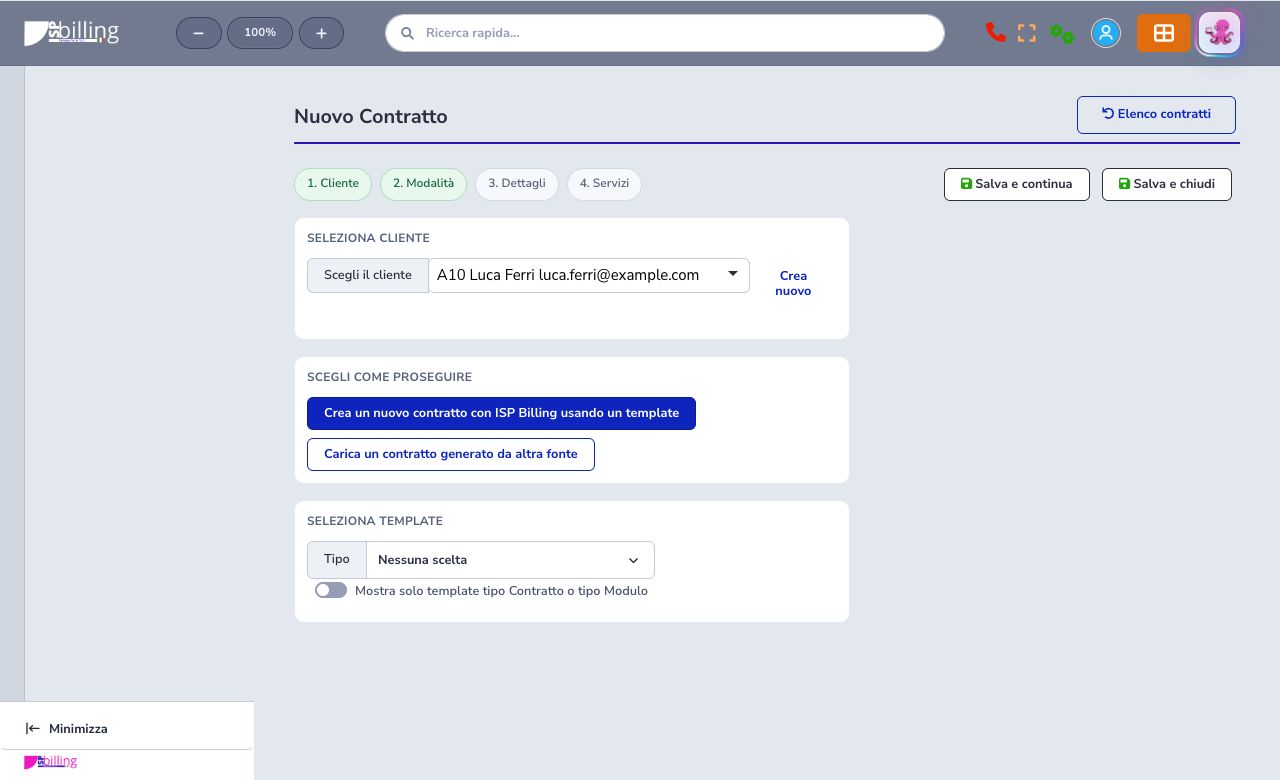
Template mode
Template mode creates the contract from a configured Contract or Form model. Select the model only after checking its title, version, intended customer type, visibility, reseller scope, clauses, placeholders, reusable pages, and linked attachments. Service-specific contract details must also be configured where the selected services require them.
Complete the wizard values, generate the document, and inspect the resulting PDF before sending it. In particular, verify issuer and customer identity, contract code, selected services, quantities, prices, recurring terms, notices, and signature markers. A successful generation confirms that the file was produced, not that its commercial content is correct.
External PDF mode
External PDF mode registers a contract document that was prepared outside the model engine. Upload the definitive file only after checking its origin, page order, readability, customer identity, dates, commercial terms, and signature areas. Use PDF/A when the organization's retention process requires it.
The upload does not certify the document, validate an existing signature, or make the file compliant by itself. The main contract PDF must remain distinct from supplementary attachments so that operators and customers can always identify which document is authoritative.
Details and custom values
Details include an operational name, optional external reference, status, and template or custom-field values. The system-generated contract code remains the internal short reference.
Use a clear name without unnecessary personal data. An external reference links another workflow but never replaces the internal identifier.
Services and commercial values
Service rows may retain offer, existing instance, address, billing cycle, price, quantity, discount, activation charge, VAT, and display order. Drag the rows into the desired sequence and save the contract: the service list in the generated PDF follows the saved order for both HTML models and models with a base PDF. Review recurring and one-off amounts before generating the PDF.
A service row does not necessarily mean that an operational instance already exists. A separate command can create missing instances after saving; review the resulting status, start, and billing schedule and never create duplicates.
PDF preview and download
Generate or open the final PDF and inspect it page by page before delivery. Verify issuer and customer identity, contract code, dates, services, quantities, one-off and recurring prices, taxes where applicable, clauses, notices, referenced attachments, page numbering, and every expected signature marker.
Keep the generated document conceptually separate from a provider-signed or customer-signed result. Download the exact version needed for the operation and verify that status, history, and stored file agree; the presence of a PDF alone does not prove that the signing workflow has completed.
Additional attachments
Additional attachments belong to one contract and supplement the primary document. Upload only supported file types and sizes, use a meaningful name, indicate purpose and version in the operational record, and make sure the file is intended for the same customer and contract.
These files can become visible through the protected Customer Area according to the configured workflow. Minimize personal data, never upload credentials, and verify dependencies and retention obligations before removal. Deleting an attachment can make the historical dossier incomplete even when the main contract remains available.
Status and cancellation
Non-signed means no recorded signature; Signed retains signature information and date; Cancelled records cancellation. Do not change state merely to simulate an external result.
Cancellation retains history, while deletion removes a record subject to application constraints. Prefer traceable cancellation for issued documents and review service effects.
Customer signature
The customer-signature flow presents the contract through the protected customer path configured by the ISP. Before enabling it, verify the document version, signer identity, authorized e-mail address and mobile number, required notices, consent text, and any embedded SMS OTP configuration.
The customer must review and perform the signature action personally; an operator must never complete it on the customer's behalf. After the action, confirm the final contract state, timestamp, audit events, and resulting PDF. A sent link or entered code is not sufficient evidence unless the workflow records completion.
OTP Service signature
When OTP Service is enabled, the contract can be prepared as an external signature dossier using the configured simple-signature or FEA process. Verify the mapped signer identity, contact channels, definitive PDF, signature points, provider credentials, callback URL, and the correspondence between local and provider identifiers before submission.
Follow the dossier through preparation, submission, customer action, callback, and final synchronization. Completion must update contract status and history and store the signed PDF or its verified reference according to the configured process. Do not create a second dossier merely because the callback is delayed; inspect the existing provider state first.
Send the contract
Use the available communication channels to notify the authorized recipient and deliver the configured link or attachment. Before sending, verify recipient addresses, communication preferences, language, message template, sender configuration, and the exact contract version. Avoid exposing the document through an unprotected link.
Check both the local timeline and the relevant sending queue or provider outcome. A local Sent event means that the delivery request was created; it does not prove that the message reached the recipient, that the document was opened, or that the contract was signed.
Linked payment method
A contract can retain the intended payment gateway and a supported customer payment method when the billing workflow requires it. Select only a provider already configured for the tenant and a method that belongs to the correct customer, then verify how that association is used by service activation, recurring billing, or contract automation.
The association records the chosen commercial path; it is not proof of a charge, mandate, or successful authorization. Never copy card data, bank credentials, or provider secrets into contract fields. Confirm the resulting link in the contract details and verify payment outcomes only in the dedicated payment and billing records.
History and audit
The event history records creation, updates, state changes, delivery, OTP preparation or completion, operator, and time. Use it together with the PDF, attachments, signature, services, custom values, and provider outcomes to reconstruct the practice.
Operator checklist
- Select the authorized customer
- Choose template or external PDF deliberately
- Review name, reference, and custom values
- Validate services, prices, discounts, activation, and VAT
- Distinguish contract lines from operational instances
- Inspect every PDF page and attachment
- Verify signer, contacts, and signature points
- Confirm provider completion, not merely preparation
- Protect payment data
- Check delivery provider and event history
- Use traceable cancellation when history must remain