
Coverage Map: configuration and operations
Complete guide to sources, public checks, customer address scanning, statistics, and radio feasibility.
Last updated: 2026-08-19
Open Fiber status and speed
Open Fiber statuses are interpreted according to the AB, CD or AGF area. In AB and AGF areas, status 104 (RFC) indicates available FTTH coverage. Pending permissions, denied permissions and validation conditions remain visible in the details; unrecognised statuses require verification.
FTTH availability alone does not identify a 1, 2.5 or 10 Gbit/s profile. When the source does not specify a profile, the result states Not specified by the source. Confirm the provider’s offered profile before preparing a commercial proposal.
What Coverage Map solves
Coverage Map combines the ISP’s own network, national datasets, and configured third-party providers in one address check. Operators can compare available technologies and use the evidence during sales, activation, and service management.
A positive result supports qualification but does not replace the provider’s final technical and provisioning checks.
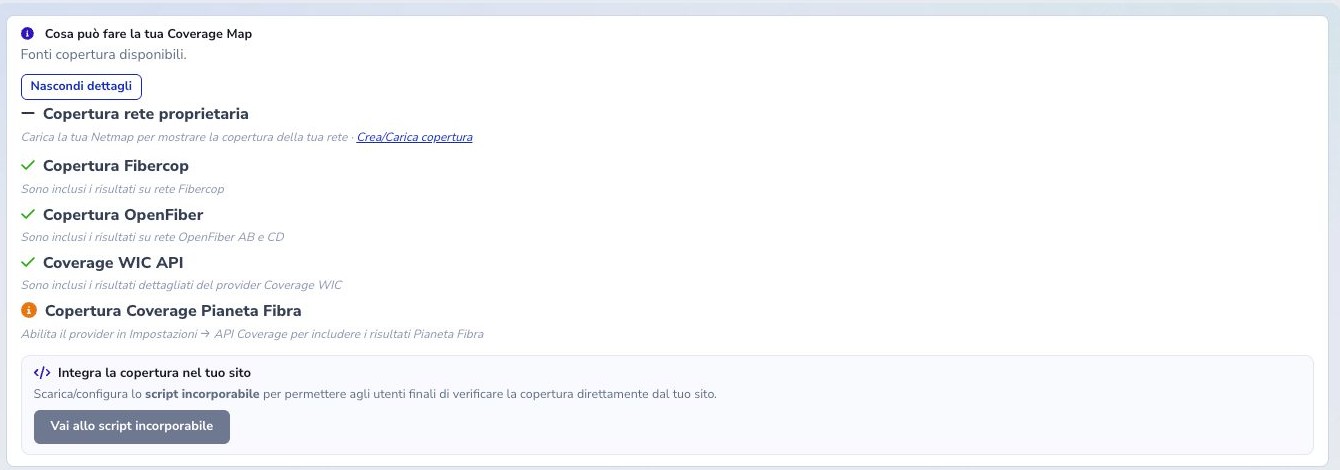
Recommended configuration order
- Set the public name, logo, and access rules.
- Load the private wired Netmap.
- Register wireless base stations.
- Configure only third-party APIs backed by a valid account.
- Run a known internal address check.
- Style and authorize the public widget.
- Review the automatic customer-address report.
General settings and public visibility
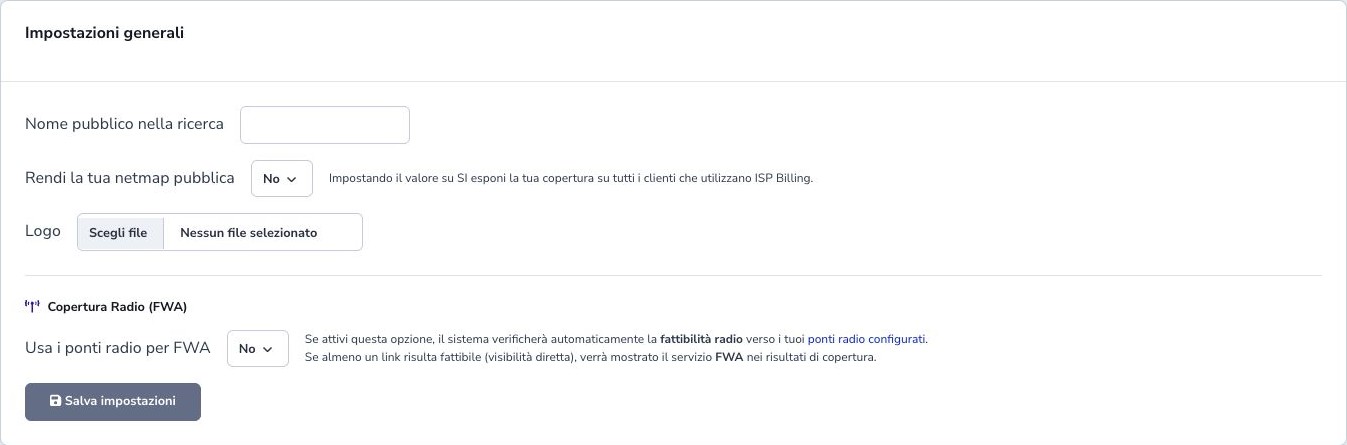
General settings control the public name and logo, whether the private Netmap can be shared, and which ISP codes are allowed to use it. These controls are separate from module activation.
Use radio bridges for FWA allows saved base stations to contribute wireless availability when the line-of-sight calculation succeeds. Enable it only after coordinates and site heights have been checked.
Private Netmap: the wired network
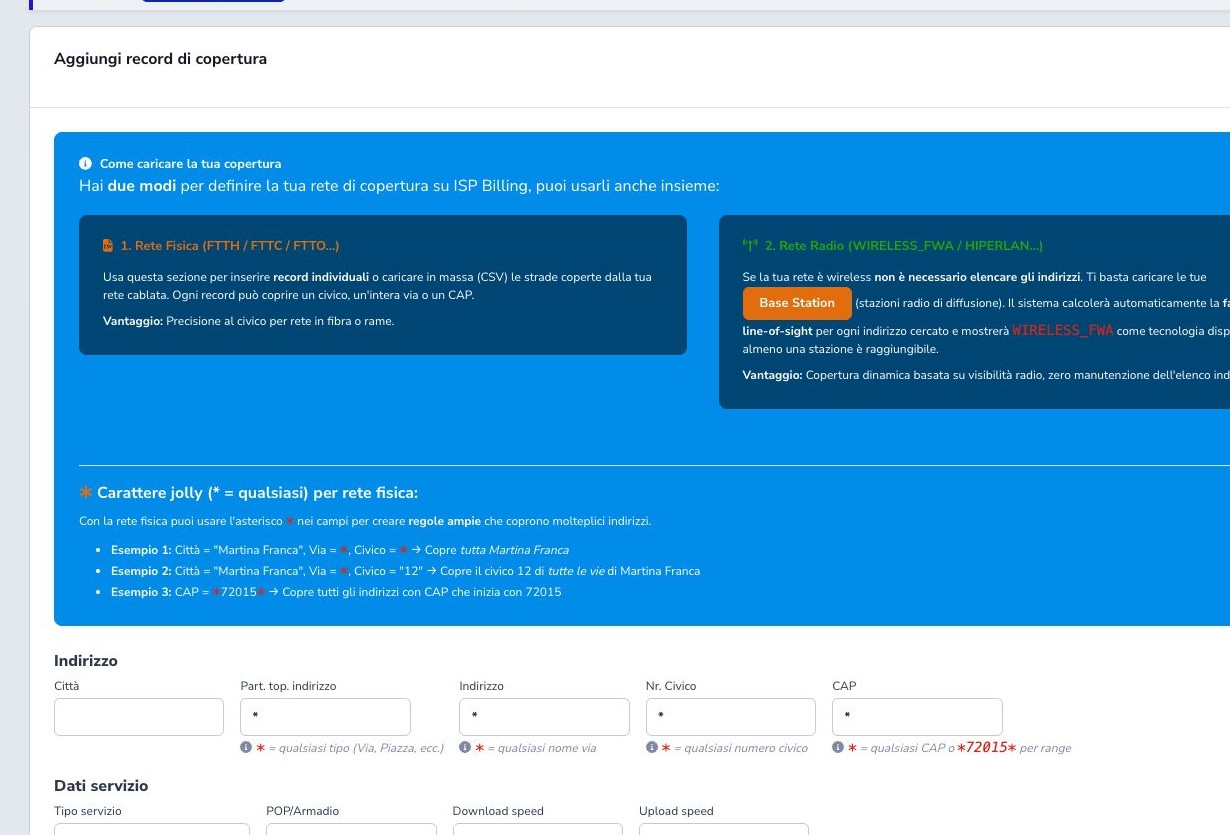
The private Netmap describes coverage built or directly managed by the ISP. A record can identify one street number, a whole street, or an entire postal code. Its fields include town, street prefix, address, street number, postal code, technology, POP or cabinet, and advertised download/upload capacity.
The * wildcard broadens matching: in the street-number field it can cover the full street, while in the address field it can cover the postal code. Use it only when the infrastructure genuinely serves the entire declared area. An overly broad rule can show coverage for addresses that still require a different cabinet, route, or feasibility check.
Available labels include FTTH, FTTC VDSL2/EVDSL, FTTO, point-to-point fiber, wireless/FWA, HiperLAN, LTE, 4G/5G, and business GPON. Select the service that can actually be sold and provisioned, not the most attractive commercial label.
Importing the Netmap from CSV
For a large footprint, download the supplied template, prepare the CSV, upload it, and map each file column to the corresponding Netmap field. Check encoding, delimiter, headers, leading zeroes in postal codes, and the exact technology vocabulary before confirming.
Update keeps the existing inventory and adds or updates matching records. Replace removes the current Netmap and retains only the uploaded file. Use Replace only with a complete, backed-up, sample-verified export: a partial file would make every omitted area disappear from searches.
After either operation, test several precise addresses, wildcard matches, and addresses expected to return no private coverage. Do not publish the widget until those samples reproduce the real network plan.
Third-party coverage providers
The Third-party Netmap APIs tab can configure Pianeta Fibra with an enabled flag, provider token, and Base URL. Save the configuration and repeat a known-address search.
Keep tokens in protected fields and never expose them in public screenshots, tickets, or widget code.
Search and interpret results
Select the town and address from suggestions and enter the street number. Guided selection prevents incomplete or inconsistent place data from reaching providers.
If a search, including one opened from a portal link, returns no coverage, a visible message explains that alternative addresses are being searched. You can wait for suggestions or start another search. Choose Use and search to check an alternative; a suggested address does not itself confirm coverage. Editing the fields cancels the previous suggestion search. Suggestions appear progressively. You can wait while working in other ISP Billing windows. A failure to retrieve suggestions is reported without implying that the address is incorrect.
Data updated on in the results shows the date and time of the last successful update of that individual address, separately for FiberCop and Open Fiber. The date is renewed even when the received data is unchanged. If that record cannot be updated, its previous date is retained; other addresses may have different dates. Date unavailable means the result contains no valid date.
A provider may supply an address without a prefix such as VIA or VIALE: in that case, the available description is retained.
Successfully updated addresses remain available even when other records have problems. Records that could not be updated retain their previous data and date: an available search does not imply that every address was updated at the same time.
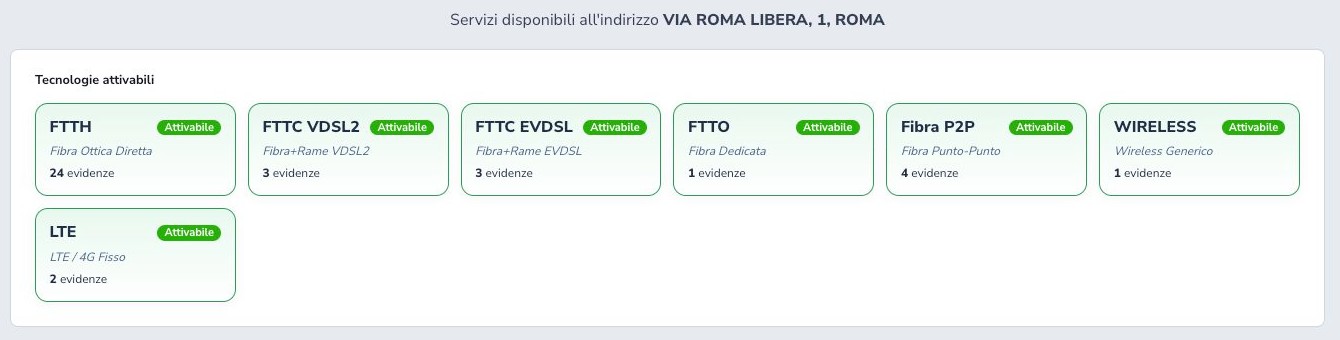
Results are grouped by technology and may include several pieces of evidence. A real Rome test returned FTTH, VDSL2 and EVDSL FTTC, FTTO, point-to-point fiber, wireless, and LTE. Multiple cards do not mean that every option can be ordered from the same supplier; continue with the correct commercial and provisioning chain.
Automatic scan report
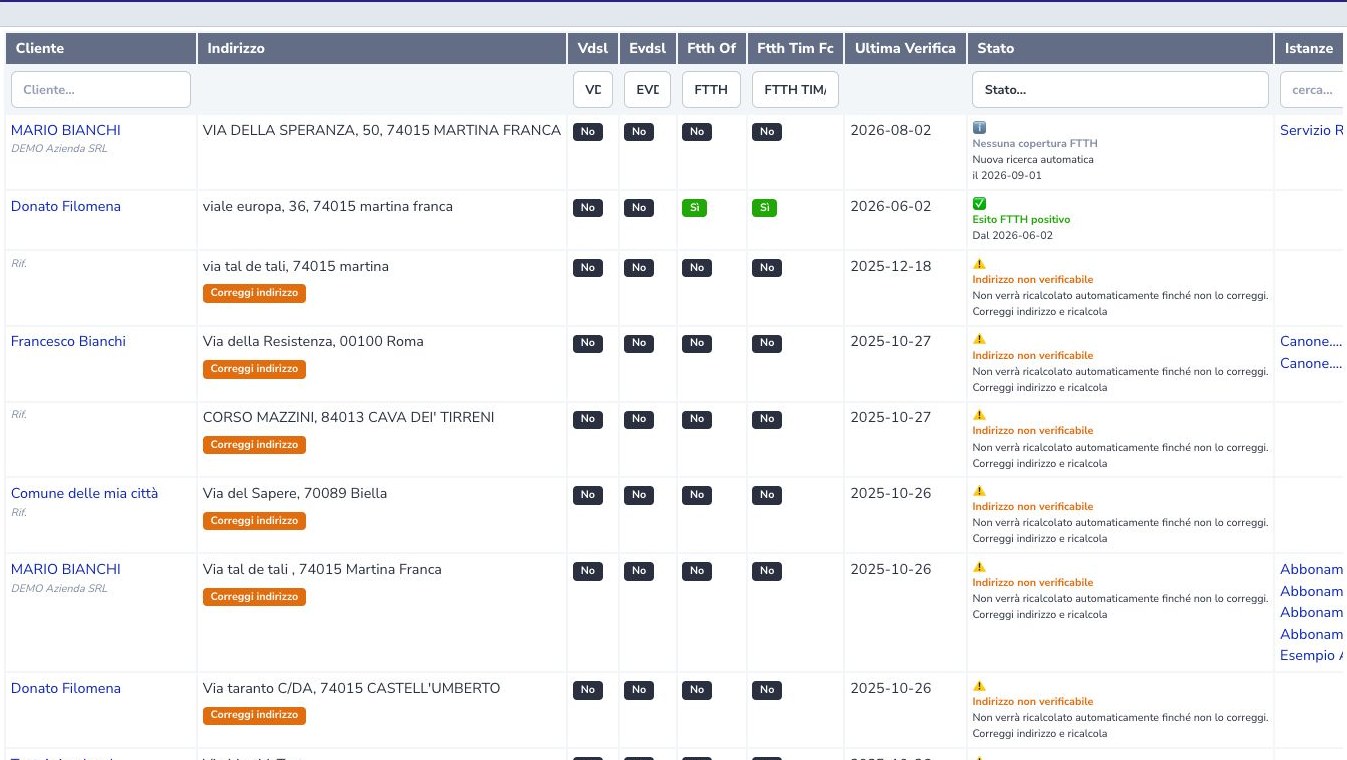
The automatic report is focused on FTTH opportunities. Its provider headers display the Open Fiber and FiberCop logos with separate availability filters. VDSL and EVDSL remain available as technical data but no longer occupy columns in the commercial list. Last check, status, and the Current service remain visible.
Current service distinguishes three cases: Linked to site when the active connectivity service uses that exact address; Needs site association when the customer has an active service that is not linked to the row address; and No active connectivity service when no current line exists. The filter below the same column immediately isolates each case.
Recalculate refreshes one address. An unverifiable address remains excluded from scheduled refreshes until street, number, postal code, and town are corrected.
Statistics and upgrade opportunities
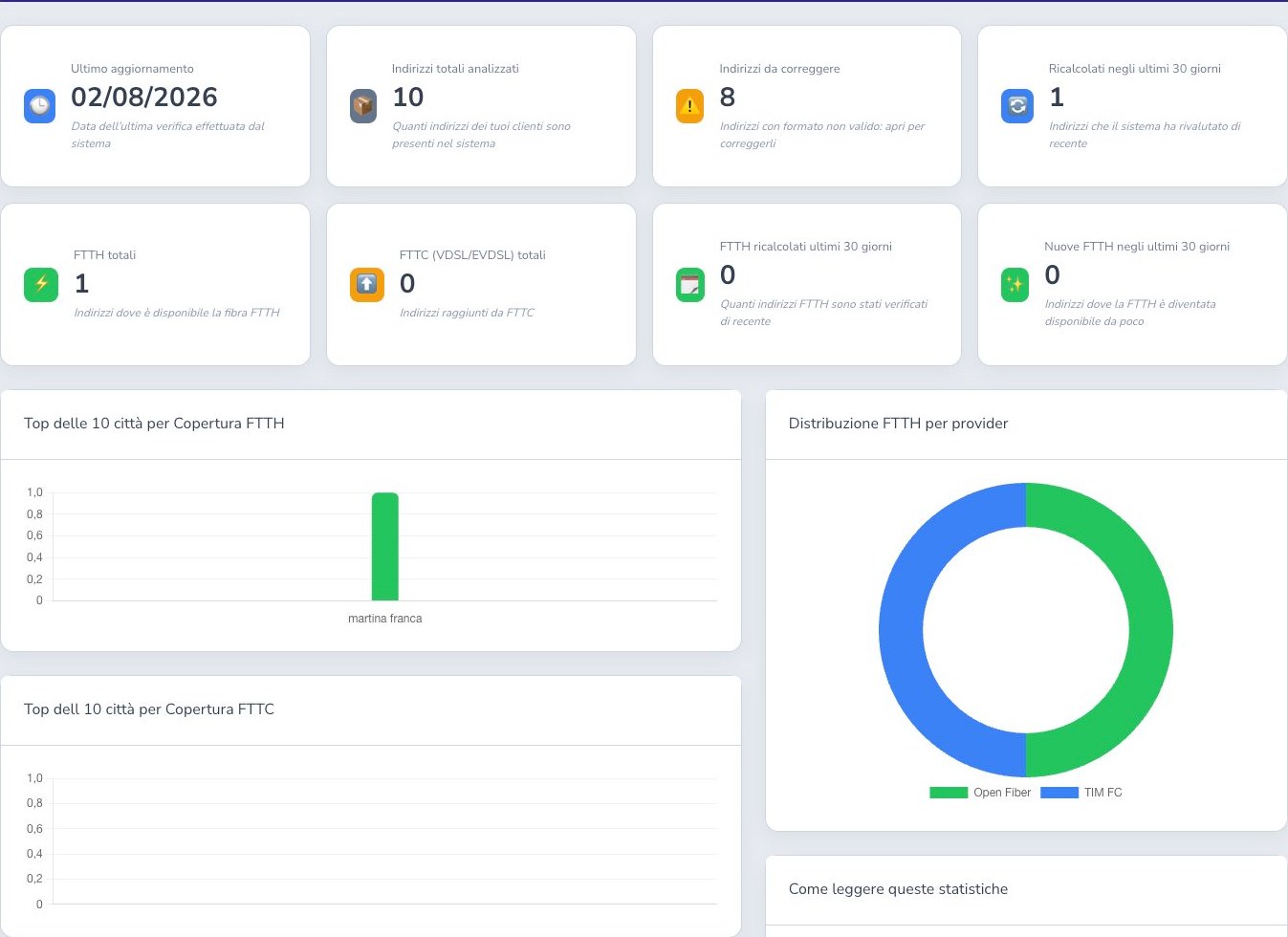
The page separates Recommended actions from Scan data. Its three primary cards open the complete upgrade opportunities, FTTH availability first detected during the last 30 days, and addresses requiring correction. Explicit buttons describe each available action, while technical KPIs remain in a compact secondary strip and are not presented as links.
Customers eligible for an FTTH upgrade counts each customer once when they have an active non-FTTH connectivity service at a site that is now FTTH-covered and no fiber service is already recorded at that site. The card splits the total into Private customers and Businesses; the latter includes associations, public bodies, and other non-private organizations. Both counters open their matching filtered lists, while View all applies no customer-type distinction.
These lists support commercial review but do not replace checks on service classification, scan freshness, and final serviceability. City rankings and provider distribution describe the ISP’s customer-address dataset, not the national market.
Saved radio points
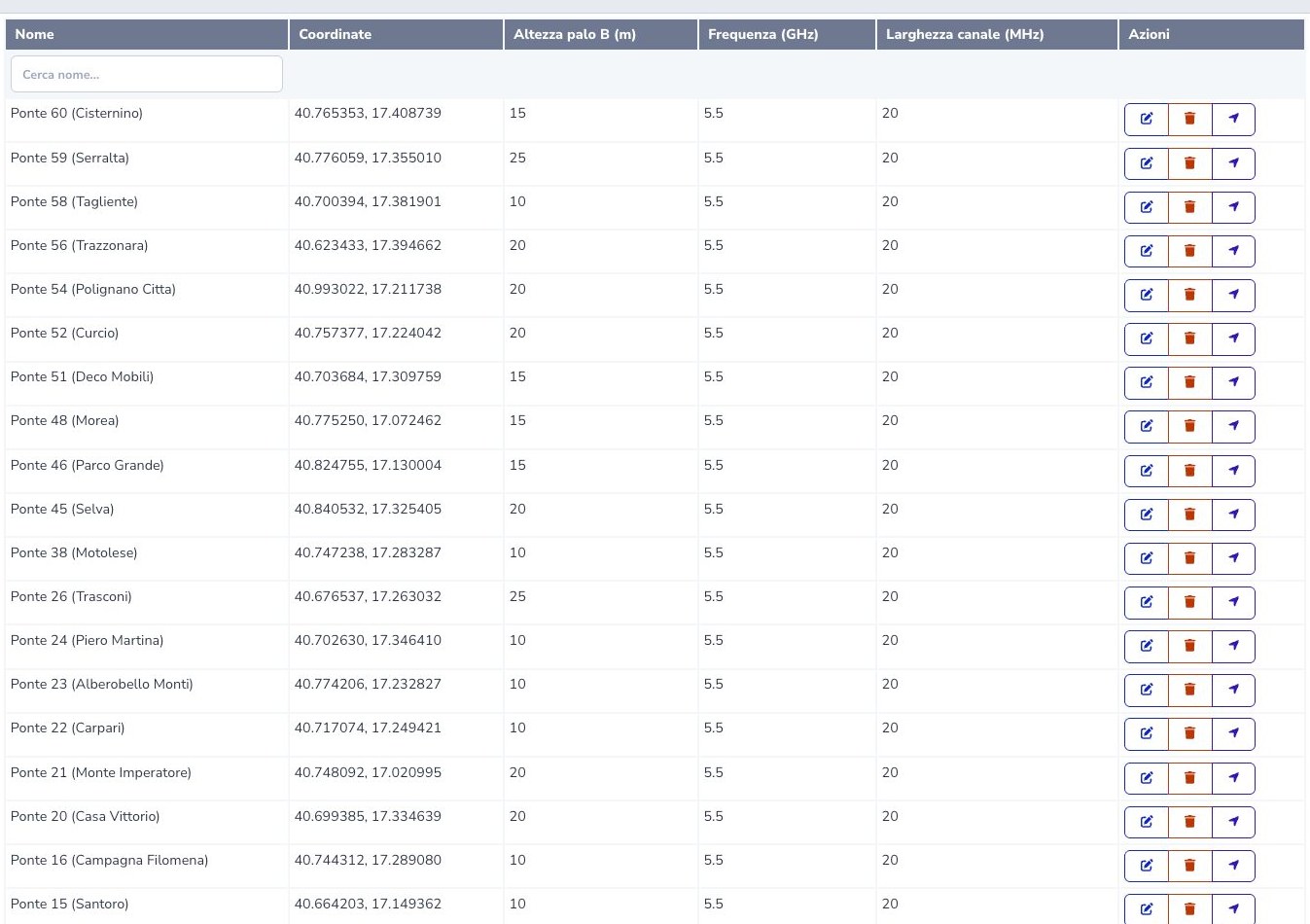
Saved points represent base stations. Store a clear name, latitude, longitude, pole height, GHz frequency, and MHz channel width. Use for check transfers the site and its radio parameters into the feasibility page.
Points can be searched, edited, deleted, exported, and imported through CSV. Verify coordinate order and units before a bulk import.
Radio Feasibility
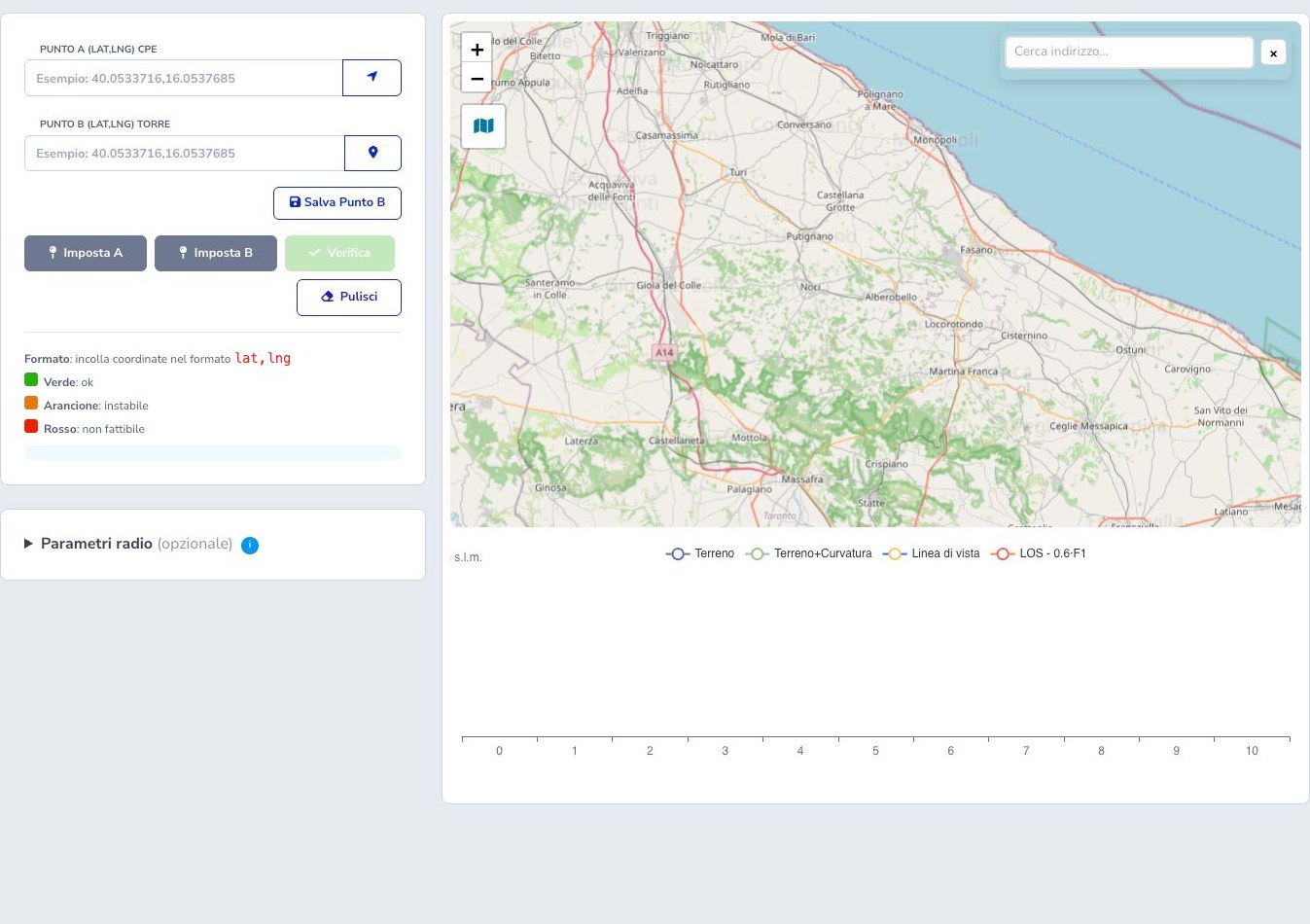
Point A normally represents the customer CPE and point B the tower. Coordinates use lat,lng and can be entered, selected on the map, or loaded from saved points.
The calculation evaluates terrain profile, line of sight, and Fresnel clearance. Green is favourable, orange indicates reduced margin or instability, and red indicates an infeasible path. Poor Fresnel clearance should be addressed through antenna height or a better site, not merely additional power. This preliminary calculation does not replace a survey, interference analysis, equipment limits, or regulatory checks.
Public widget: styling and installation
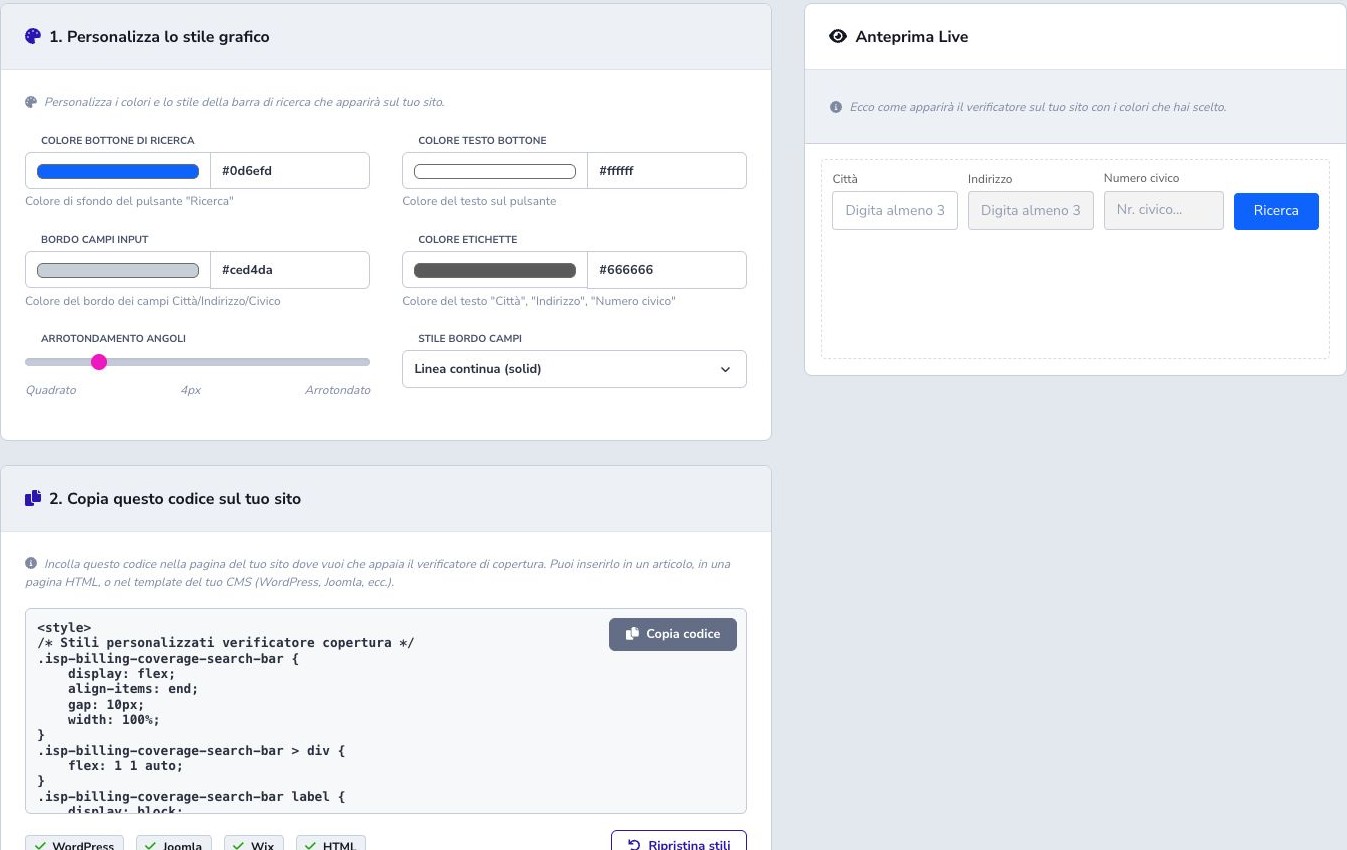
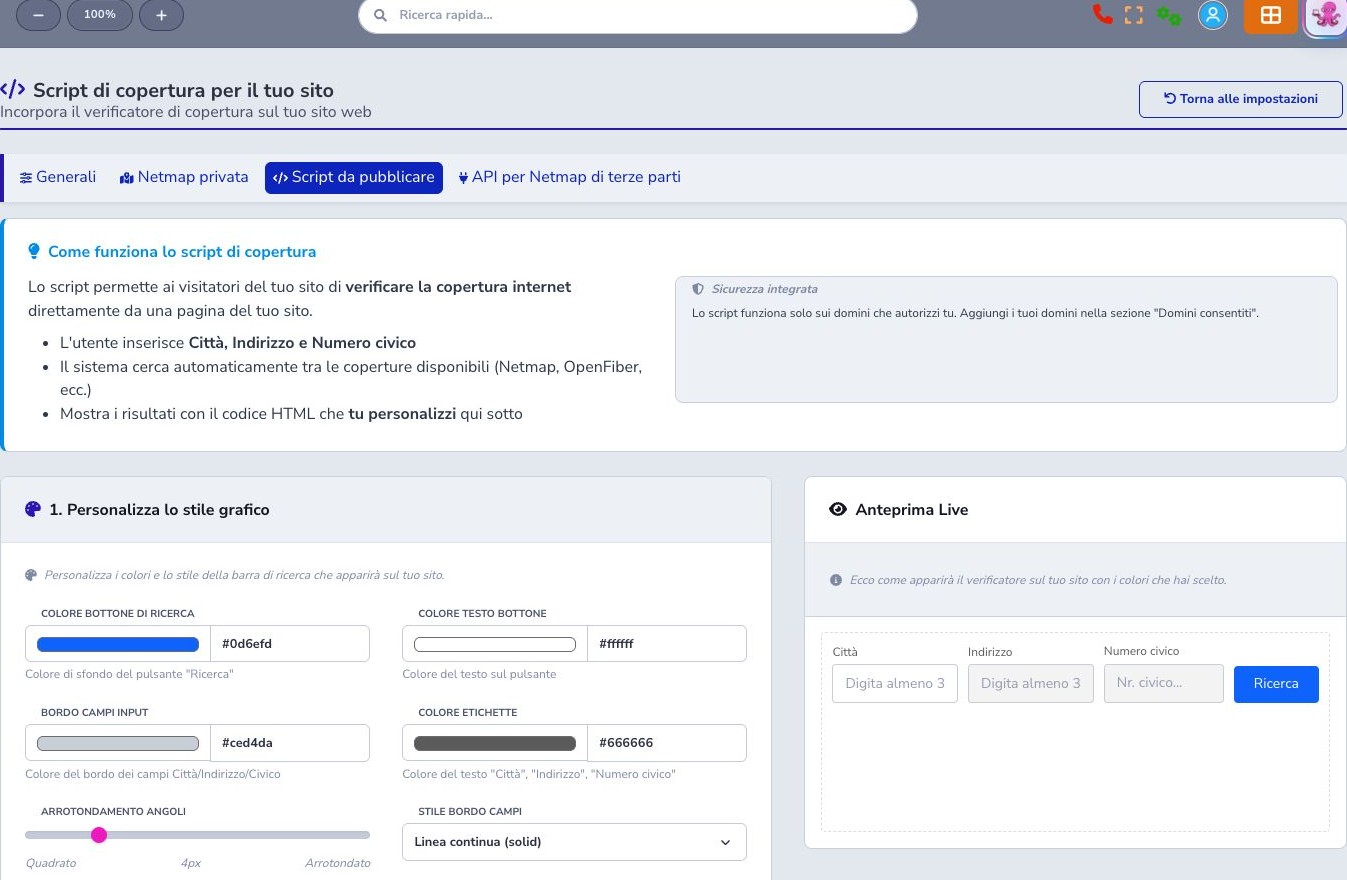
The Script to publish tab generates the code used to embed the checker in HTML or a CMS such as WordPress, Joomla, or Wix. Configure the button and text colors, input borders, labels, corner radius, and border style before copying the final code.
The widget automatically separates the search bar, searched address, and messages with responsive spacing. The address is centred inside a panel coordinated with the selected colour, while multiple results are spaced without requiring extra site CSS. Paste the code into a block that permits both HTML and scripts, then try a covered address, an uncovered address, and incomplete input on desktop and a narrow mobile viewport.
Authorized domains and widget security
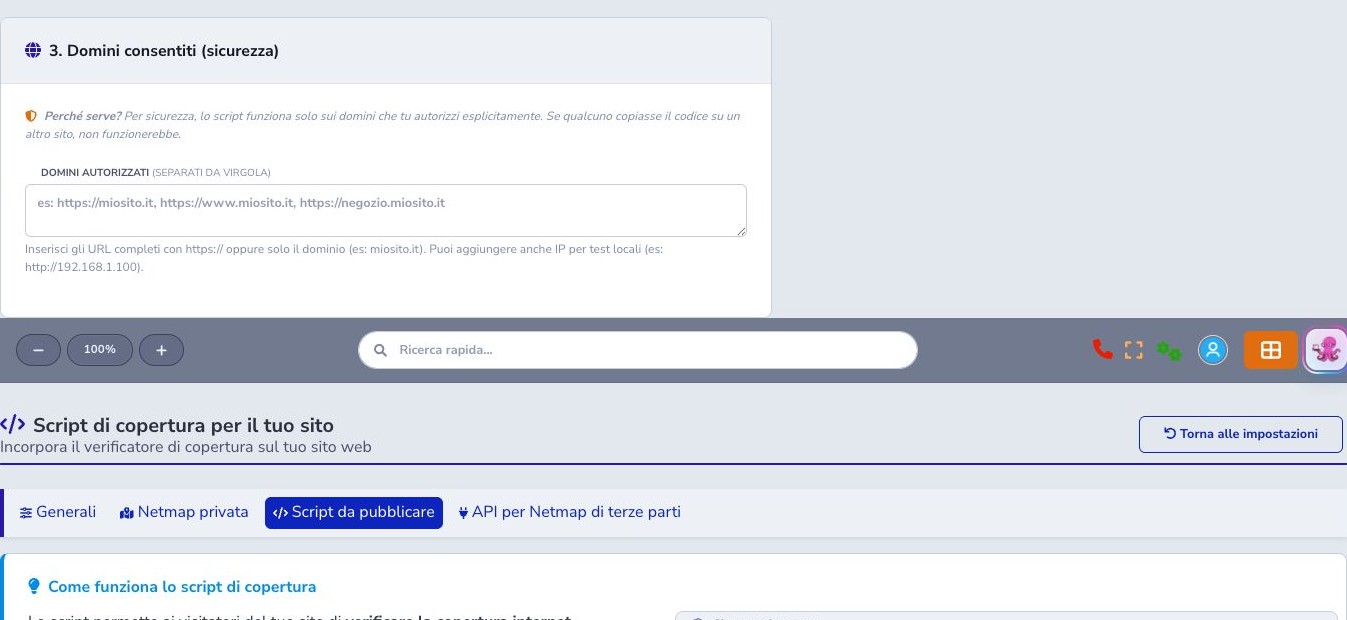
The authorized-domain list prevents the script from being reused on unrelated sites. Enter the exact HTTPS origin, including the intended subdomain. Staging, local testing, a new domain, or a change between www and the bare domain may require a separate entry.
Protection does not depend on hiding browser code, which visitors can inspect. It depends on server-side origin validation and application controls. Never place Pianeta Fibra or other provider tokens in the published script.
Public messages for each technology
Each technology can have its own HTML message, allowing the result to explain availability, benefits, and the next commercial step. A separate message handles addresses where no coverage is found. The Example — not published badge identifies a suggestion that is not active yet: use the Enable switch to turn it into real, editable content and save it.
The examples already include a responsive gradient layout, badge, title, button, and wording addressed directly to the person checking coverage. Colours and calls to action automatically follow the main widget style, so no HTML knowledge is required. Before publishing, check the button destination and adapt the commercial wording.
A disabled message is not shown publicly, but any previously saved text is retained. Messages configured before the switch was introduced remain enabled, while never-completed messages remain disabled. Write specific, verifiable copy and avoid promising speeds, installation dates, or provider acceptance that the result does not prove.
Common problems
- No result: confirm guided town and address selection, then check enabled sources, tokens, and endpoints.
- Address cannot be verified: correct street prefix, name, number, postal code, and town before recalculating.
- Private network missing: inspect records, wildcard scope, postal code, technology, and the last CSV import mode.
- Unexpected FWA result: verify base-station coordinates, mast heights, channel parameters, and the radio-bridge option.
- Widget does not load: check the exact authorized origin and whether the CMS permits the generated script.
- Old statistics: inspect the last scan date, scheduled refresh, invalid-address exclusions, and provider availability.
Operational checklist
- Define public identity and visibility rules
- Load the private Netmap and verify samples
- Review every wildcard for excessive scope
- Register base stations with correct coordinates and units
- Enable only providers backed by valid credentials
- Keep provider tokens out of public code
- Test known positive and negative addresses
- Correct invalid customer addresses before rescanning
- Review scan freshness and newly available coverage
- Treat radio feasibility as a preliminary assessment
- Authorize only required web origins
- Test the checker on desktop and mobile
- Use results as qualification evidence, never as an activation guarantee