
Custom domains for Customer Area and Shop
Configure hostnames, DNS records, Cloudflare validation, SSL certificates, alerts, and renewals.
Last updated: 2026-08-19
Why use a custom domain
ISP Billing can publish Customer Area and Shop on ISP-owned subdomains while application routing, security, and certificates remain managed by the service. Customers receive a brand-consistent address without the ISP having to host the portal itself.
Customer Area and Shop are configured independently. Validating one portal does not authorize the other, and the same hostname must not be assigned to two different destinations.
Where to configure it
Open CRM → Settings → Customer Area. The same page configures main color, background, logo, login image, and custom homepage content; these presentation values do not affect DNS validation.
The standard personal portal link remains available, including open, copy, and HTML-code actions, after a custom hostname is added.
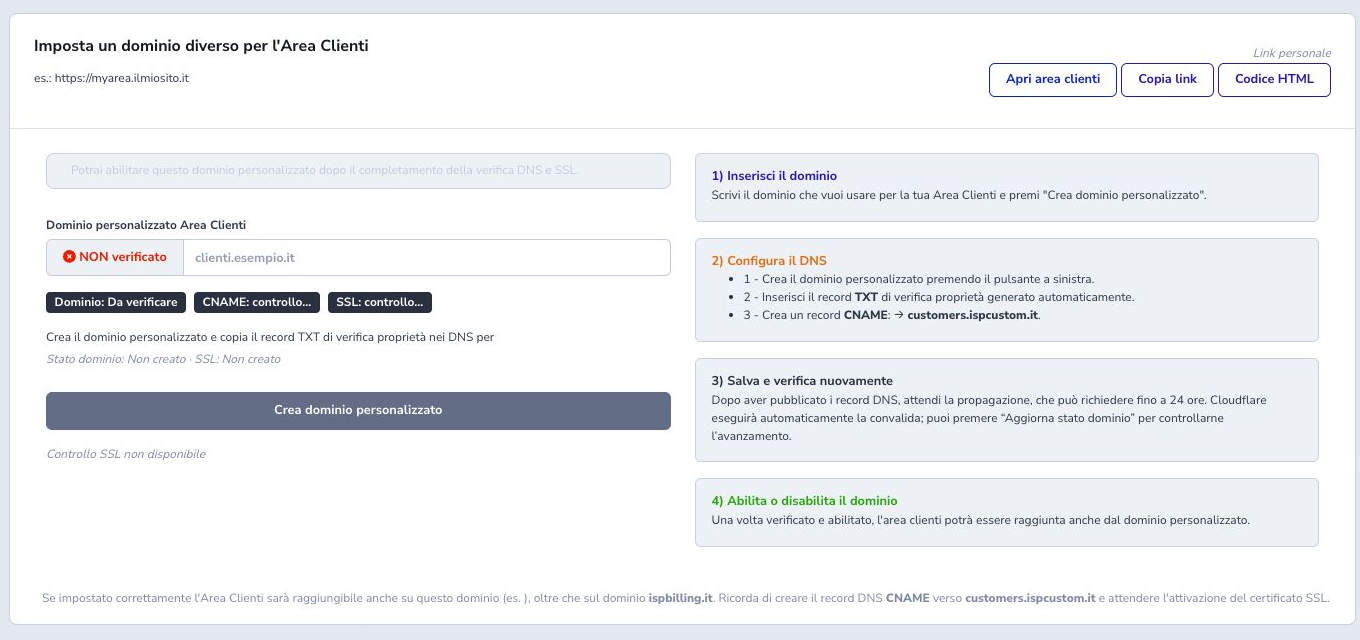
Choose the hostname
Use a dedicated subdomain such as customers.example.com or shop.example.com, without a path, query string, or trailing slash. The ISP must own the domain and be able to edit its authoritative DNS zone.
Before creation, check that no incompatible A, AAAA, or CNAME record already uses the name. Do not repurpose a hostname used by mail, VPN, monitoring, or another production service.
Create it and publish TXT records
Enter the hostname and select Create custom domain. ISP Billing creates the Cloudflare Custom Hostname and displays one or more TXT records for Domain Control Validation. Copy each name and value exactly into the authoritative zone.
TXT proves control and does not route user traffic. Validation values can change after a new request, so always use the current screen and remove an older record only after confirming that it is no longer required.
Publish the CNAME
Create a CNAME from the chosen hostname to customers.ispcustom.it. This routes requests to ISP Billing infrastructure but does not by itself prove ownership or complete certificate issuance.
Follow the service guidance before enabling a DNS-provider proxy. CNAME chains, duplicate records, or a record published on the wrong label prevent successful validation.
Propagation and status refresh
DNS propagation can take up to 24 hours. Use Update domain status to reread hostname, TXT, CNAME, and SSL state. Do not recreate the Custom Hostname while waiting because that may generate new DCV values and invalidate records just published.
The indicators distinguish domain, CNAME, and SSL. Checking, pending, or pending_validation means that the workflow is not complete; use the displayed error and required records to guide correction.
SSL certificate and activation
A new domain is verified only when both hostname and SSL certificate are active. Then enable the portal and test login, password recovery, public links, and an authenticated page over HTTPS before announcing the address.
Never bypass HTTPS or accept a certificate issued for another name. If SSL is still pending, wait for propagation or correct DCV instead of forcing activation.
Renew without interruption
During renewal Cloudflare may request new validation and temporarily report SSL as pending. When a previously verified Custom Hostname remains active, ISP Billing does not automatically revoke the portal, allowing it to remain reachable during certificate renewal.
This tolerance does not apply to a new hostname. Publish any new records, inspect DCV errors and expiry, and confirm that SSL returns to active state.
Monitoring and notifications
A daily scheduled check synchronizes Customer Area and Shop domains, including legacy entries. Active full administrators receive an alert when hostname or SSL needs attention; unresolved alerts are deduplicated and repeated every three days, followed by a recovery notification when the issue clears.
Push reaches only users who enabled it. Desktop also exposes a homepage action to configure the domain; ISP App retains the alert in Notification Center without adding a separate mobile-home warning.
Legacy, disable, and delete
A hostname created by the previous management flow can continue operating and may be migrated to guided Cloudflare management. Record the existing DNS state and plan a verification window before migration.
Disable stops application use while preserving configuration. Delete removes the association and requires confirmation. First review emails, WhatsApp buttons, bookmarks, public pages, and integrations pointing to the old hostname.
Diagnosis and checklist
For an unreachable domain, check spelling, authoritative zone, TXT DCV, CNAME, propagation, hostname state, SSL state, and application activation in that order. Correct DNS with pending SSL is not a completed acceptance test.
- Use different hostnames for Customer Area and Shop
- Confirm ownership of the authoritative zone
- Remove conflicting A, AAAA, and CNAME records
- Create the Custom Hostname before copying records
- Publish the exact TXT values
- Point CNAME to customers.ispcustom.it
- Wait without recreating the hostname
- Check hostname and SSL separately
- Enable only after complete validation
- Test login, recovery, and authenticated HTTPS
- Monitor renewals and notifications
- Review links before deletion