
Web Customer Area
Operational manual for invoices, services, support, notifications, profile, and shared documents.
Last updated: 2026-09-03
Account access and security
Access belongs to an authorized Customer Area contact. Passwords and confirmation or recovery links are personal and must never be shared with an operator or another customer. On desktop, Log out is at the bottom of the sidebar. On smartphones and in ISP APP, open More → Profile and use Disconnect account at the bottom of the page. The system warns that the session will end and asks for confirmation; the next access requires e-mail and password again.
Home and operational summaries
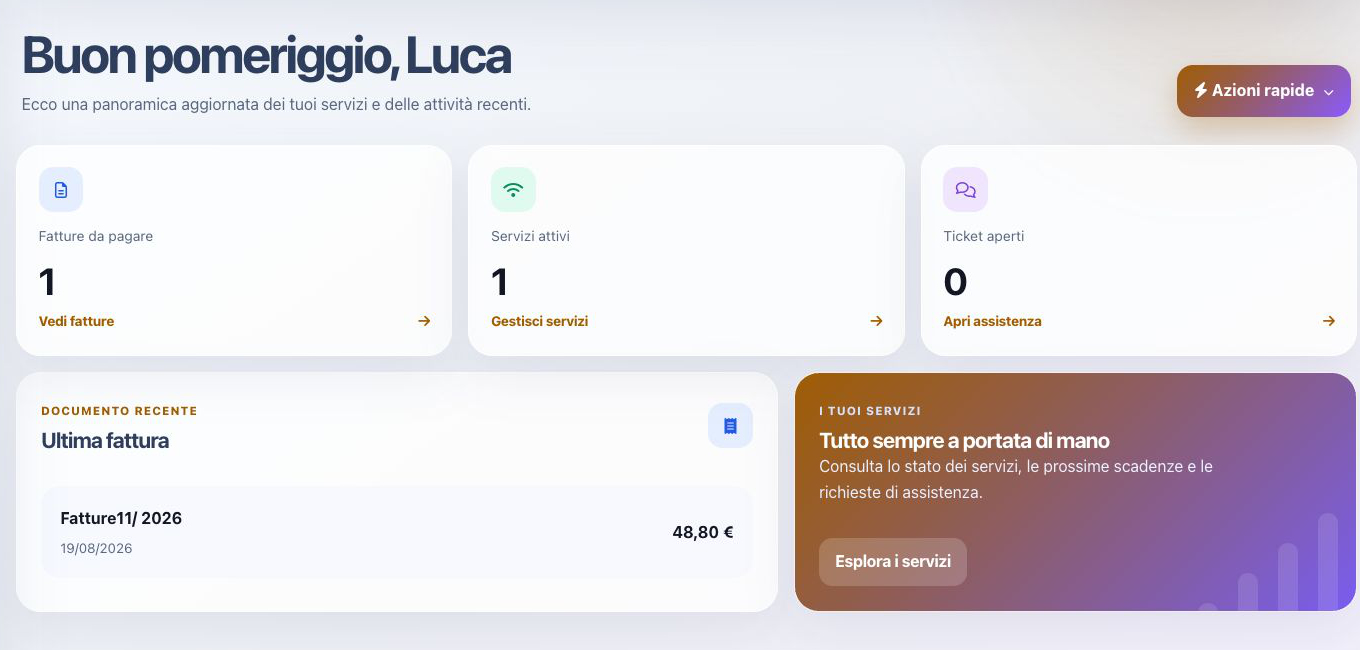
Home highlights unpaid invoices, active services, open tickets, recent documents, and quick actions. Invoice, Service, and Support cards and actions appear only when the corresponding ISP module is enabled and the active profile or configuration provides the related resource: at least one viewable document, at least one service, or at least one active support department published in the Customer Area. The desktop and mobile menus use the same rules.
Counters are shortcuts; open the underlying record to verify dates, amounts, status, and references. If a section is absent, verify the active profile, enabled modules, and ISP configuration instead of forcing access through a copied address.
Invoices: search, state, and detail
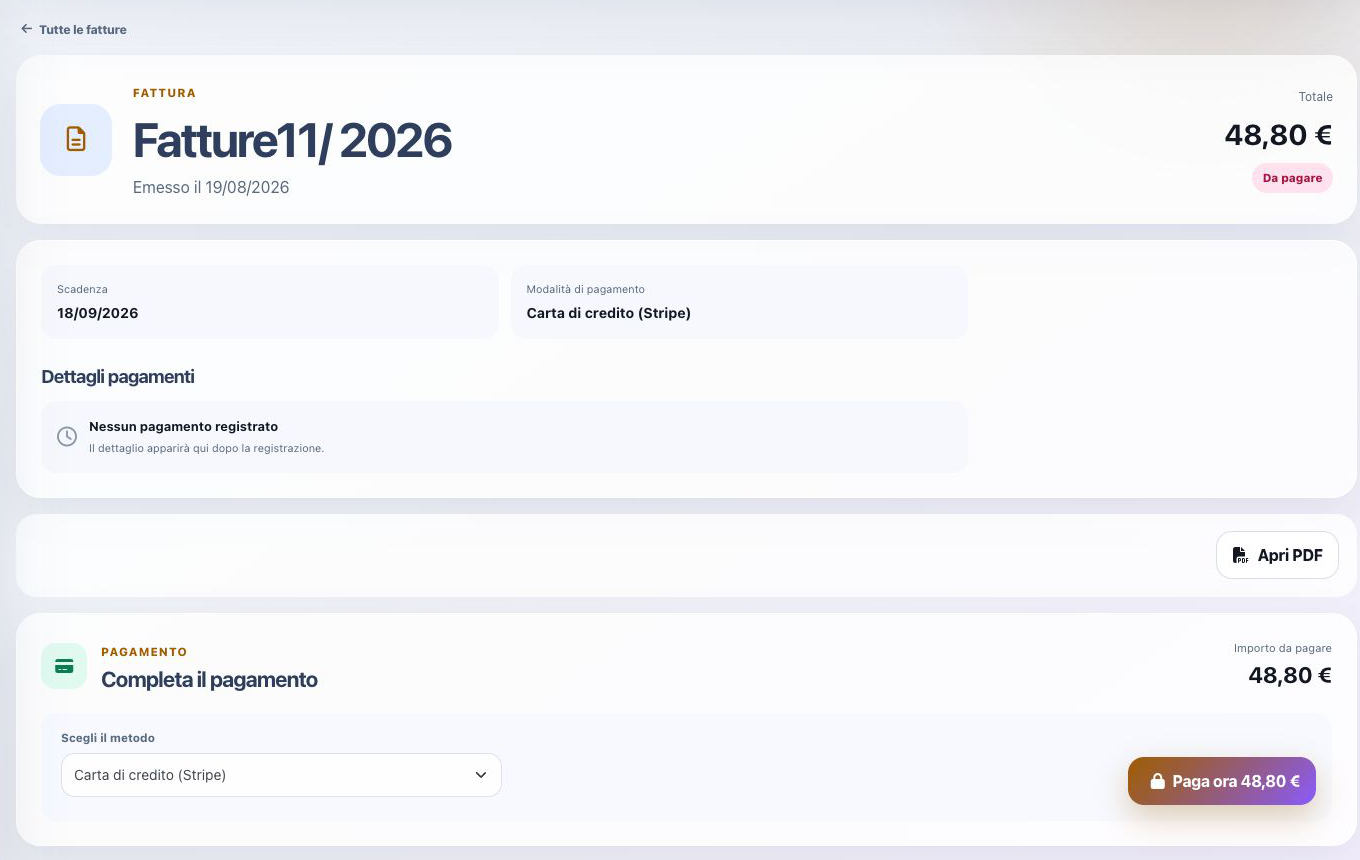
The invoice archive can be searched and paginated so the customer can retrieve a document without relying on an e-mail link. Open the detail to review number, issue date, due date, total, remaining balance, status, selected method, recorded payments, downloadable PDF, and the actions currently permitted.
Unpaid means that a balance remains; it does not necessarily mean that no attempt exists. Likewise, displaying a card or bank method does not prove collection. When figures appear inconsistent, compare the document total, payment rows, credit notes, refunds, and current balance before contacting support.
Pay an invoice
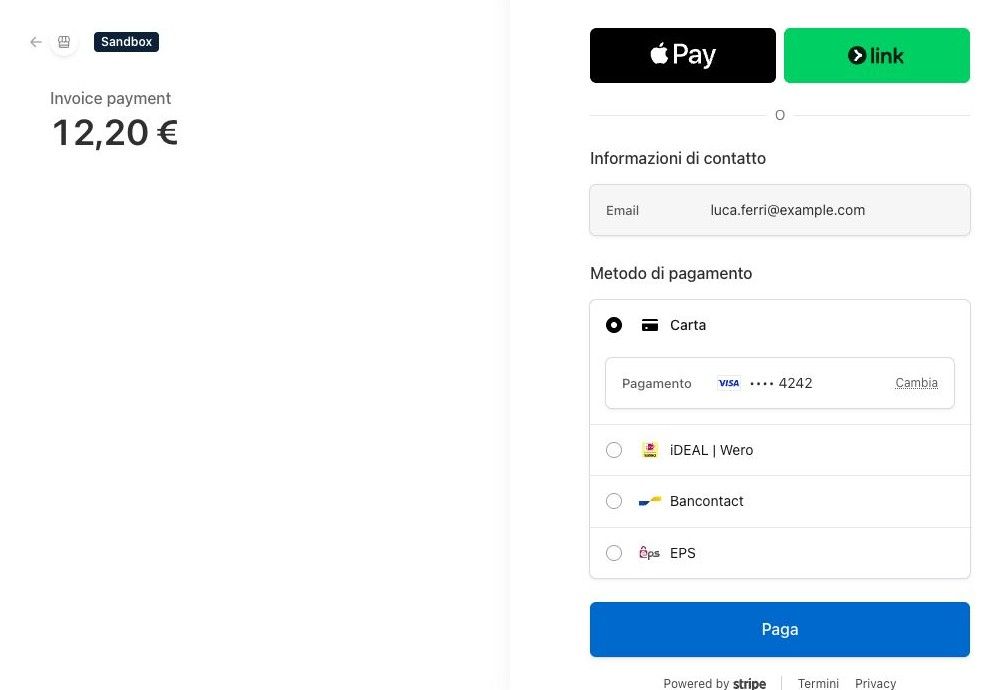
Open the definitive invoice, compare amount and balance, select one of the methods offered by the ISP, and choose Pay now. On the provider page, verify merchant identity, amount, currency, and document reference before authorizing the test or real payment.
A redirect or success page is only an intermediate result. Return to the invoice and consider the operation complete only when the payment entry, remaining balance, and document status are updated consistently. Do not repeat the payment while the provider result is still being processed; first refresh the document and check the transaction history.
The method selector for an individual invoice excludes automatic bank and card debits, which require a dedicated setup. If an invoice shows an automatic debit you did not agree to, contact your provider to have it corrected.
After changing the payment method, wait for the document to refresh: the page returns automatically to Pay now, when available, or to the payment instructions section. Selecting a method does not make a payment. If the change is not confirmed, reload the document and check the displayed method and amount before trying again.
Services: list and search
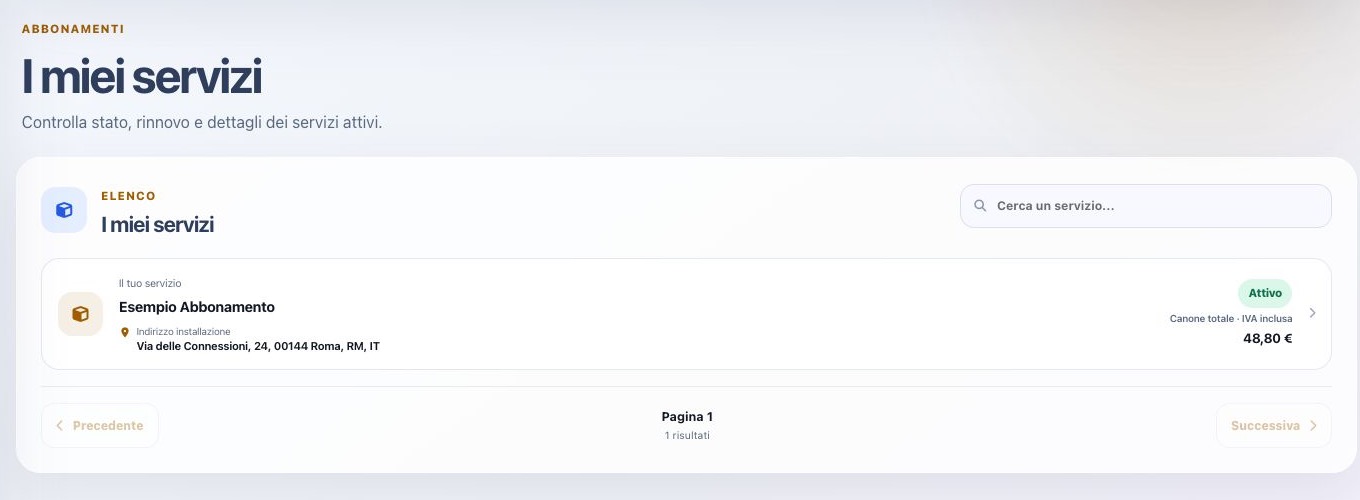
My services lists the offers associated with the active customer profile. Each card or row can show offer name, operational status, installation address, and VAT-inclusive recurring charge; search and pagination help when the customer has several subscriptions or locations.
Check the active profile before concluding that a service is missing. Status describes the record known by the portal and must be interpreted together with activation, suspension, termination, provisioning, and billing information shown in the detail.
Service detail and support request
Open a service to review unit price, quantity, total, billing cycle, next billing date, payment method, delivery or installation address, status, and the other technical or commercial information made available by the ISP. A displayed next date is a scheduling value, not proof that a future invoice has already been issued or paid.
To request termination, select the relevant available services, choose a reason, and request an OTP. Apostrophes and accented characters can be used normally in notes. Confirming the code opens a ticket; the request does not automatically disconnect services. If confirmation returns an error, check your tickets first to see whether the request is already present; contact customer support if the problem persists. If the code has expired, reload the page and request a new one.
Request support starts a ticket already associated with that service, reducing ambiguity for customers with several subscriptions. Before sending, confirm the selected service, describe the symptom and timing, attach only useful evidence, and avoid including passwords or full payment credentials.
Identify a rechargeable service
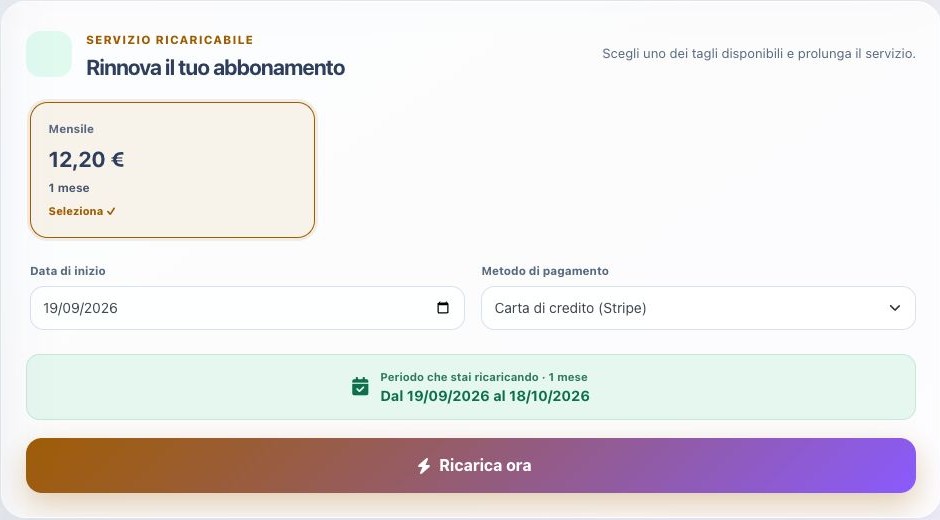
A rechargeable service card shows its status, current active-through date, and a Recharge now prompt. Its detail page displays the cuts configured by the ISP, VAT-inclusive price, duration, start date, available payment method, and the exact period being purchased.
The verified rechargeable service model offered one monthly €12.20 cut. Before the first purchase, its end date was 18 August 2026 and the proposed period was 19 August–18 September 2026.
Generate and pay for the recharge
- Select the required cut.
- Check the start date and calculated period.
- Verify the payment method.
- Select Recharge now and confirm document generation.
- Open the generated proforma and compare amount and due date.
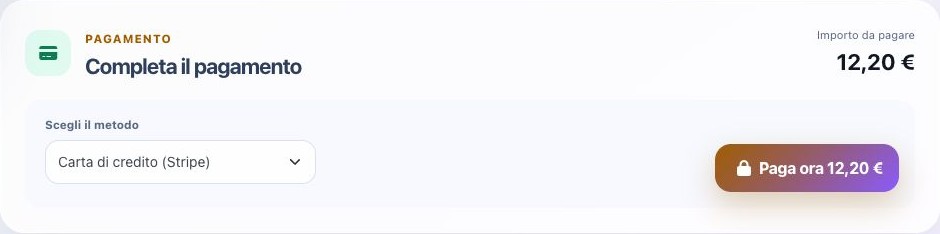
- Select Pay now and complete the gateway.
The executed flow created Proforma36 for €12.20 with Credit card (Stripe). Checkout clearly showed Sandbox and the saved test card ending in 4242.
Verify that the recharge is complete
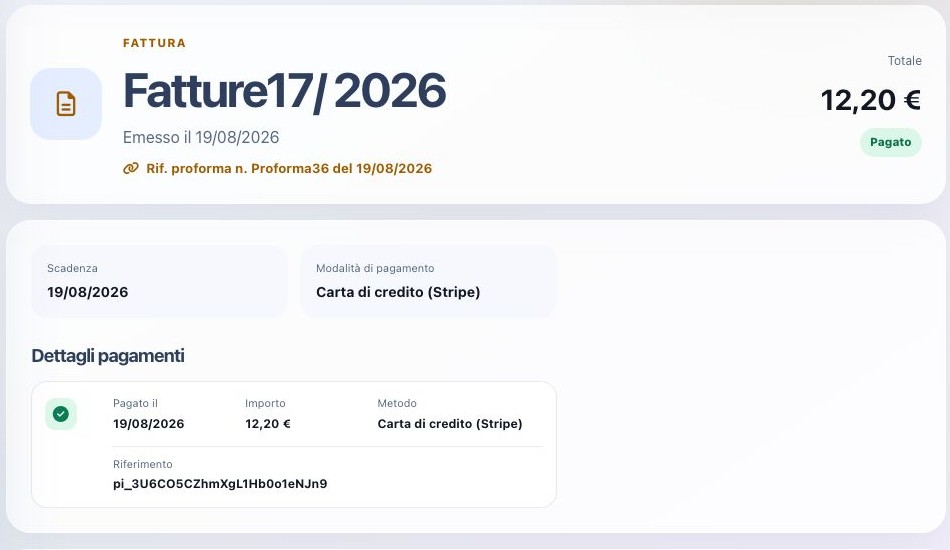
A gateway return is insufficient. Reopen the document and verify Paid status, amount, date, method, and payment reference. The test linked the recharge proforma to invoice Fatture17/2026 for €12.20 and recorded its Stripe payment.
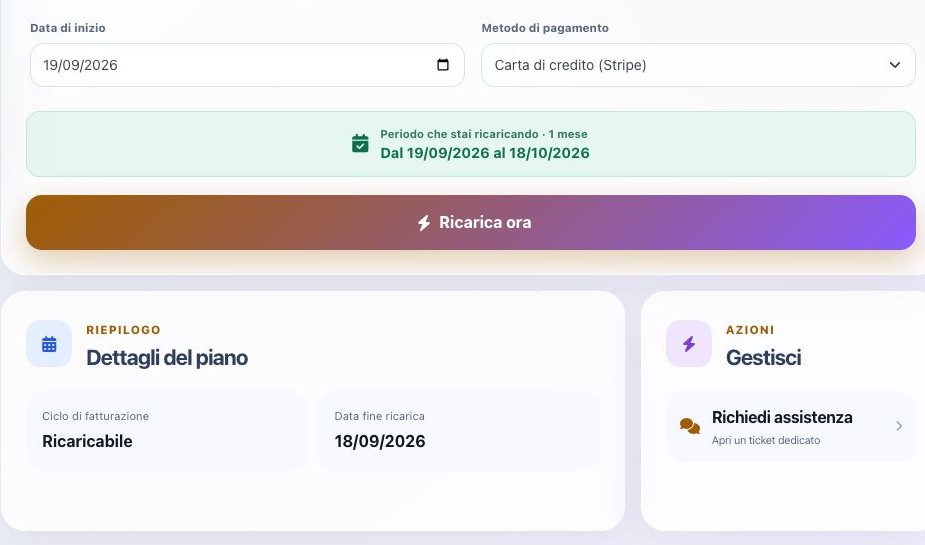
Return to the service and verify the recharge end date. It changed to 18 September 2026, while the next form automatically proposed 19 September as the next start. Only this two-sided check proves that payment and service period are aligned.
Open a support request
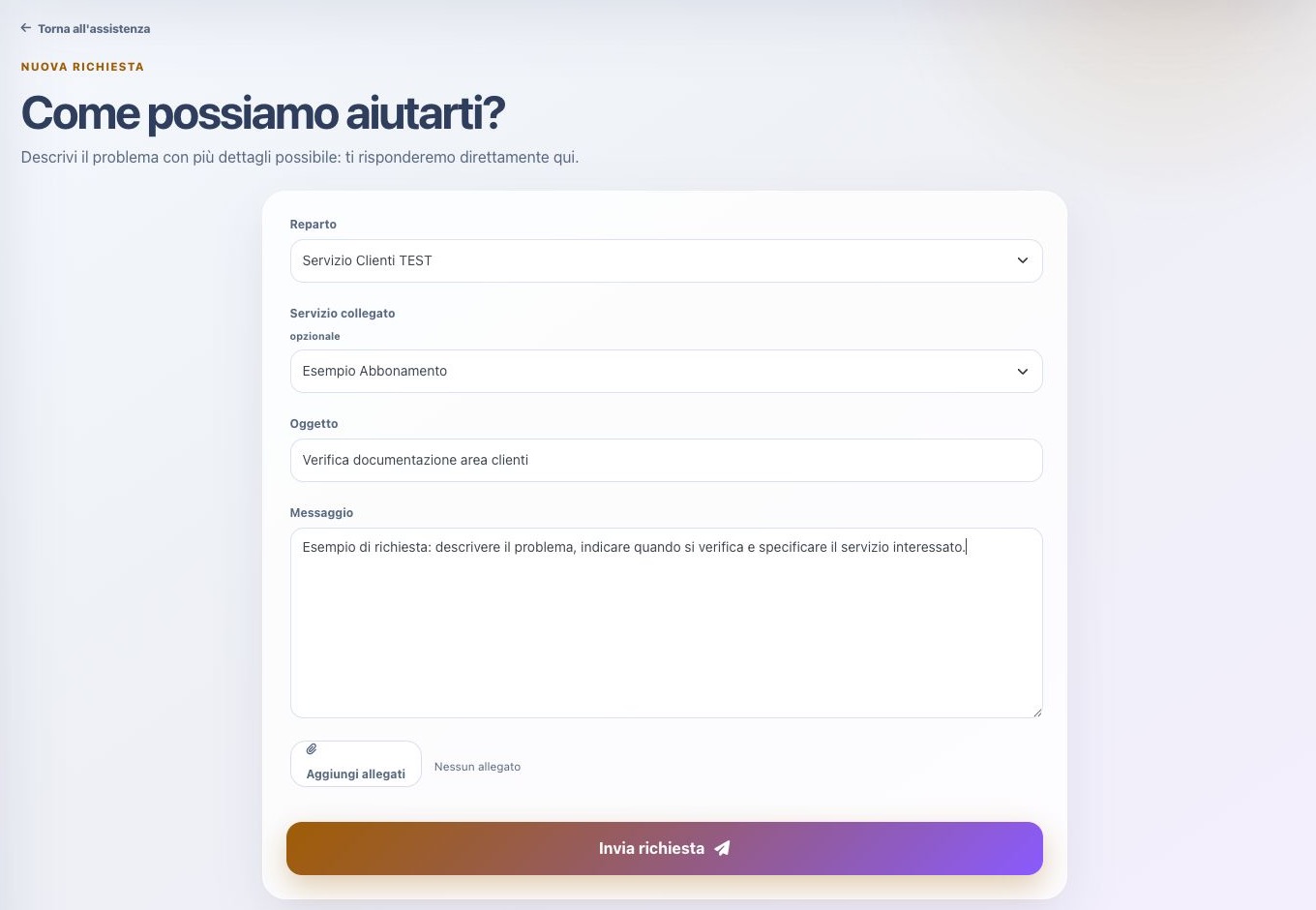
Select New request, choose the department, optionally associate a service, and provide a clear subject and detailed message. Attach only relevant files and never include passwords or unnecessary third-party data.
The executed example flow selected a test customer-service department, linked the sample subscription, submitted the request, received the success confirmation, and obtained a numbered ticket.
Ticket conversation and reply
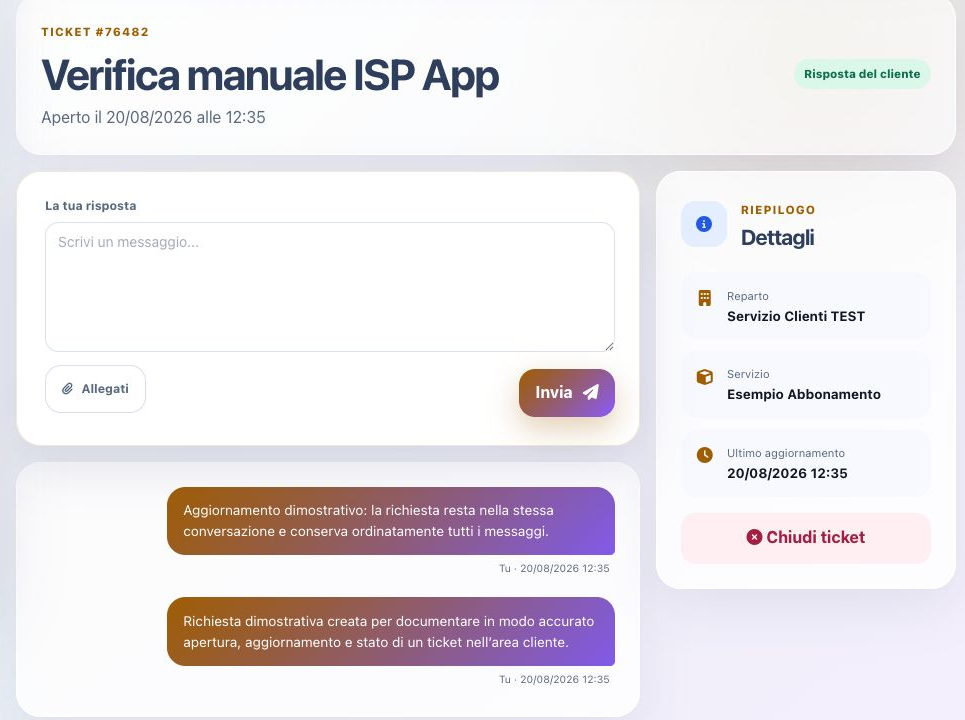
The ticket page keeps subject, opening date, status, complete message history, department, linked service, attachments, and last update together. Read the entire exchange before replying, especially when several operators or channels have contributed.
A reply remains in the same conversation and can contain attachments. Confirm that the active profile and linked service are correct, answer the latest unresolved question, and upload only files intended for support personnel. After sending, verify that the new message appears once in chronological order.
Close and retrieve a ticket
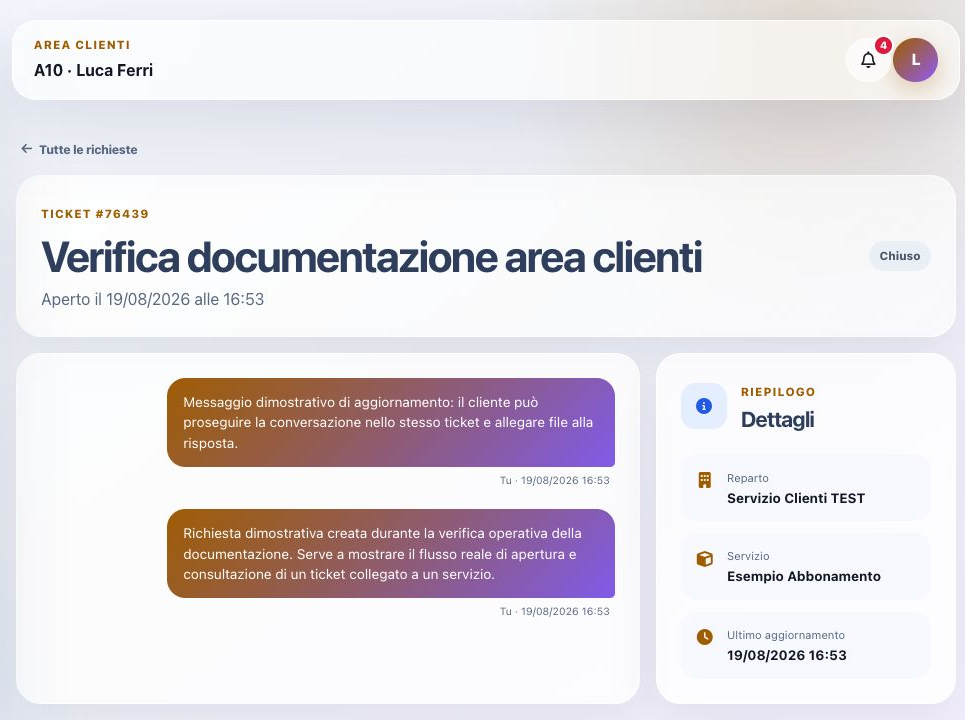
Close ticket displays an explicit confirmation and warns that further replies will no longer be possible in that conversation. Close only when the request is resolved or deliberately abandoned, and save any useful final information before confirming.
Open and Closed tabs separate active work from historical requests. A closed ticket remains available for consultation with its messages and summary; if the issue returns, follow the ISP’s reopen or new-request policy instead of attempting to post into a locked conversation.
Quotes
Quotes contains commercial proposals shared with the customer. A quote is not an invoice and does not prove service activation. When a proposal is available, review its lines, amounts, validity, and required acceptance action.
Notifications and preferences
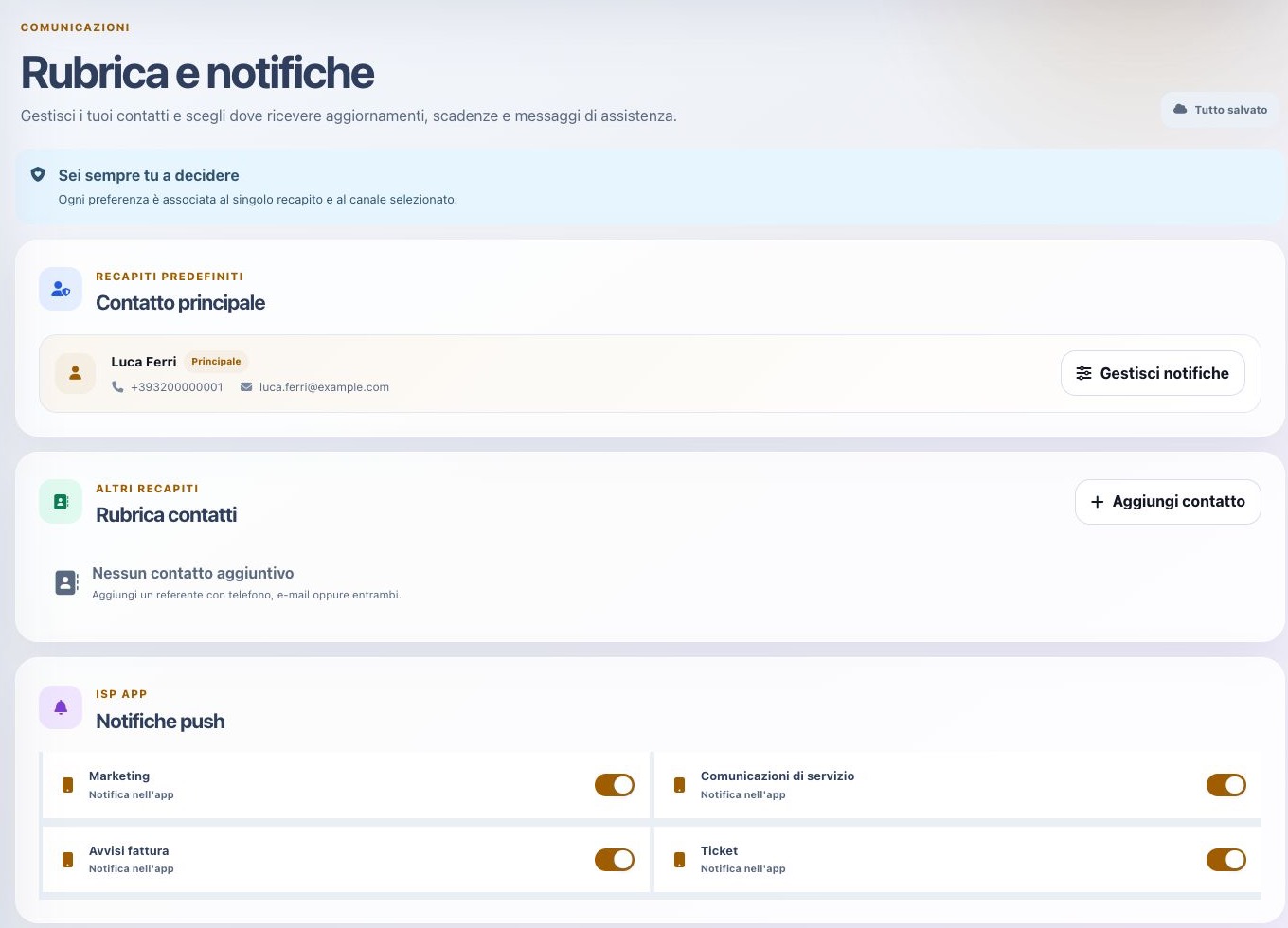
The inbox contains notices sent to the profile, while Notification preferences manages recipients and consent categories. The observed ISP APP controls distinguish marketing, service communications, invoice notices, and tickets. Disabling a channel does not remove invoices, due dates, or contractual duties.
Referral credit
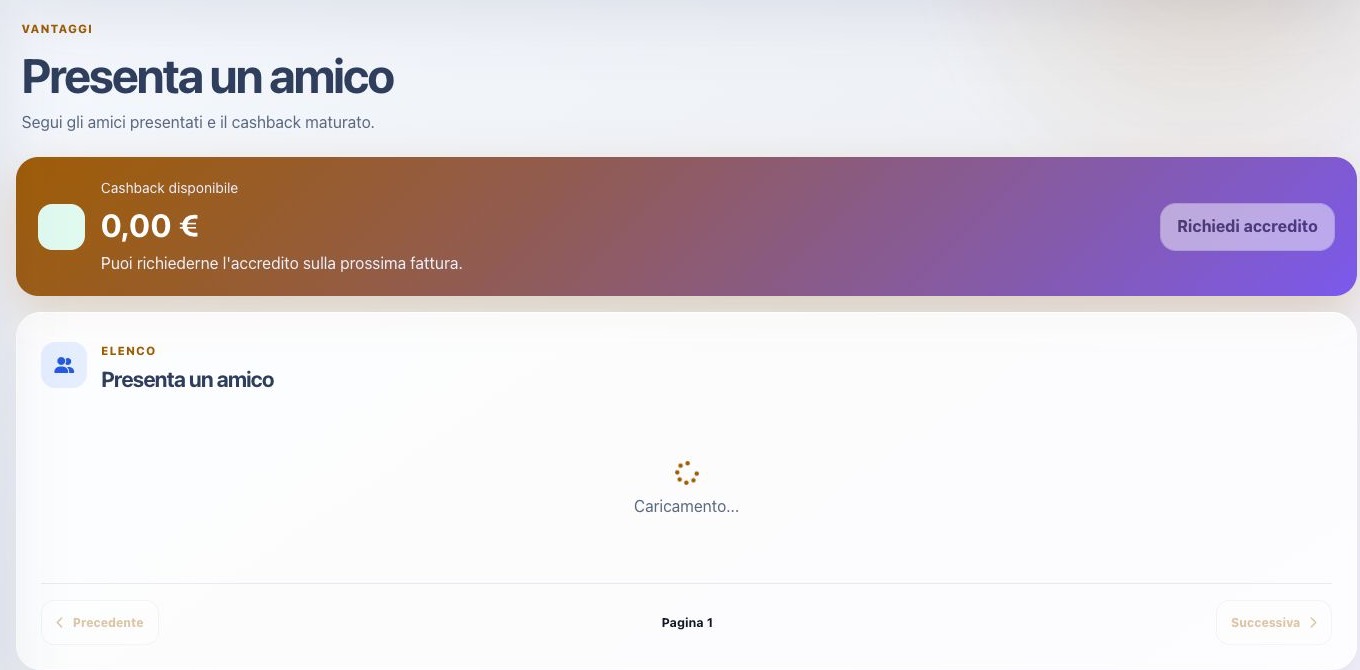
Refer a friend shows earned credit and referral history. Request credit is enabled only when an eligible amount exists; it was disabled at a zero balance in the example. Promotional credit is not the same as a recorded payment or a fiscal credit note.
Profile and automatic payment methods
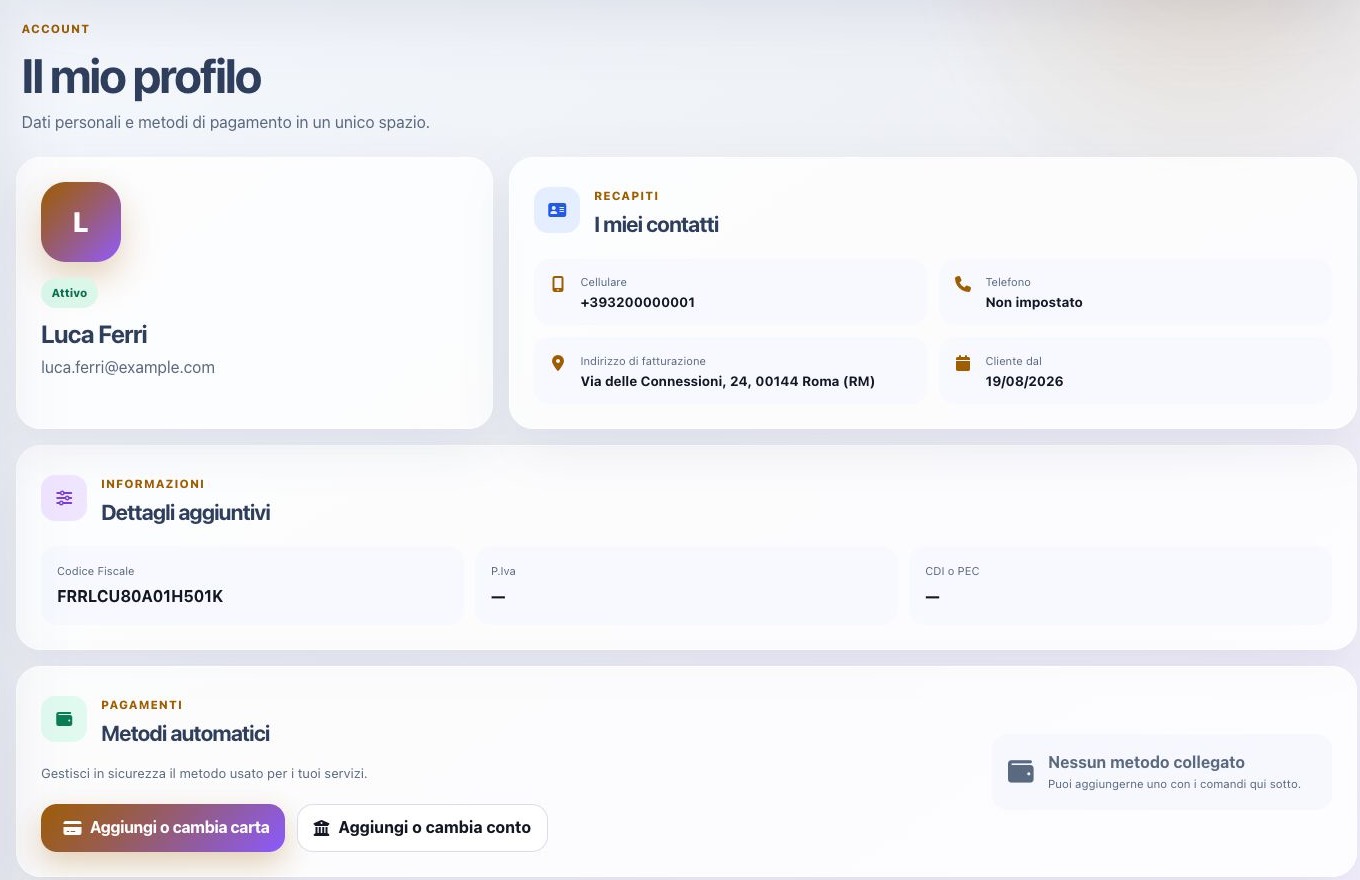
Profile summarizes account status, contact and billing address, customer-since date, tax identifiers, and SDI/PEC details. Incorrect information should be corrected through the ISP process before new documents are issued.
Card and bank-account controls launch separate authorization flows. A visible Add or change action does not mean a valid method is already linked. Never enter live payment data in a sample environment.
Shared documents
Documents is the file archive shared by the ISP and is separate from invoices and quotes. Review description, date, and origin before downloading. Visibility belongs to the authenticated profile and files must not be redistributed to another customer.
Customer checklist
- Check the active customer code after sign-in
- Open details before paying or reporting an issue
- Compare invoice total, balance, due date, and status
- Wait for actual gateway registration
- Select the correct service and address
- Use the correct support department
- Never attach secrets or unnecessary data
- Close tickets only after resolution
- Manage contacts and consent separately
- Verify profile tax data
- Log out on shared devices