
Customer management
Complete operational manual for creating, validating, finding, and maintaining customer records.
Last updated: 2026-09-04
Why the customer record is central
A customer record is not simply an address-book entry. It is the central record linked to services, contracts, documents, payments, tickets, activities, communications, Customer Area access, and technical information. Incomplete or incorrectly classified data can therefore affect every downstream process.
Before creating a customer, always search for an existing record. A duplicate splits the operational history across two separate profiles.
Recommended CRM setup order
- Define customer and supplier numbering.
- Create customer and service-instance groups.
- Prepare custom fields and validation rules.
- Configure email, message, and Customer Area templates.
- Decide whether online registration is available and select its destination group.
- Configure termination, birthday, and bulk processes.
- Create one test record and inspect every linked panel.
These settings affect future records, documents, and communications. Do not start a bulk import until codes, required fields, groups, and templates have been validated with a small controlled sample.
Progressive codes and online registration
Under CRM → Settings → General, configure the next number, prefix, and suffix independently for customers and suppliers. Compare the next number with existing records before saving to avoid duplicates and reconciliation gaps.
Enable online registration adds Register to the Customer Area login. Choose the customer group assigned to new registrations and review the fields, confirmation, and communication workflow. Registration creates a customer request; it must not silently activate services or credit terms.
Custom fields and validation
A custom field has a name, type, description, optional choices, and validation rule. It may be required, admin-only, shown in the invoice header, or treated as an expiry-controlled date.
Choose the data type before collecting values and test validation with valid, invalid, and empty input. Admin-only fields are not available to the contract wizard, while invoice fields become customer-facing document data. Check templates, API consumers, and FEA mappings before changing or deleting an existing field.
Customer and service groups
A customer group has a name, color, and discount percentage and can disable automatic suspension or require separate service invoices. These settings affect billing and collection behavior and are not merely visual tags.
Service-instance groups organize a customer’s services by site, agreement, or operational family. Define a stable naming convention and inspect existing assignments before renaming or removing a group.
CRM templates and Customer Area identity
Email templates define background, logo, and signature, while Message templates provide reusable channel content. Use supported placeholders, test long customer values, and verify sender, consent, and provider before enabling an automatic event.
The Customer Area tab configures colors, logo, login background, and Home content. A custom domain has a separate ownership, DNS, hostname, certificate, and activation workflow. Enable it only after HTTPS, sign-in, password recovery, and public links work on the final hostname.
Bulk settings, birthdays, and termination
Bulk settings apply changes across selected customer or service populations, including supported automatic payment-mode configuration. Narrow the scope, distinguish individuals from other entities, review the affected count, and retain a comparison export. Do not use a global update for isolated exceptions.
Birthday messages require a reliable date field, selected channels, templates, and the scheduled process; email, SMS, WhatsApp, and ISP App have different consent, cost, and provider prerequisites. Contract/service termination requires a ticket department, OTP validity, partial-termination policy, rules for services without contracts, and customer instructions. Test request, OTP, ticket, and final status separately.
Complete and review the record
Enter customer type, group, initial status, tax information, contact details, and the addresses required by the organization. Before saving, search for duplicates and decide deliberately whether to send the welcome email, because the option may trigger a real communication.
ISP Billing assigns the customer code according to the configured sequence. Open the newly saved record and review identity, addresses, contacts, preferences, Customer Area accounts, and linked panels before attaching services or documents.
Open the customer list
From the sidebar, open CRM and Sales → Customer list. The table includes customer code, name, contacts, e-mail, location, type, status, services, and default document.
Filters below the headers let you search by code, name, contact details, e-mail, city, type, or status. Service counters distinguish active, processing, suspended, and terminated instances.
Start creating a customer
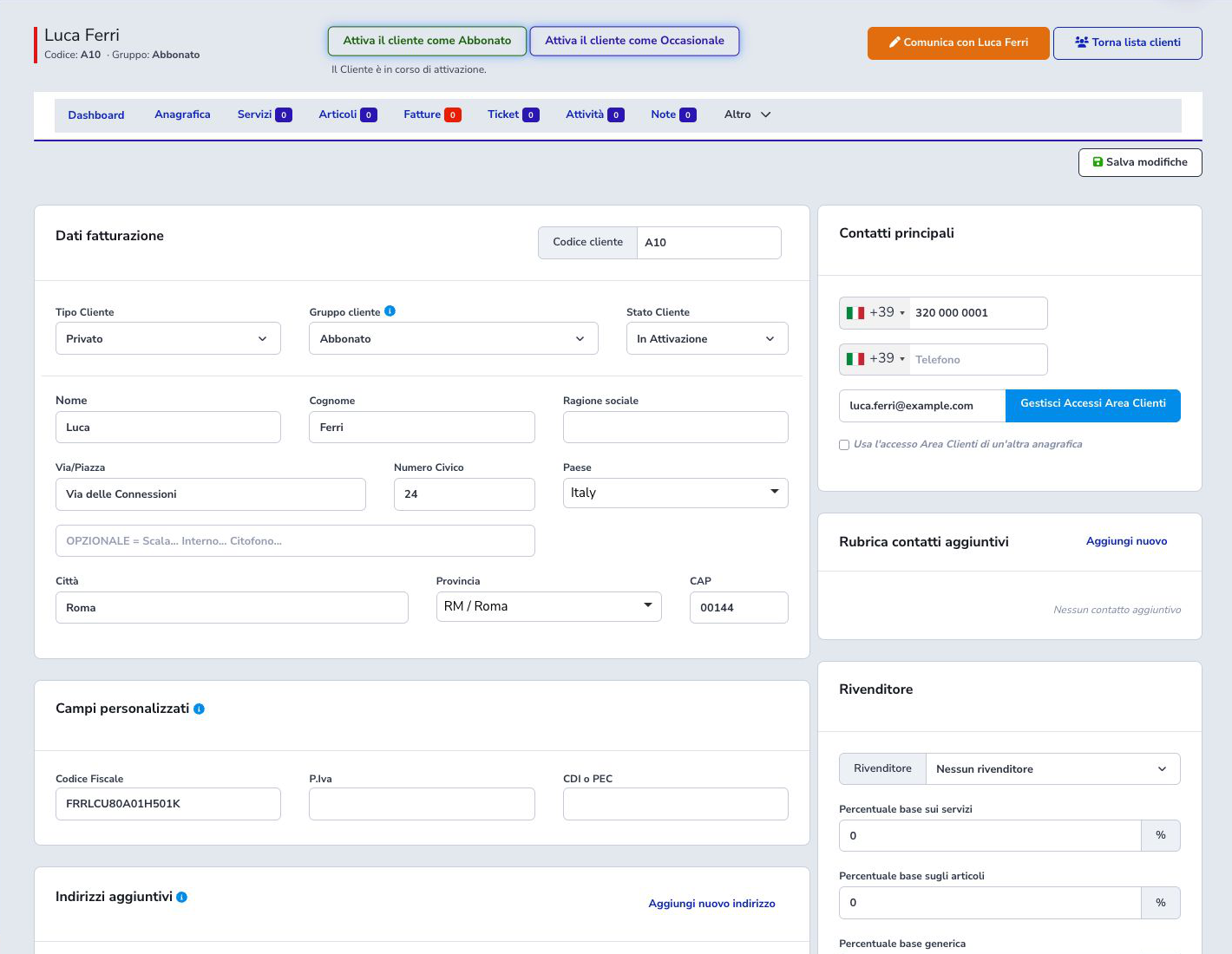
Select Add a new customer. The form is divided into billing details, custom fields, main contacts, notifications, reseller settings, and notes. Complete identity and tax details first, then contacts and behavioral options.
Customer type, group, and status
Customer Type identifies an individual, business, public administration, or association and affects the tax information required for the record.
Customer Group classifies the commercial relationship through the values configured by the ISP, such as Subscriber or Prepaid. Use stable groups that support filtering and commercial rules without duplicating the legal customer type.
Customer Status describes the relationship lifecycle: Waiting for confirmation, Activation in progress, Active, Occasional, Terminated, Termination in progress, or Delinquent. Select the state that reflects the real relationship and update it only through the intended operational transition.
Identity and address details
For an individual, enter at least first and last name. For an organization, use the correct business name and contacts required by the ISP workflow.
The address is split into street, street number, optional complement, country, city, province, and postal code. Select the province from the list: entering the city alone is not sufficient. During the documented test, ISP Billing correctly blocked saving until the province was selected.
Tax data and custom fields
The sample configuration includes Tax Code, VAT number, and recipient code or certified e-mail. ISP Billing required a Tax Code for the fictional individual and prevented saving while the field was empty.
Formal validation does not prove that a tax identifier belongs to a real customer. Always verify production data using the ISP’s approved source.
Contacts and Customer Area access
Enter the international prefix and number for mobile and telephone contacts. The main e-mail is used by configured communication workflows and must be both correct and authorized.
When creating or editing a customer record, the e-mail field has an envelope icon on the left and uses the full width of the Primary contacts panel. When editing, the Gestisci Accessi Area Clienti (Manage Customer Area access) button, or Crea Accesso Area Clienti (Create Customer Area access) when no access exists, appears on a separate row below the field.
Use another customer record’s Customer Area access should be enabled only when multiple records must be managed by the same account holder. Additional contacts can be stored separately for administrative, technical, or operational contacts.
Welcome e-mail and communications
Send welcome e-mail was enabled by default on the observed form. If left selected, saving may trigger the communication configured by the ISP. Verify the recipient, SMTP setup, and message before saving. Disable it for example data unless the destination is a dedicated test inbox.
Reseller and percentage settings
The Reseller section assigns the customer to a reseller and supports customer-specific percentages for services, products, and generic amounts. The interface explains that -1 uses the reseller’s default percentages, while a value stored on the customer overrides them.
Private and recurring invoice notes
Private Notes are for internal operators and should contain only information necessary for the relationship. The list shows the creation date and time and is ordered from newest to oldest. Invoice Notes/Reason appear on every customer document and have a visible 200-character limit.
Save and verify the result
- Review type, group, and status.
- Verify identity, address, and tax information.
- Review contacts and the welcome e-mail option.
- Check reseller settings and notes.
- Select Save changes.
- Correct any fields identified by validation messages.
On success, ISP Billing displays Customer saved successfully and opens the customer record. The example shows code A10, Subscriber group, and Activation in progress status.
The customer record after creation
The page header summarizes name, code, and group. A customer still being activated provides explicit actions to activate them as a Subscriber or Occasional customer.
Navigation includes Dashboard, Customer details, Services, Products, Invoices, Tickets, Activities, Notes, and an Additional menu. The Services badge excludes terminated instances, which remain available in the Services history. The Tickets badge highlights requests that still require attention and excludes both closed tickets and tickets already answered by the ISP.
Customer Radius accounts
The Radius Accounts page combines the customer’s PPPoE accounts from supported Radius providers enabled for the ISP. When the operator can create accounts on only one provider, the action opens that form directly; when several providers are available, Create Radius account opens a provider menu.
The menu includes only active modules for which the operator has write permission and keeps the current customer preselected. Choose the correct technical provider before entering credentials, profile, and addressing.
Dashboard, timeline, and customer status
The customer Dashboard combines financial summaries, services, documents, contacts, and recent activity. Timeline and customer logs reconstruct status changes and recorded operations, while general CRM and API-integration logs cover cross-customer events.
Waiting → Activation in progress → Active or Occasional are explicit lifecycle actions. Termination in progress, Terminated, and Delinquent must represent a real process rather than an improvised filter. Review services, invoices, contracts, tickets, and automation effects before changing status.
Per-customer administrative settings
The Dashboard configures default fiscal document, SEPA type, custom due-day offset, VAT collectability, and allowed payment modes. After a change, Update services propagates payment settings to service instances according to the supported operation; review the affected services first.
The page also separates active and removed payment methods and can let the customer add or change a card or bank account. These switches grant self-service access but do not themselves authorize a charge. Verify gateway, mandate or Setup Intent, and method state before collection.
The financial summary separates receivable, collected, and credit-note amounts and links to underlying documents. Compare amount, document count, and period before relying on the aggregate. Generate a missing invoice only after identifying why normal billing did not create it.
Bank account holder
When adding or editing an IBAN, enter the correct name in Account holder. Saving is blocked if the field is empty or contains only spaces, with a message asking you to enter the account holder.
The SDD file uses this account holder, including for associations: check the field in the payment method linked to the invoice. Previously saved methods with a missing holder must be corrected before regenerating the batch.
Addresses, phones, emails, and additional contacts
Additional addresses, phone numbers, and email addresses have separate create, edit, list, and delete operations. Use a recognizable description, correct international prefix, and verified contacts. Addresses may store coordinates and are reused by services, coverage, activities, and documents.
Additional contacts represent people or departments and carry their own notification preferences. Before removing a contact, inspect Customer Area accounts, communications, tickets, and automation dependencies so that an operational recipient is not silently lost.
In an existing customer record, select Notifications in Main contacts or beside Edit for a person in Additional contacts. This opens the same window as Contacts and notifications without leaving the record. It shows the channels available for that contact and the configured categories, including Marketing, Service communications, Invoice alerts and Tickets.
Each switch saves the preference immediately: wait for the Saved confirmation. You do not need to save the customer form for these preferences. Save new or edited contact details before managing their notifications. Preferences marked Disabled by the customer can only be enabled again by the customer. CRM write permission is required; the Contacts and notifications page remains available for the full contact list and ISP APP notifications.
Manage Customer Area accounts
The access page distinguishes the primary account, additional accounts, and access shared across customer records. Creating an additional account requires first name, last name, and an email unique within the tenant; ISP Billing generates its password and sends the configured communication.
An operator can change or reset a password, remove an account, restore the primary account, or unlink inherited access. Restoring requires a valid unused primary email. Before sharing access, confirm that the same account holder may view documents, services, and tickets for every linked customer record.
Files, notes, extra information, and history
Files supports upload, list, deletion, and Customer Area visibility. Use a meaningful name and verify customer, version, authorization, and retention before publishing a file.
Operational notes are paginated and remain separate from recurring invoice notes. Extra information stores extended customer fields, while the customer log preserves tracked operations. Do not replace a structured document or event with free text when a dedicated module exists.
Communicate with one customer
Communicate opens available email, SMS, WhatsApp, and ISP App push channels. Verify actual recipient, preferences, WhatsApp window, Meta template, attachments, provider, and cost before sending. When Meta is the configured provider, Chat opens the customer conversation in ISP Message.
Communication history and preferences serve different purposes: history records queued or sent events, while preferences determine permitted channels. Provider acceptance is not evidence of handset or inbox delivery.
Customer import and export
CSV import maps source columns to customer fields, applies defaults, and maps custom fields. A missing customer code is generated from the progressive sequence, while a duplicate code is skipped. Country and state codes must be coherent and each row must contain a first name, last name, or business name. Before starting, the system also checks that the new records do not exceed the ISP licence customer limit.
Mapped columns must exist under the same name in the file. Errors identify the field and row to correct; an error stops the operation without retaining a partial import. Telephone and tax identifiers must be stored as text by the program that creates the CSV, otherwise leading zeroes may be removed. In tax fields recognized by their configuration, name, or code, a ten-digit numeric value is completed with its leading zero; other invalid lengths are reported when a validation rule is present. Telephone numbers are not reconstructed: Italian fixed numbers must retain the zero in their full international form, for example +390612345678.
Where data permits, import also creates the primary additional address, default preferences, and a Customer Area account from an unused email. Start with a small sample and inspect codes and character encoding. Bulk deletion provides a preview and typed confirmation; use it only for the imported scope after checking dependencies. Additional-address import uses customer code as its key.
Exports are prepared as files in a dedicated archive. Retain filters and date, verify row count, and protect the download as personal data.
Reports, APIs, and linked functions
CRM & Modules summarizes customers by state, including records awaiting confirmation, new records, suppliers, physical stock quantities, and external-system accounts. Every count is scoped to the current ISP. Financial compares the latest five calendar years. Collections follow the date of recorded payments; amounts due show the remaining gross balance by due date without duplicating a proforma and its converted invoice; turnover uses invoice taxable amounts minus credit notes; document count includes issued invoices only. Draft and cancelled documents are excluded from turnover and invoice count.
The ISP performance section compares collections, turnover, issued invoices, and outstanding balance with the previous year. For the current year it includes completed months only; past years use all twelve months. Changes within 2% are shown as stable. A lower outstanding balance is treated as positive, but the comparison describes recorded data and is not a forecast.
Top statistics selects a year. Customer turnover is taxable revenue net of credit notes; monthly service equivalents apply billing cycle, quantity, and discount. Payment regularity measures overdue invoices paid in full by their due date, while open debt is the balance remaining after recorded payments. Other rankings cover cities, tickets, and VoIP traffic and use the displayed thresholds.
Service Margins is a contractual snapshot, not a collections-and-payments statement. It monthly-normalizes customer prices and purchase costs separately, applies quantity and discount, keeps one-time amounts separate by year, and flags services without a valid supplier or purchase cost. A percentage is unavailable when its reference revenue is zero or negative.
Customer tabs also connect invoices, products, activities, work reports, contracts, quotes, tickets, transport documents, VoIP numbers/CDRs, Radius accounts, and enabled integrations; each retains its own permission and lifecycle. General Log filters document, service, ticket, and communication events, while API Integration Log isolates integration activity.
CRM APIs cover customer, group, and custom-field list/detail/create/update/delete operations, plus additional addresses, phones, emails, payment methods, and setup links. Use least-privilege keys, same-tenant IDs, idempotent requests, and Dashboard-equivalent validation. Never treat HTTP 200 with an invalid response body as application success.
Scheduled CRM automations
The daily birthday process includes only active ISPs with the feature enabled, a date-type custom field, and at least one channel. It compares day and month for Active customers. Email requires default SMTP, SMS a provider, WhatsApp uses the Meta event template where applicable, and ISP App stores the notice before pushing registered devices. Review the customer log and per-channel errors.
Automatic referral cashback processes customers who explicitly enabled it and have a positive balance. In one transaction it debits the balance, records a debit movement, and creates a negative billable item by deriving net amount from VAT. Verify VAT, balance, movement, and billable item before the next invoice; a failure rolls back that customer operation.
The daily custom-domain monitor refreshes Customer Area and Shop hostname/SSL states, alerts full administrators when action is required, repeats reminders after three days, and reports recovery. Monitor the scheduled run, errors, renewals, and the link back to DNS settings.
Frequent errors and checks
- Missing province: select it from the list.
- Missing Tax Code: complete it when required by the ISP configuration.
- Incorrect e-mail: fix it before enabling messages or access.
- Wrong customer type: review it before producing documents.
- Inconsistent status: do not use Active before the technical and contractual process is complete.
- Duplicate customer: search by name, e-mail, Tax Code, or VAT number.
Operational best practices and checklist
- Search before creating a new record
- Choose a consistent type, group, and status
- Complete address and province
- Verify tax details using a trusted source
- Use authorized contact details
- Review the welcome communication option
- Keep notes limited to necessary data
- Review the saved record and assigned code
- Continue the workflow from the customer record