
Understanding the Dashboard
Menus, indicators, alerts, and shortcuts on the main page.
Last updated: 2026-09-09
Your daily workspace
The Dashboard is the operator’s control desk. It combines figures, queues, deadlines, and links to records needing attention. It does not replace module archives; it helps decide where work should begin. Content is personal and depends on ISP modules, account permissions, and the saved layout.
Review alerts that can block billing, provisioning, or support before reading totals. A figure describes records in a state, not automatically an error. Open its link to inspect the records behind it.
Top bar, search, and account state
The top bar includes quick search, interface zoom, recent calls, full-screen mode, settings, and profile. Quick search finds customers, documents, and articles when names contain accents or apostrophes; straight and typographic apostrophes can be used interchangeably. When several words are entered, each one must occur in the result data. The menu remains visible while typing and reports when search is in progress, no matches are available, or search is temporarily unavailable.
Theme controls switch light, dark, and night rendering; the bell opens the account push-notification center. Status shortcuts may show WhatsApp connection, provider credit, TS Pay access, or an account-security reminder. Open the linked setting and read details before acting.
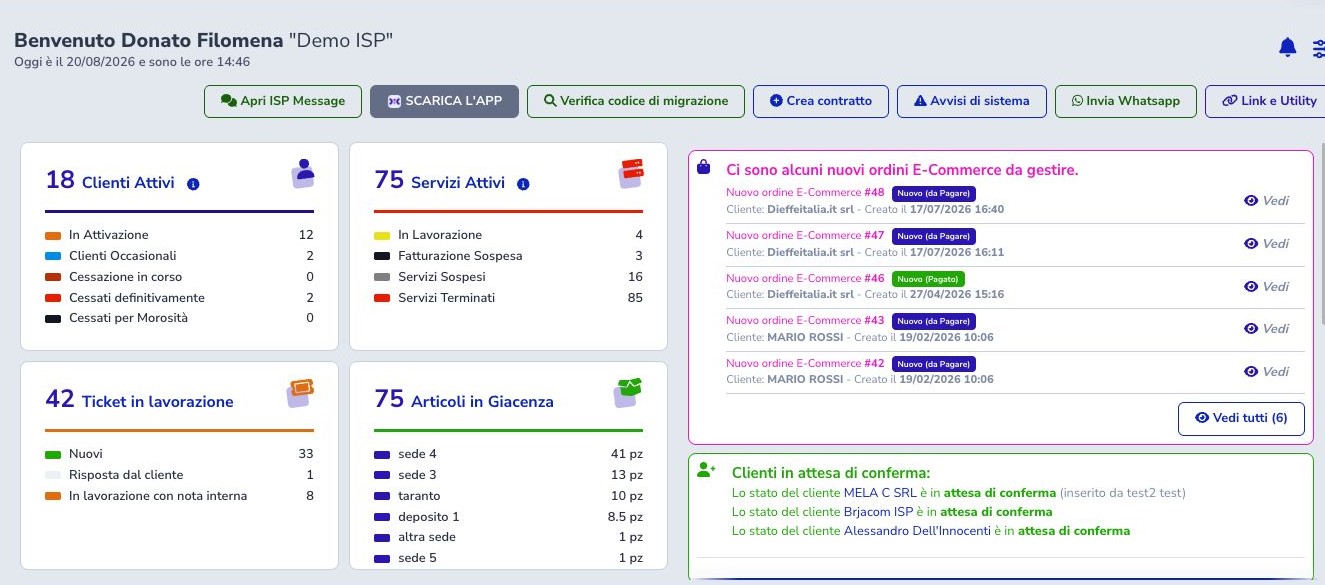
Quick actions below the welcome message
Available buttons can include ISP Message, ISP App information, migration-code verification, contract creation, system warnings, WhatsApp sending, and custom utility links. They depend on modules, templates, and permissions.
On smartphones, this toolbar uses uniform compact icons; the full name remains available as an accessible label and hint. The ISP APP download command is hidden because the operator is already using the system from a phone. Desktop retains the complete buttons and labels.
Verify recipients and template variables before messaging and use only the received migration code. Custom links must lead to authorized resources maintained by the ISP.
ISPino and running activities
When the system is processing background work, the ISPino is working... bar appears below the welcome message. ISPino is animated while queues or processing tasks are active; links beside the mascot identify the channel and open the corresponding operating list.
The bar can report email, SMS, WhatsApp, APP notifications, scheduled communications, or invoice generation according to account modules and permissions. It disappears automatically when no activity remains. The animation is only a visual indicator; open the queue link to verify actual quantities and status.
Customize the homepage
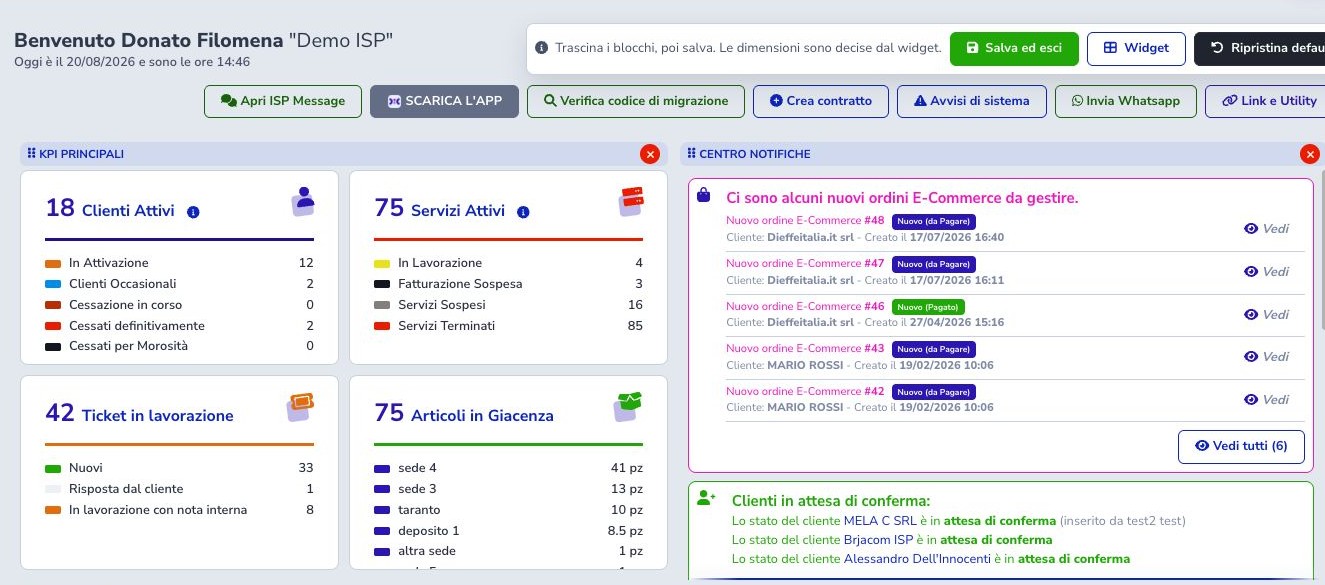
Select the sliders icon and Customize homepage. In edit mode drag widgets in the grid; Widgets opens the catalog and the cross hides a block from the personal layout. Save and exit stores positions, presence, and formats for the current account only; it does not alter a colleague’s layout.
Cancel discards unsaved changes. Reset default removes that account’s customization and rebuilds the system layout using only widgets allowed by active modules and role permissions. It does not delete module data. An unauthorized widget is not displayed, even as a locked placeholder; if an expected block is absent, check the role, permissions, and module before comparing layouts between operators.
Widget catalog and sizes
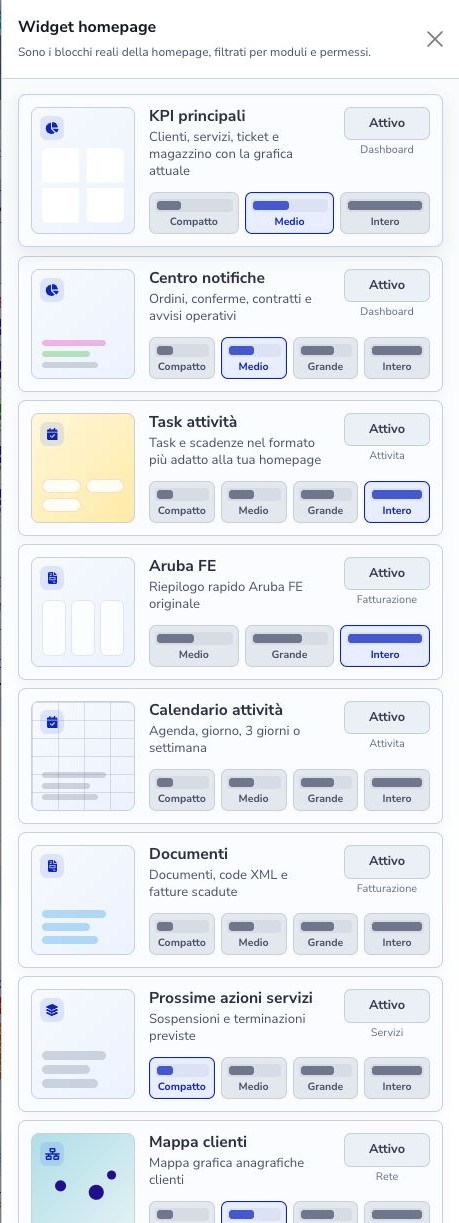
The catalog contains only widgets allowed by modules and permissions. Active means the block is in the layout; Add inserts it. Compact, Medium, Large, and Full formats can change the number and type of details, not merely enlarge the same view.
Choose compact for quick indicators and extended formats for lists, charts, maps, or history. Review the resulting grid before saving.
Principal KPI widget
This widget can combine Active customers, Active services, Tickets in progress, and Stock items. Each group requires its module and permission.
Customers breaks down activation, occasional, termination, terminated, and delinquent states and compares usage with the licence limit. Services separates provisioning, billing paused, suspended, and terminated. Tickets totals new, customer-replied, and internal-note states. Warehouse aggregates quantity by site. Open each heading for the authoritative list.
Notification Center widget
The notification center surfaces action queues such as ecommerce orders, customers awaiting confirmation, reseller contracts awaiting approval, activity reports, services in progress, disputed or refunded payments, SMTP or XML errors, new payment methods, requirements, and portability work.
Failed automatic charges are separated from generic errors and grouped as SEPA, card, or other payment methods. The alert remains visible for the individual account until the operator selects View all. Opening the list marks the current failures as read without deleting them from Error logs; a later failure displays the alert again.
Use View or View all, complete the work in the owning module, and return to the Dashboard. Hiding the widget does not resolve records; individual notification families can depend on “Dashboard - Notifications” permissions.
Activity Tasks widget
Shows tasks, deadlines, and detail links. Compact shows a small essential set, Medium and Large increase item count, and Full uses an adaptive row. Manage opens the complete list.
Handle overdue tasks in Activities by completing, reassigning, or rescheduling them while preserving customer, description, and owner.
Activities Calendar widget
Shows appointments and activities as today’s agenda, one day, three days, or a week according to format. Open an event to verify time, customer, assignees, recurrence, and status.
An empty calendar can mean no records in the period, permission filtering, or a limited compact format.
Aruba FE widget
Summarizes recent supplier invoices, outgoing documents, and conditions requiring attention in Aruba electronic invoicing. Medium, Large, and Full formats arrange these sections differently.
The widget uses locally synchronized data. Check last synchronization, notifications, and the Aruba FE archive before concluding that a document is absent.
Documents widget
Combines generated documents, electronic-document queues, and overdue invoices. Compact favors figures while extended formats add charts and queue detail.
An overdue invoice means an open balance relative to its stored due date; it does not by itself prove non-payment. Check payments, matching, credit notes, and reconciliation before reminders or suspension.
Next Service Actions widget
Shows planned suspensions and terminations and provides longer operating lists in wider formats. Open the service instance and check customer, state, planned date, reason, billing, and technical provider.
A date in this widget does not replace contractual and technical checks required before the action.
Customer Map widget
Maps customer records that have usable coordinates. Wider formats increase map space but cannot repair an incomplete address or incorrect coordinates.
If a customer is absent, check CRM address normalization and coordinates. The map does not demonstrate network coverage or saleability.
ISP Dude widget
Summarizes device state, network map, and online/offline events. Compact provides essential state; Medium expands KPIs; Large shows the map; Full combines map and recent events.
Interpret alerts using the last check, monitoring method, maintenance, and upstream dependencies. Open ISP Dude before changing a customer service.
E-Commerce Orders widget
Add Ordini E-Commerce (E-Commerce Orders) through Personalizza homepage → Widget → Aggiungi (Customize homepage → Widgets → Add), choose a format, then save and exit. This optional widget appears in the catalog only when the E-Commerce module is active and the operator has read permission.
New includes both paid and unpaid new orders; Preparing and Shipped count orders currently in those states. Orders this month counts all orders created in the current calendar month, including completed and cancelled orders. It does not count deliveries completed this month and can overlap the other counters.
Compact shows the four indicators. Medium adds the latest 3 orders, Large 5 and Full 6, newest first, with order number, customer, date, status and total including VAT and shipping. Select an order to open its detail or Vedi tutti (View all) for the complete list. With no orders, counters show zero and the list displays an empty message; if data is unavailable, reload the page or open the order list. Notification Center alerts remain separate.
MessageNet and FiberCop widgets
These widgets require their module and permission and may need to be added manually because they are not enabled by default. MessageNet summarizes local profiles, documents, and number portability; FiberCop summarizes orders and NOW notifications.
Compact formats emphasize counters and larger formats show recent records or trends. Compare local data with synchronization and provider detail before acting.
Alerts to review
Alerts identify services still being processed, incomplete configuration, delivery failures, or documents awaiting action. Open the record, identify ownership, and verify the cause before dismissing or hiding anything.
After correcting the owning record, reload the Dashboard and confirm that the queue changes. If it does not, verify actual state, synchronization, and widget criteria.
Why a widget is missing or empty
- The required module is inactive.
- The role lacks its read permission.
- The widget was removed from the personal layout.
- MessageNet or FiberCop must be added manually.
- No records match the period or state.
- Synchronization or configuration is incomplete.
- The selected format shows fewer details.
Check catalog, module, permission, configuration, source archive, and last update in that order.
Recommended daily routine
- Review system warnings and channel status.
- Open queues blocking customers, contracts, services, or documents.
- Review customer-replied tickets and due tasks.
- Check suspensions, terminations, and overdue invoices.
- Use authoritative detail for network and provider state.
- Update records in their owning modules.
- Reload the Dashboard and confirm queues fall.
Tailor the layout to the role: billing staff can prioritize Documents and Aruba FE; support can prioritize Tickets and Tasks; network staff can prioritize ISP Dude, Map, and FiberCop.