
ISP App: mobile operations manual
Operator selection, access, invoices, services, support, notifications, optional modules, and reseller tools.
Last updated: 2026-09-03
Purpose and scope
ISP App is the mobile Customer Area, with a provider-code entry point, smartphone navigation, dedicated mobile routes, and features controlled by the ISP configuration and the customer profile. The guide explains the available procedures, their prerequisites, and the checks required after each operation.
Select the provider
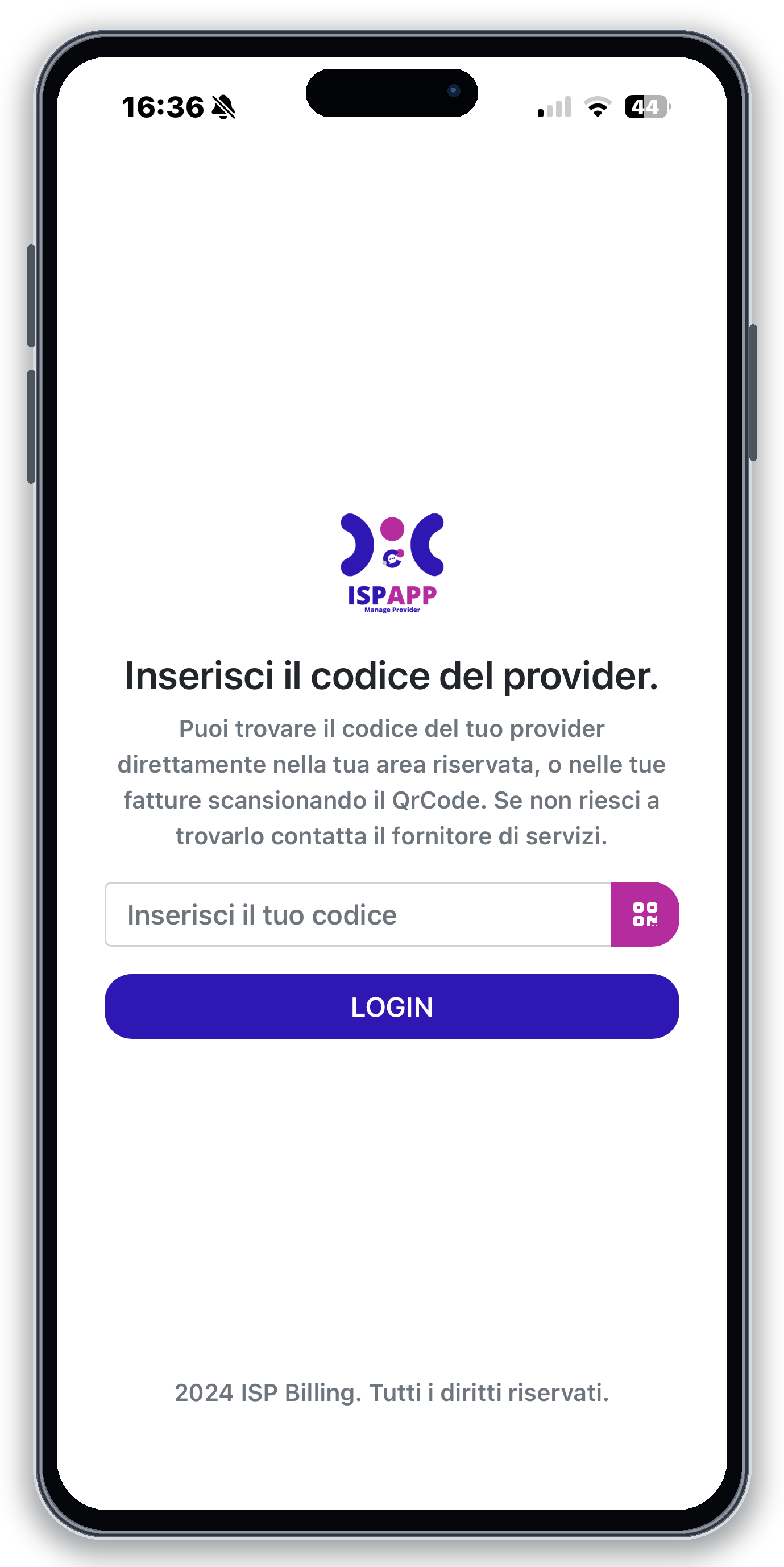
On first access, enter the provider code supplied by the ISP or use the QR action published through the ISP’s official channel. This selection identifies the correct tenant, branding, enabled modules, and authentication endpoint before any customer credentials are entered.
Verify the ISP name and visual identity shown afterward. If they do not match, return to provider selection instead of attempting a login. Treat provider QR codes as routing information: use a current official code and do not reproduce private test links in public documentation.
Enter the complete code supplied by your provider, keeping any trailing = characters. Custom provider names are also supported. Your selection is retained for later launches; use Change provider to select another provider.
Sign-in, reopening, and provider change
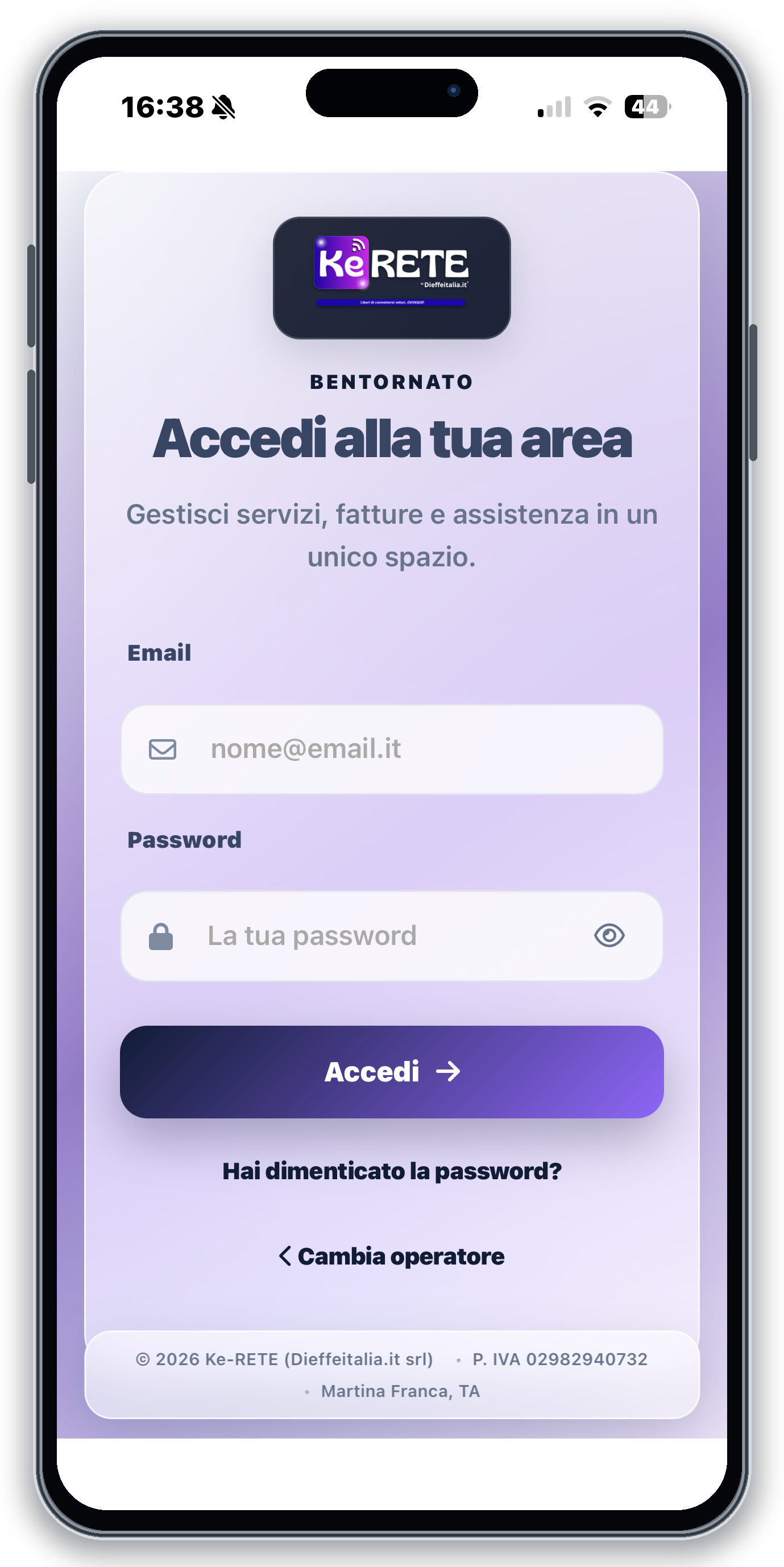
On first use, sign in with the customer contact account authorized for the selected ISP. After a successful login, ISP APP stores a secure device token. On later launches it briefly shows the operator logo on an automatically selected background that keeps it readable: dark for light logos and light for dark logos. When the token is valid, Home opens directly without displaying provider-code and login screens again.
The token is renewed during use and remains valid until the customer selects Disconnect account, unless the account or session is revoked. Disconnecting removes the device session and returns to the login page for the same provider. From there, Change provider deliberately returns to provider-code entry. Password recovery starts the credential reset flow.
Home and active profile
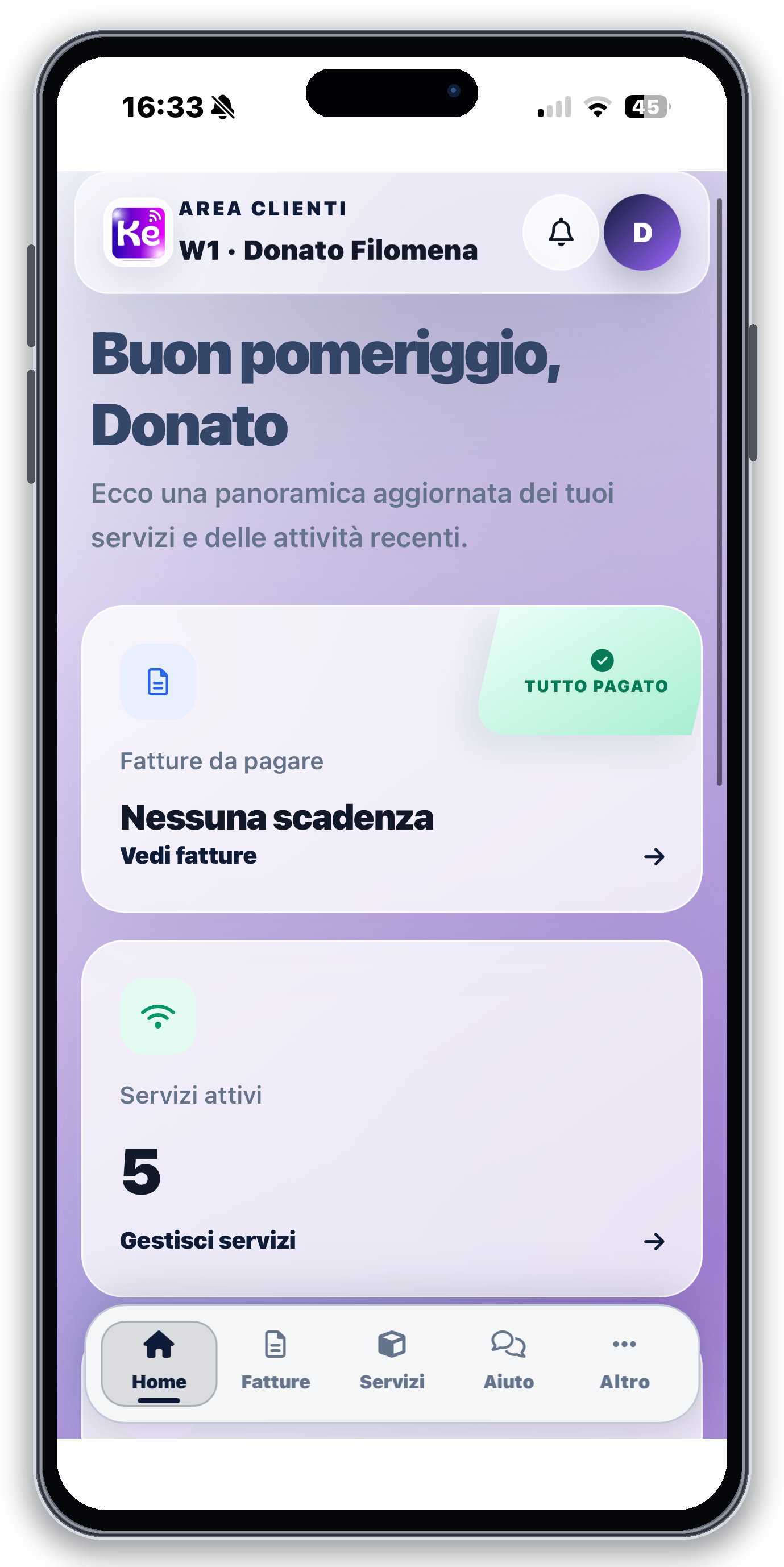
After sign-in, the header uses the current section as its main title, such as Home, Invoices, Services, or Support, and keeps the active customer code and name underneath. Mobile pages do not repeat that title in their content; the section description and actions remain visible.
Check both the page and customer identity before paying, downloading a document, opening support, or viewing a service. Profile switching changes the customer context for subsequent requests, so verify the header after each switch.
Bottom navigation and More menu
On smartphones, the header remains fixed and flush with the top edge while the navigation bar remains fixed and flush with the bottom edge; page content scrolls through the central space. Both bars use a solid white background to continue the Android and iPhone system bands visually, respect device safe areas, and do not cover cards or controls.
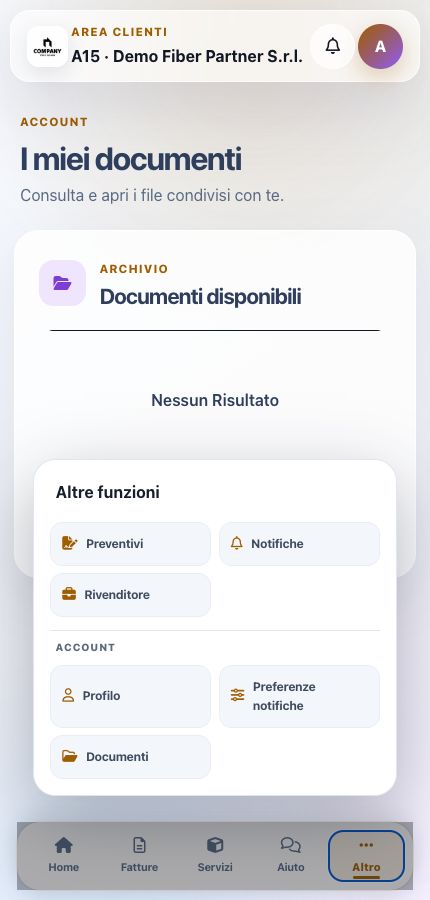
The persistent bottom bar always provides Home and More. Invoices, Services, and Support appear only when the corresponding ISP module is enabled and viewable documents, services, or published support departments are available. The number and width of entries adjust automatically.
More collects secondary functions such as Quotes, Notifications, Profile, notification preferences, and Documents. Calls and Reseller access also require their corresponding modules in addition to the necessary customer data. A missing entry should not be forced through a copied URL.
Invoices and payment result
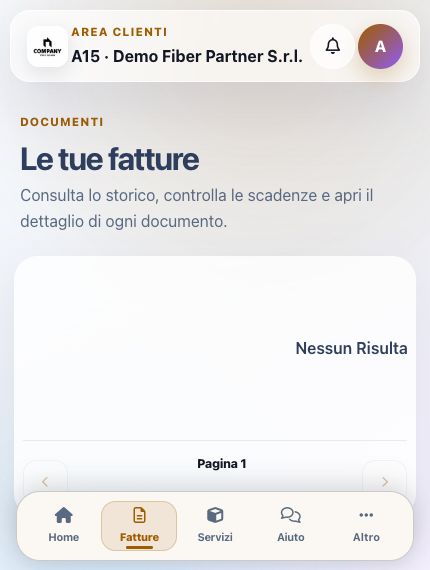
When unpaid documents exist, Invoices opens with the unpaid filter already applied; selecting Unpaid again returns to the full history. On smartphones each invoice is a vertical card showing status, due date, and amount. Both the entire card and the explicit Open invoice action lead to its detail.
Open the document, compare total, remaining balance, due date, and status, select an available method, and finish checkout. Back in the app, verify that the payment entry, balance, and document status have changed consistently. A gateway redirect alone is not proof of collection.
The method selector for an individual invoice excludes automatic bank and card debits, which require a dedicated setup. If an invoice shows an automatic debit you did not agree to, contact your provider to have it corrected.
After changing the payment method, wait for the document to refresh: the page returns automatically to Pay now, when available, or to the payment instructions section. Selecting a method does not make a payment. If the change is not confirmed, reload the document and check the displayed method and amount before trying again.
On Android, after selecting Open PDF, spread two fingers on the document to zoom in up to four times. Pinch them together to zoom out and drag with one finger to read other parts of the page. Close returns to the invoice details; reopening the PDF fits it to the screen width again.
In ISP APP, Pay now starts the card payment; the in-app flow returns to the document when finished. If bank verification opens a browser or another app, return to ISP APP and reopen the invoice to check its status before attempting another payment.
Services, recharge, and termination
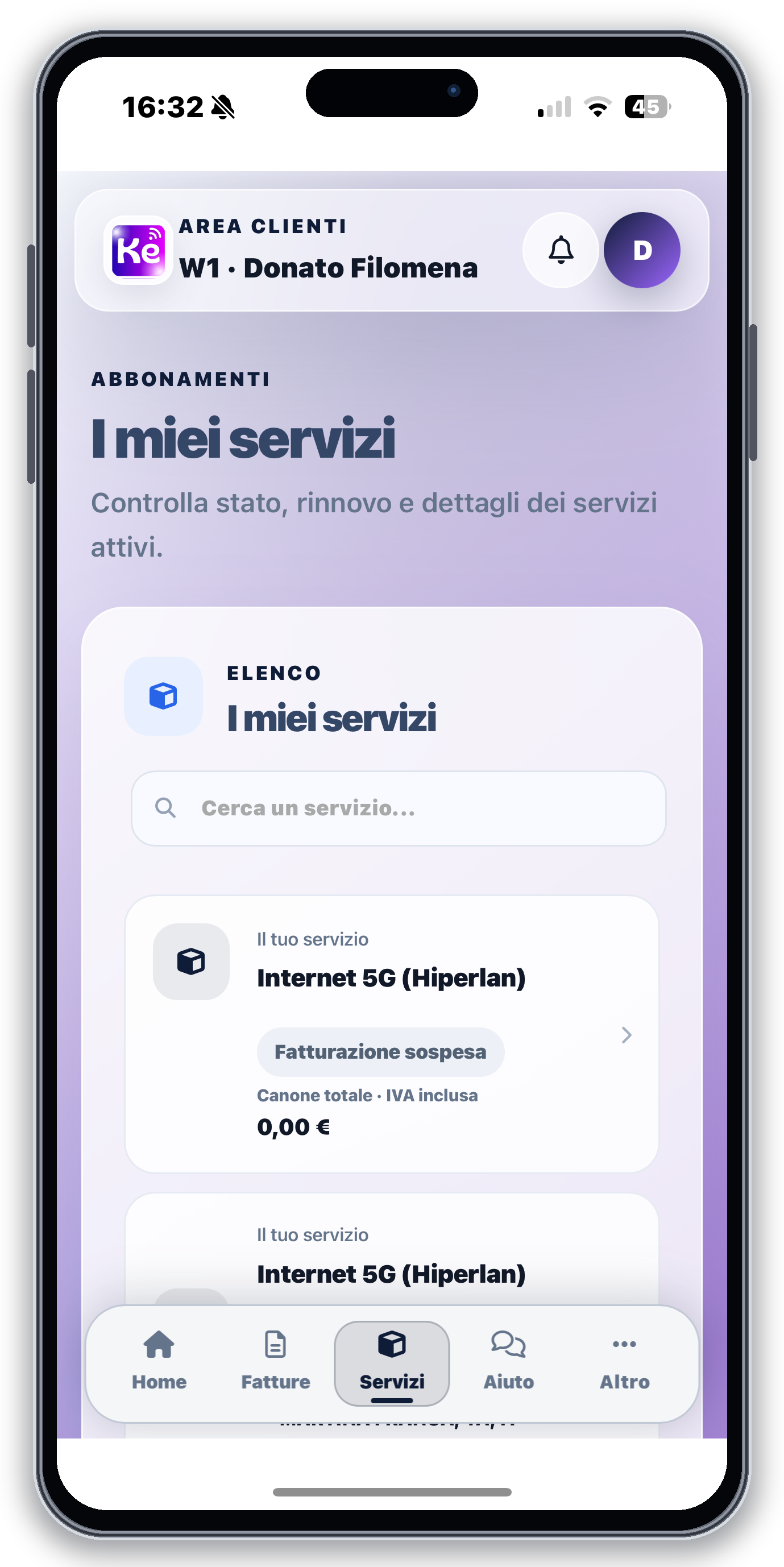
Services lists the customer’s instances and opens their operational and billing details. For a rechargeable service, the customer can create the recharge invoice, pay it through an available method, and verify the resulting period or credit. Cancellation remains available only while the invoice meets the applicable conditions.
To request termination, select the relevant available services, choose a reason, and request an OTP. Apostrophes and accented characters can be used normally in notes. Confirming the code opens a ticket; the request does not automatically disconnect services. If confirmation returns an error, check your tickets first to see whether the request is already present; contact customer support if the problem persists. If the code has expired, reload the page and request a new one.
Termination uses a dedicated page with OTP delivery and confirmation. Validate subscriber, service, requested effective date, and commercial consequences before submission, then check the request state in the service detail.
Open a support ticket
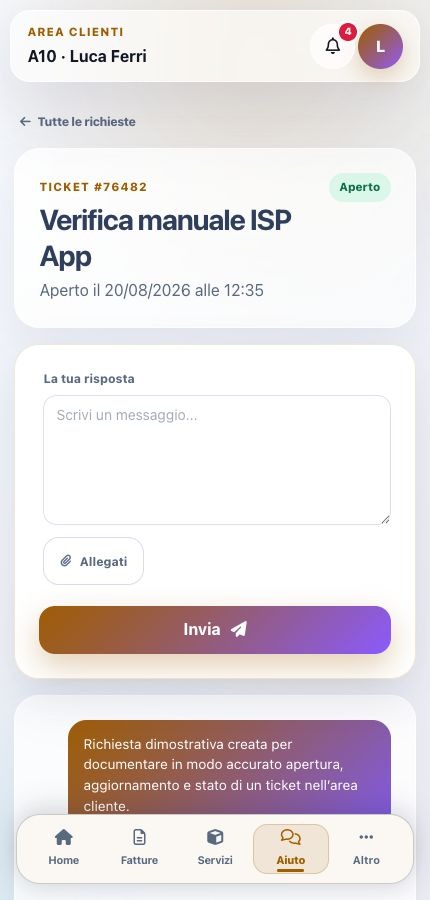
Select New ticket, choose the department responsible for the issue, optionally link the affected service, and enter a recognizable subject plus a complete description. Include useful symptoms, time, expected behaviour, and safe evidence without passwords or unnecessary personal data.
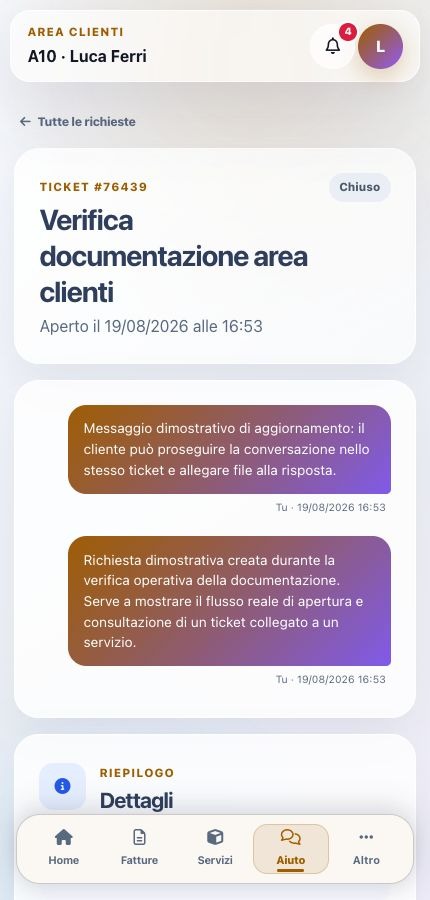
After submission, verify the assigned ticket number, department, linked service, and first message. Continue the same issue in that conversation instead of creating duplicates that split chronology and operator ownership.
Quotes
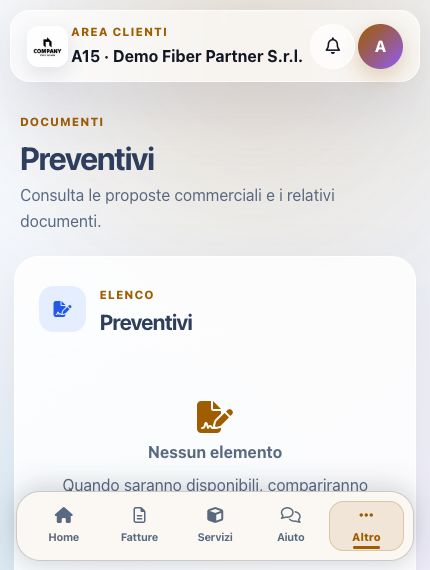
The Quotes archive lists commercial proposals published for the active profile. Open a quote to review lines, amounts, validity, conditions, PDF, and attachments. Where enabled, acceptance uses the supported OTP flow and records the customer decision.
Check recipient, validity, totals, and terms before accepting. An accepted quotation is not proof that payment, provisioning, or service activation has occurred; follow the resulting contract, document, and service lifecycle separately.
Shared documents
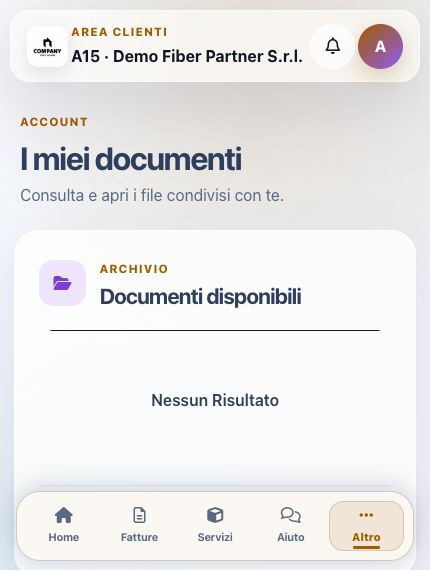
Documents contains files deliberately shared by the ISP with the active customer. It remains separate from invoices, quotations, contracts, ticket attachments, and automatic payment receipts.
An empty archive means that no shared file is currently published for that profile. Verify the active customer and publication state before reporting a missing document. Download only to a trusted device and avoid forwarding files that contain personal or contractual information.
Received notifications
The notification inbox displays notices delivered to the active account, including their content, date, read state, and related application context where available. Opening a notification records that it was viewed; it does not prove payment, acceptance, service activation, or completion of the referenced action.
Use the notice to open or locate the corresponding invoice, ticket, service, or communication and verify the real business state there.
Contacts and notification preferences
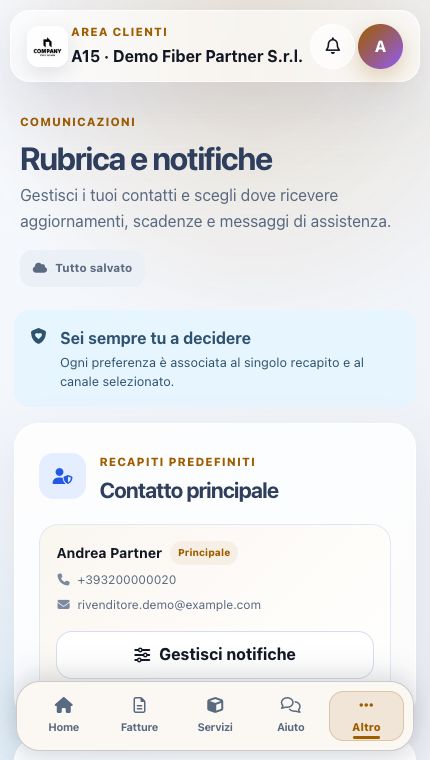
Preferences determine the primary reachable contact and which future ISP App categories may produce mobile notifications. Supported categories can include marketing, service communications, invoice alerts, and tickets according to ISP configuration.
Device push uses an FCM token associated with the installation. Changing consent and changing a phone or email contact are separate actions. Review the chosen contact, category meaning, and legal basis before saving, and do not treat a push-delivery token as customer identity.
Profile and automatic methods
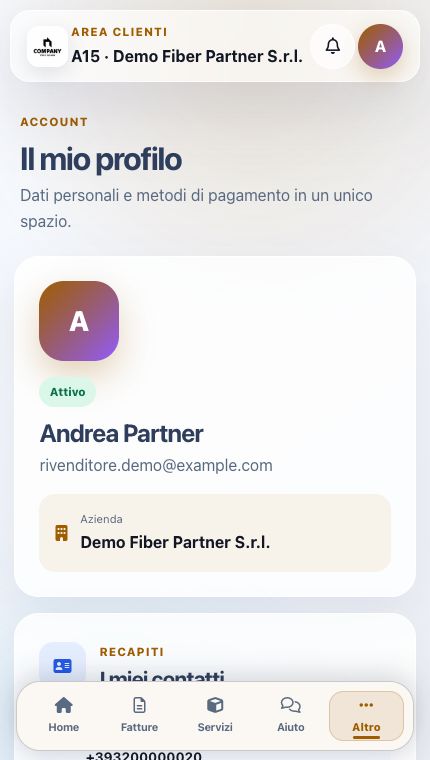
Profile combines account status, contact, address, tax delivery data, and card or bank-account setup paths. A setup button does not prove that a method is valid. Complete provider authorization and verify the resulting state.
An authorized bank account or card may affect future invoices. Check the account holder, gateway, test or live environment, and final confirmation, and never share an image containing full payment details.
VoIP telephony
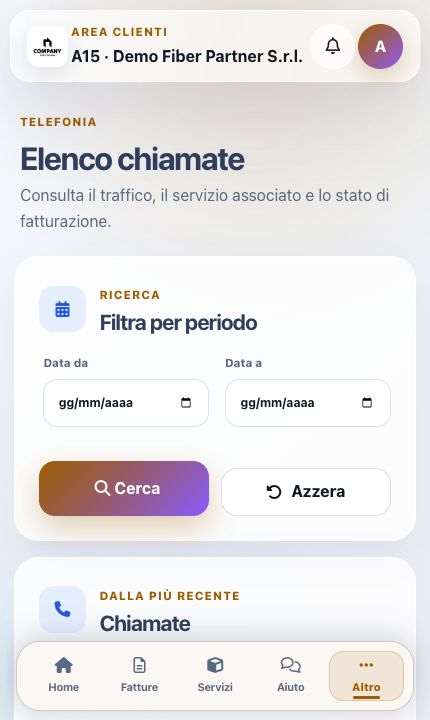
The Telephony page lists calls and provides date-range filters, search reset, pagination, billing state, and PDF export. If no calls are shown, verify the selected period, customer number mapping, and the provider’s latest CDR import before reporting missing traffic.
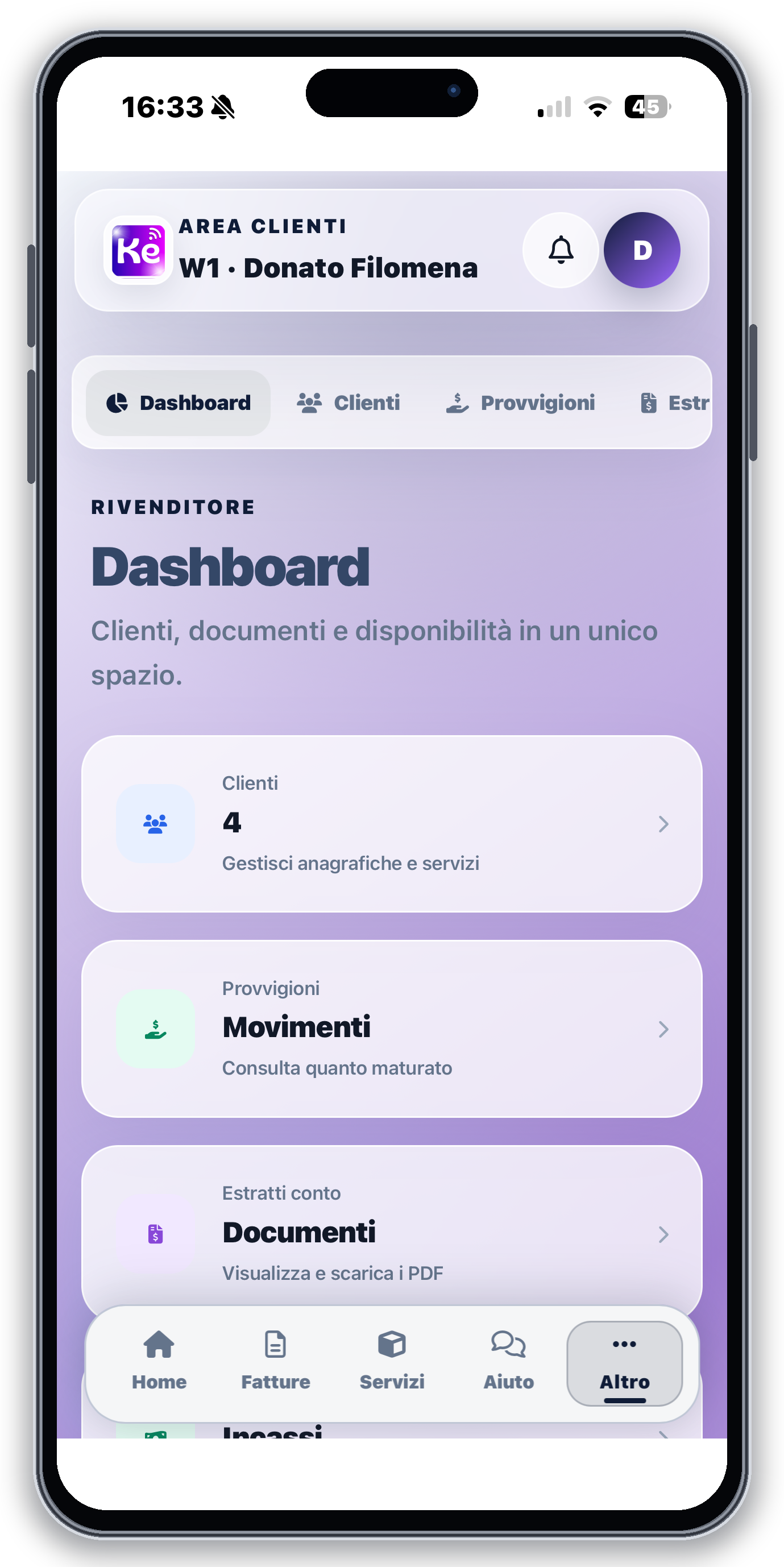
Mobile reseller dashboard
Authorized reseller contacts receive a dashboard with coverage lookup, customers, commissions, statements, payments, plafond, and contracts. The coverage form progressively enables town, address, and street number, while the summary makes the available operational balance visible before a new transaction.
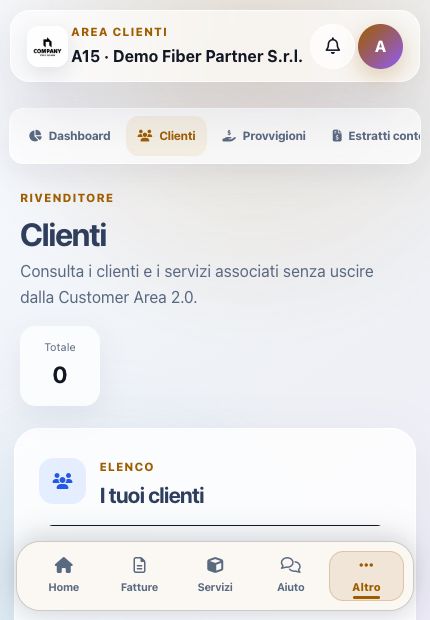
Reseller customers, commissions, and payments
Customers opens assigned records and, when authorized, their services and invoices. Commissions lists earnings; Payments lists customer-invoice collections. These are distinct from plafond and ISP accounting.
An empty list may simply mean that no record is assigned to the reseller. Check date range, customer assignment, and account role before treating it as missing data.
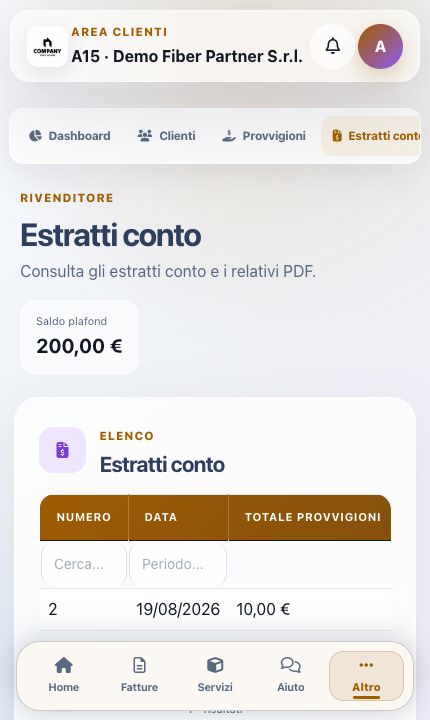
Statements and plafond
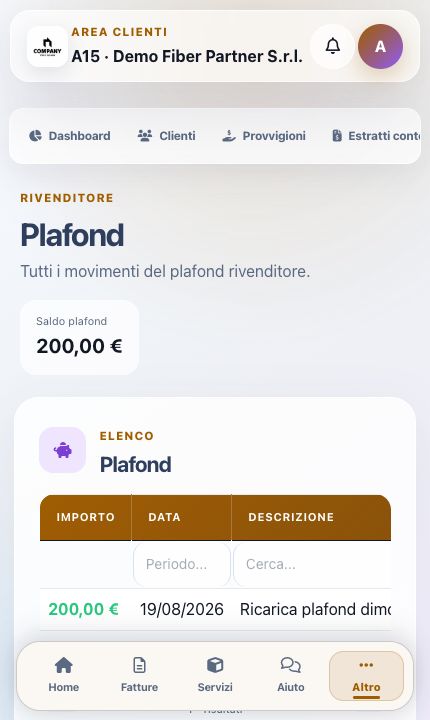
Statements shows number, date, commission total, payment date, view, and PDF download. Plafond lists each credit or use with amount, date, description, and movement type.
The statement is the commission summary, while the plafond ledger explains operational spending capacity. Reconcile each item by number, date, and reason and do not combine the two archives as one balance.
Reseller contracts
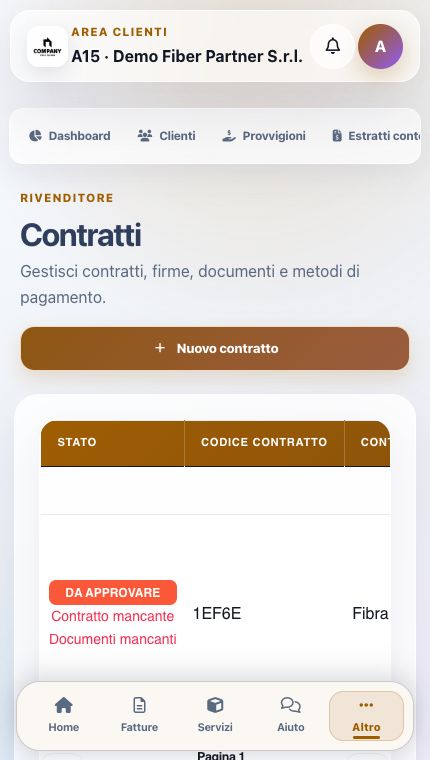
The mobile reseller contract workflow supports customer search and preparation, company lookup where available, service selection, creation, editing, download, signed-contract upload, additional documents, payment-method setup, updates, and permitted attachment deletion.
Before saving, verify the reseller’s customer assignment, contracting party, fiscal data, selected service, price, duration, payment method, required documents, and signatures. Uploaded signed files must belong to the same contract and customer.
Resold-customer invoices and services
For an assigned customer, the reseller can open and download permitted invoices, start payment through an enabled gateway, or use available reseller credit when the workflow supports it. Verify document balance, payment result, and resulting plafond movement.
A compatible rechargeable service can generate its recharge invoice and cancel it only while the document remains eligible. After successful collection, check the new service period or credit. Reseller assignment, gateway redirect, and plafond availability are not individually sufficient proof of completion.
Administrative settings and identity
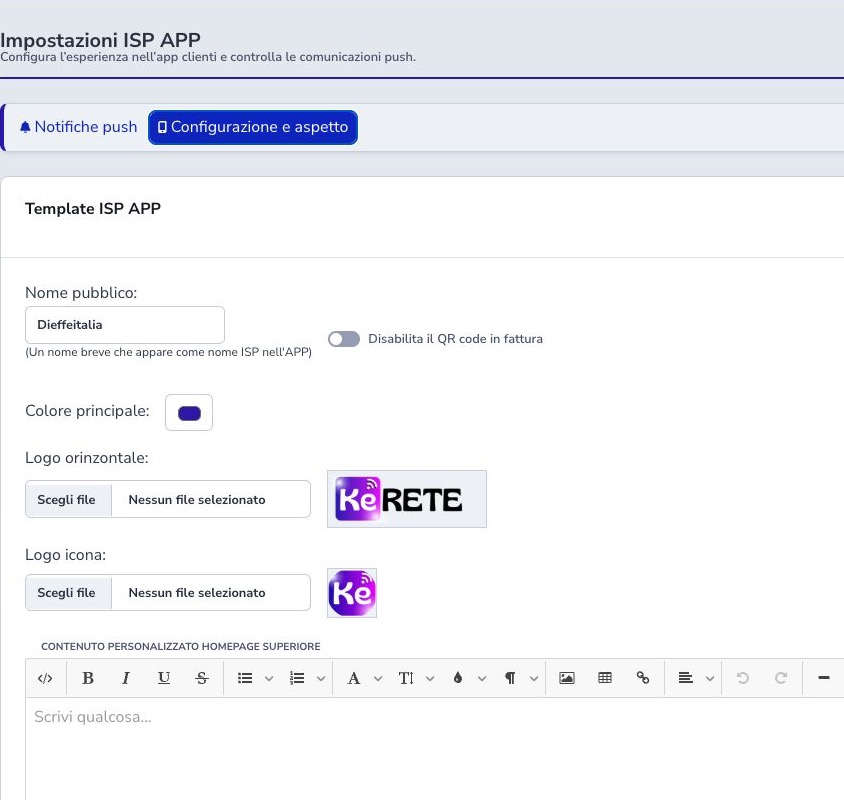
Administrators configure the short public name, primary color, horizontal logo, round application icon, and optional alphanumeric provider nickname between 3 and 20 characters. Use assets designed for small screens and verify contrast, crop, and readability.
Test both the nickname and standard provider code in a fresh mobile session. Changing branding must not obscure the active ISP or customer identity, and the nickname must remain unique and stable enough for customer instructions.
Remembered login for ISP administrators
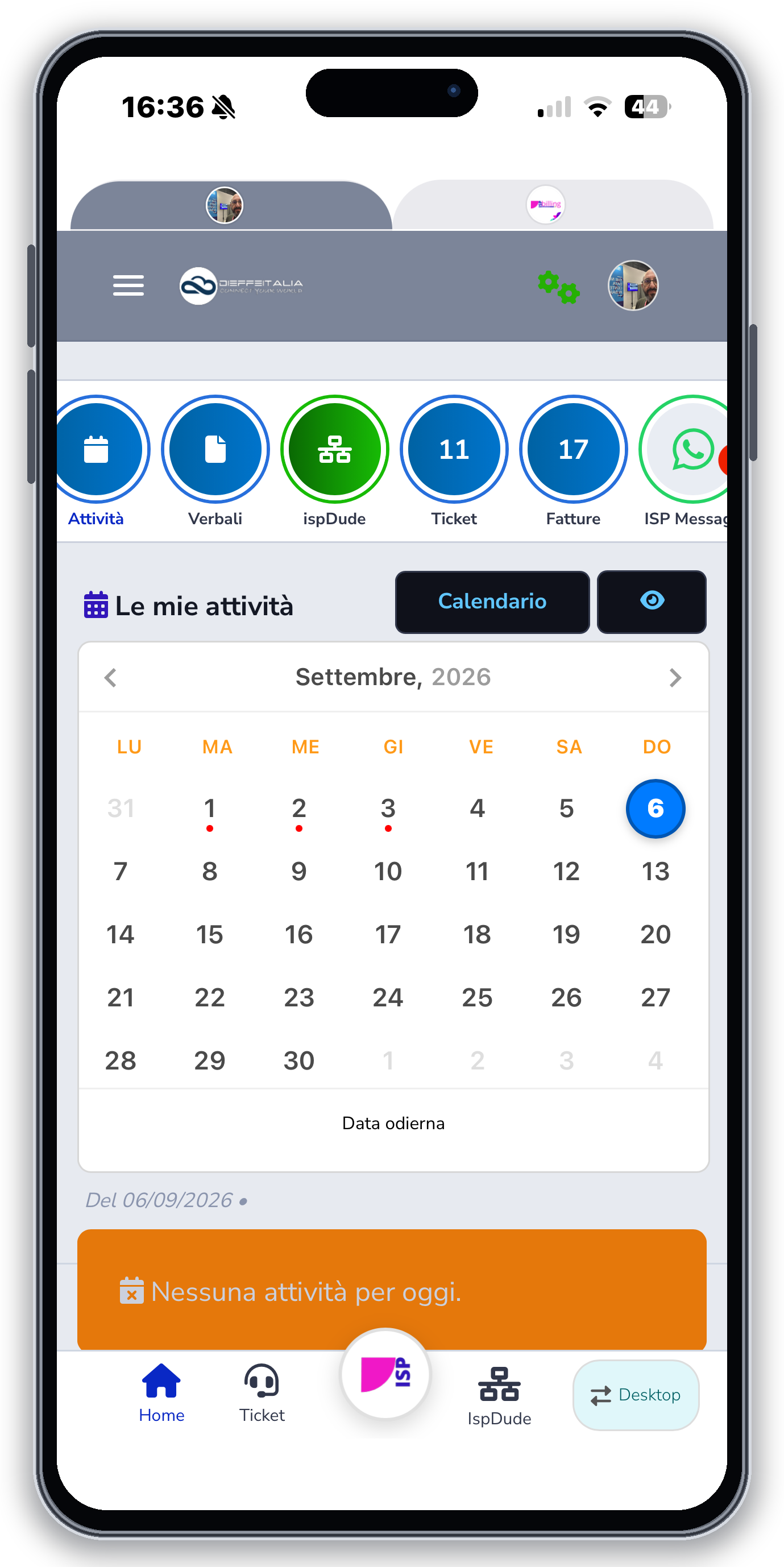
On the ISP APP administrative login page, keep Remember me selected to retain access when reopening the app, including older versions that start on the login page. While access is being restored, the logo appears with Signing in… and the credential fields stay hidden. During initial loading, the neutral ISP APP logo appears with a Retry control. Once the page is ready, the initial screen and administrative login use the same waiting-screen design. The logo can appear only after the app receives the initial content: without a connection, the first launch may still remain blank. Administrators see the ISP Billing logo or their customized administrative logo; Customer Area users see the saved operator logo. When entering a new code whose destination is not yet known, the ISP APP logo is shown. Switching operators does not reuse the previous operator’s logo. Without biometric login enabled, valid access takes you automatically to the homepage. If authentication is needed, the form appears automatically; Sign in manually lets you leave the waiting screen at any time. Remembered access lasts for up to 15 days of inactivity and is extended with use. Clearing the checkbox means the new login does not retain access beyond the current session.
If biometric login has been enabled on the device, reopening through the login page still requires biometric verification. Cancelling verification or encountering an error does not open the Dashboard using remembered access: try the biometric button again or use email, password and the second factor when required. Logging out requires a new explicit sign-in.
Authorize device applies to the second factor and does not replace Remember me. Changing networks may require the second factor again during the next standard login. If the app does not retain sign-in data, you will need to authenticate again. These instructions apply to ISP administrators; the Customer Area flow remains separate.
Biometric login for ISP administrators
ISP administrative accounts can enable biometric login from Dashboard → Profile while using ISP APP on a supported device. The control appears only on devices with compatible biometrics already configured. On iOS, the displayed name follows the detected sensor, such as Face ID, Touch ID, or Optic ID. On Android, biometric login supports fingerprints or facial recognition compatible with credential protection; keep ISP APP and Android System WebView up to date. Enable it again after changing the enrolled biometrics or switching to a new device.
Enrollment requires a recent standard login with email, password, and the second factor where enabled. Biometric data stays on the device. Access can be revoked at any time and must be enabled again after 180 days. Once enabled, the mobile login page displays the biometric button, and native verification occurs before the regular Dashboard session is created.
Biometric login can also be enabled using the Enable button on the homepage. Wait for confirmation before closing the screen: the button stays disabled while the operation is in progress. After enrollment, the phone should appear under Authorized devices in Profile. On subsequent openings, with valid biometric access, confirm the phone prompt to access the Dashboard without entering the password and second factor again.
If the phone reports that biometrics are enabled but does not appear among authorized devices and cannot sign in, complete a standard login, disable biometrics for this phone from Profile, and enable them again. A cancelled attempt can be repeated after closing the message.
Authorized devices remains available from Profile even in a desktop browser. It shows platform, biometric type, last use, and expiry and can revoke one device or every token. A full logout revokes the current device and requires a new explicit sign-in before automatic login is re-enabled in the current session; password changes or recovery and account disabling or deletion invalidate linked biometric access. If a token has expired, been revoked, or no longer matches the account, ISP, or login domain, complete a standard login and enroll it again.
Homepage, QR, and promotion
Upper and lower Home HTML allow the ISP to publish controlled information around the standard dashboard. Keep content responsive, accessible, concise, and limited to HTTPS resources; test it on narrow screens so it does not push essential actions out of view.
The promotional block provides store badges, the provider code, and a QR code used to select the ISP. Publish the current code through trusted channels and test it after nickname or domain changes. The separate option that removes a QR from invoices affects only that promotion and does not disable ISP App.
Push monitoring
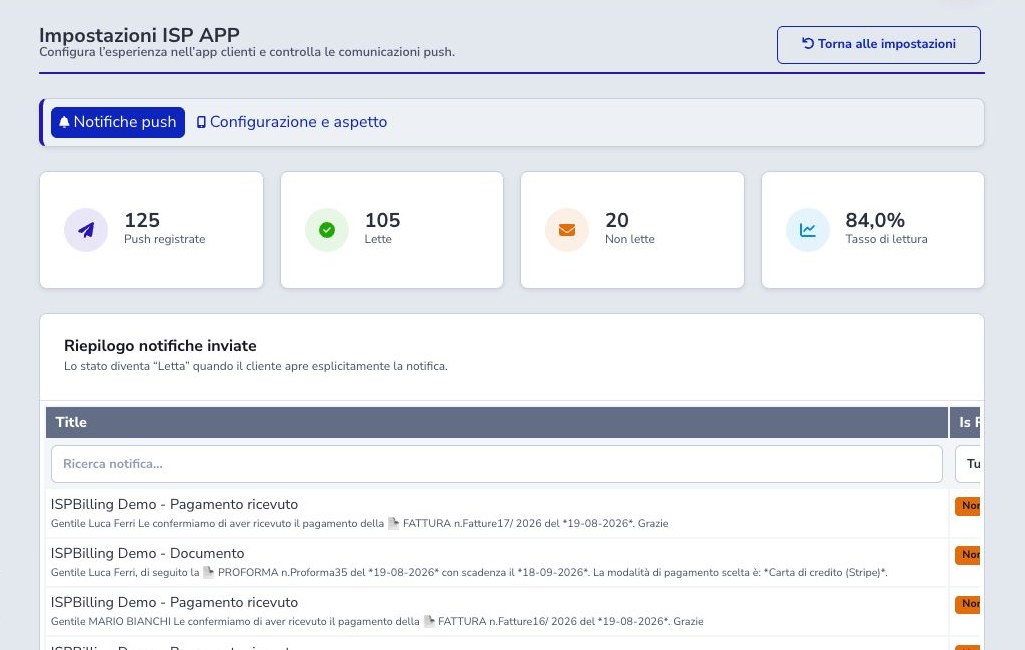
The admin tab reports registered, read, unread, and read-rate KPIs. Its log filters date, customer, content, state, and origin such as invoice, campaign, e-commerce, birthday, manual, or system. Read means the customer opened the notification; it is not evidence of payment or acceptance.
Mobile safety checklist
- Verify provider and active customer
- Protect passwords, OTPs, and device tokens
- Open invoice detail before payment
- Confirm gateway registration, balance, and status
- Link support to the correct service
- Close tickets only after resolution
- Separate inbox from notification consent
- Validate tax data and automatic methods
- Keep commissions, statements, payments, and plafond distinct
- Test branding and nickname on a phone
- Treat Read as an open, not a business outcome
- Log out from shared devices