
Quotes
Prepare offers, calculate taxes, generate PDFs, collect acceptance, and create invoice drafts.
Last updated: 2026-09-16
Purpose and lifecycle
Quotes creates commercial proposals for existing or occasional customers. A document retains number, subject, description, validity, economic lines, attachments, PDF style, private notes, state, and operator history.
The ordinary lifecycle is Draft → Sent → Accepted or Rejected. Acceptance may require an SMS OTP signature, and an accepted quote may later create invoice drafts. Quotes, contracts, services, and invoices remain distinct records.
List and search
The list displays state, actions, number, customer, subject, total, creation, latest update, and expiry. Search number, customer, or subject and filter Draft, Sent, Accepted, or Rejected.
An expired date does not replace state verification. Open the document and inspect validity and acceptance before acting.
Configure the module first
Complete five areas before creating a quote: General for numbering and SMTP, Issuer for seller identity, PDF Template for style and images, Attachments for reusable PDFs, and Message Templates for delivery channels. Also verify VAT, service/warehouse/bundle catalogs, SMS and WhatsApp providers, ISP App, and OTP acceptance used by the offer.
Run one fictional proposal from creation through PDF and recipient selection. A saved quote can still be commercially incomplete when numbering, identity, branding, terms, or channels were not prepared.
Existing or occasional customer
Select an existing CRM customer when the proposal belongs to a registered account. This provides authoritative identity, addresses, recipients, Customer Area access, and later conversion links.
Use an occasional-customer record only for a prospect that is not yet in CRM. Enter enough verified commercial identity for the proposal, search first for duplicates, and remember that occasional records do not provide the full customer lifecycle.
Subject, description, and validity
Set a concise subject that identifies the offer, a clear description, creation date, expiry date, payment or footer terms, and optional private notes. Private notes remain internal and are not printed in the customer PDF.
Validity should reflect real commercial terms. Review dates before duplication or resend, and issue a revised proposal when conditions or prices change rather than extending an already delivered document silently.
Replace an occasional customer
After the contact is registered in CRM, replacement links every quote that used the occasional record to the real customer and removes the occasional reference. Compare legal name, fiscal identifiers, address, and contacts before confirmation.
The operation does not automatically regenerate PDFs already delivered or rewrite historical printed content. Review each affected proposal and issue a new version when customer data must change.
Manual lines and recurrence
A manual line contains quantity, description, net amount, net discount, VAT, gross amount, total, and a weekly, monthly, bimonthly, quarterly, semiannual, annual, or one-off frequency according to supported choices.
Use recurrence to explain the commercial cadence, not to create a service automatically. Check quantity, unit meaning, net value, and description before relying on the calculated line total.
Choose articles from the Shop
With E-Commerce, Quotes and Warehouse enabled, operators with Shop/Warehouse read permission and Quotes read/write permission see Scegli dallo Shop (Choose from Shop) beside Add line when creating or editing a quote.
The Shop opens in a full-screen panel on the same quote page. Use search, categories and images, then Aggiungi al preventivo (Add to quote) in the catalog or product page. Sold-out and quotation-only articles can also be selected when published in the Shop. Authorized operators can use this selection during Shop maintenance.
A brief confirmation and an effect towards the Quote button indicate a successful addition. The last added article name does not remain in the selection banner.
The Shop header remains visible while scrolling, keeping search, cart and Quote within reach. Torna al preventivo (Return to quote) also stays at the top. On smartphones, search opens from the magnifying-glass button and the selection banner is compact.
Beside the shopping cart, Preventivo (Quote) lists selected articles, codes, quantities and an indicative total. Adding the same article again increases its quantity. Quantities can be changed and items removed; each selection supports up to 100 different articles and remains valid for two hours.
Torna al preventivo (Return to quote) closes the panel and shows the document: search, scroll position and selected articles remain available. The control is in the blue Shop banner; there is no duplicate top bar with an X button. Use Scegli dallo Shop (Choose from Shop) in the quote to resume.
In the Quote panel, Inserisci gli articoli nel preventivo (Insert articles into quote) transfers the code, name, description, quantity, net list price and VAT into the original document lines and closes the Shop panel only after insertion is confirmed. Prices and VAT are checked again before transfer; articles removed from the catalog or with invalid VAT block the transfer until the selection is corrected. Existing completed lines remain unchanged, and repeating the transfer does not insert the same selection twice.
Annulla selezione (Cancel selection) removes selected articles only after confirmation. Choose Mantieni selezione (Keep selection) to retain them; the Shop search and existing document lines remain unchanged.
The quote stays on the same page: unsaved fields and attachments remain in place. Do not reload the page during selection. On return, review the lines and save the quote; transferring items does not automatically save the document. If the panel does not respond, close it and reopen it with Choose from Shop. Reloading or closing the quote page interrupts selection: save the document first.
These controls are for ISP operators and appear during selection opened from a quote. Selected articles do not enter the shopping cart, create orders or reserve stock.
Warehouse items, services, and bundles
Catalog search can populate a line from a Warehouse item, service, or bundle. Review the imported description, price, VAT, recurrence, and what the customer will actually receive.
Adding a catalog object to a quote does not reserve stock, activate a service, provision a module, or create the component services of a bundle. Those operations occur only in their subsequent workflows.
Discount, VAT, and totals
Enter net discounts in the intended unit and verify the taxable base after discount. Confirm VAT for every line, especially mixed-rate or exempt proposals, then compare subtotal, VAT by rate, gross amount, and final total.
Reorder or remove lines deliberately and recalculate after every change. Rounding differences should be resolved before PDF generation and invoice conversion.
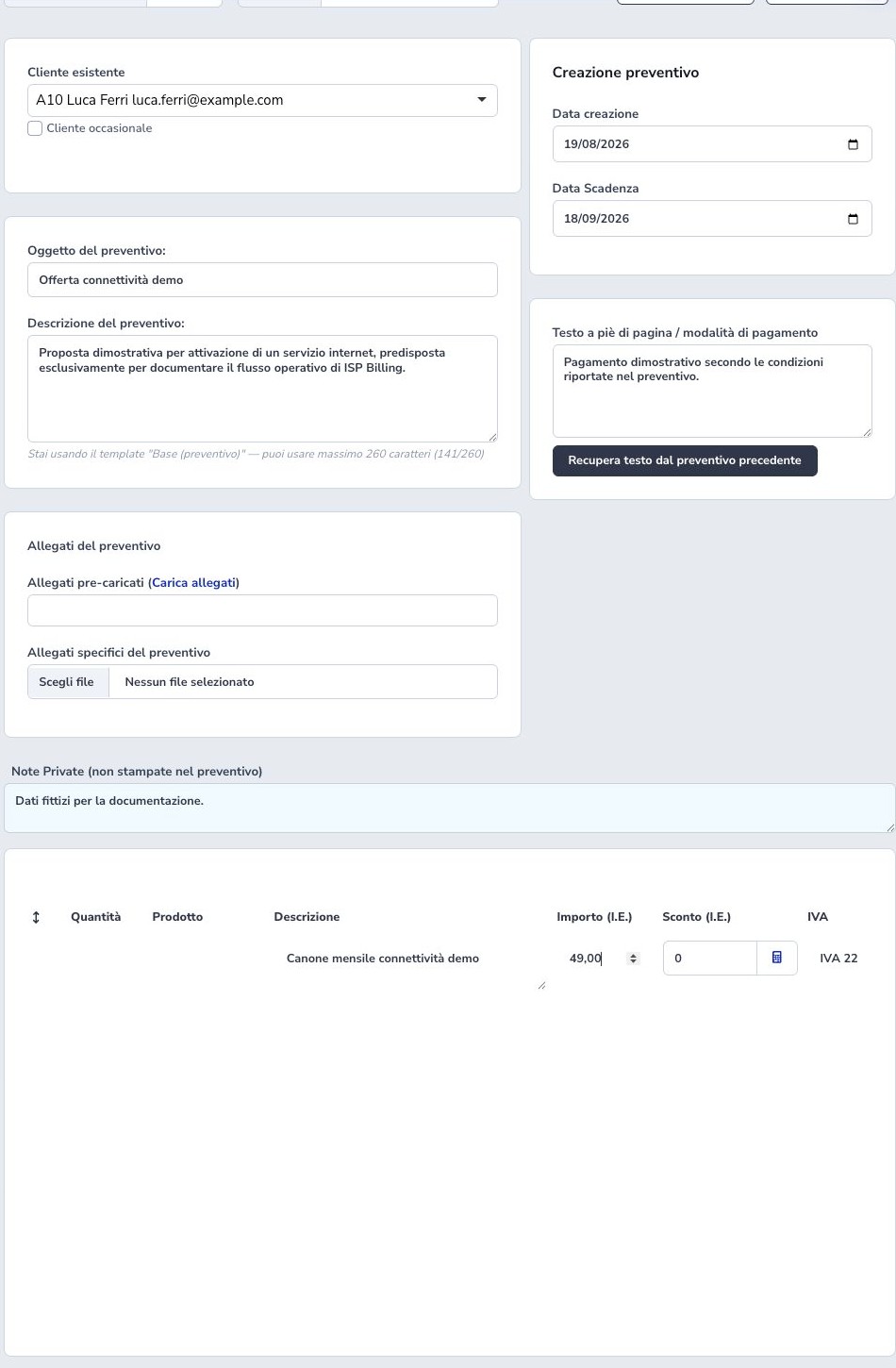
Executed creation
Save and continue created quote no. 5 for the fictional customer, kept Draft status, set 18 September 2026 expiry, and retained the calculated total. No channel was sent and no invoice was generated.
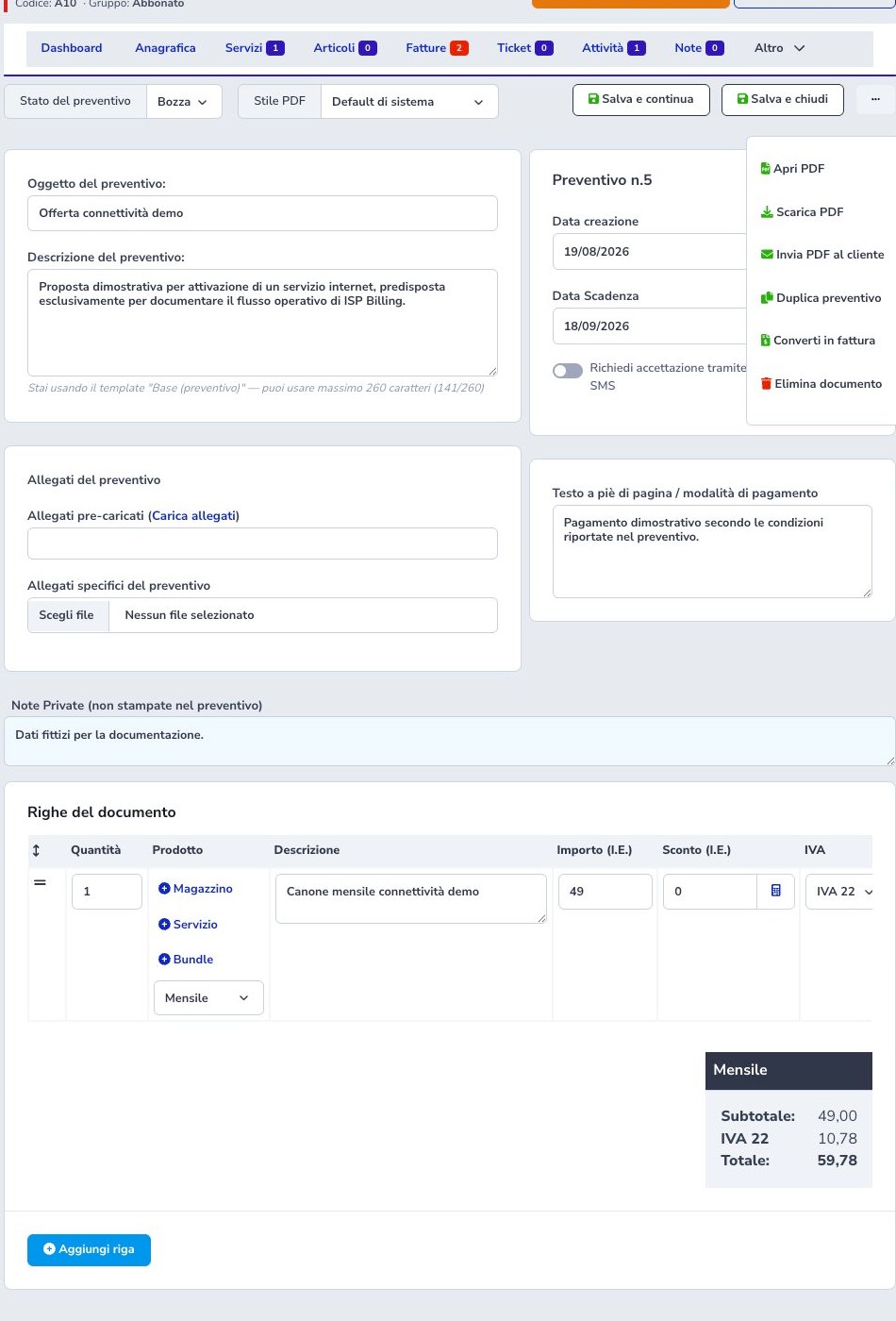
Save and continue keeps the quote open for editing; Save and close returns to the quote list. Both buttons are available at the top and in the bottom bar that appears when scrolling, including when editing an existing quote.
After the first save, PDF view/download, delivery, duplication, invoice conversion, and deletion become available.
Open and download the PDF
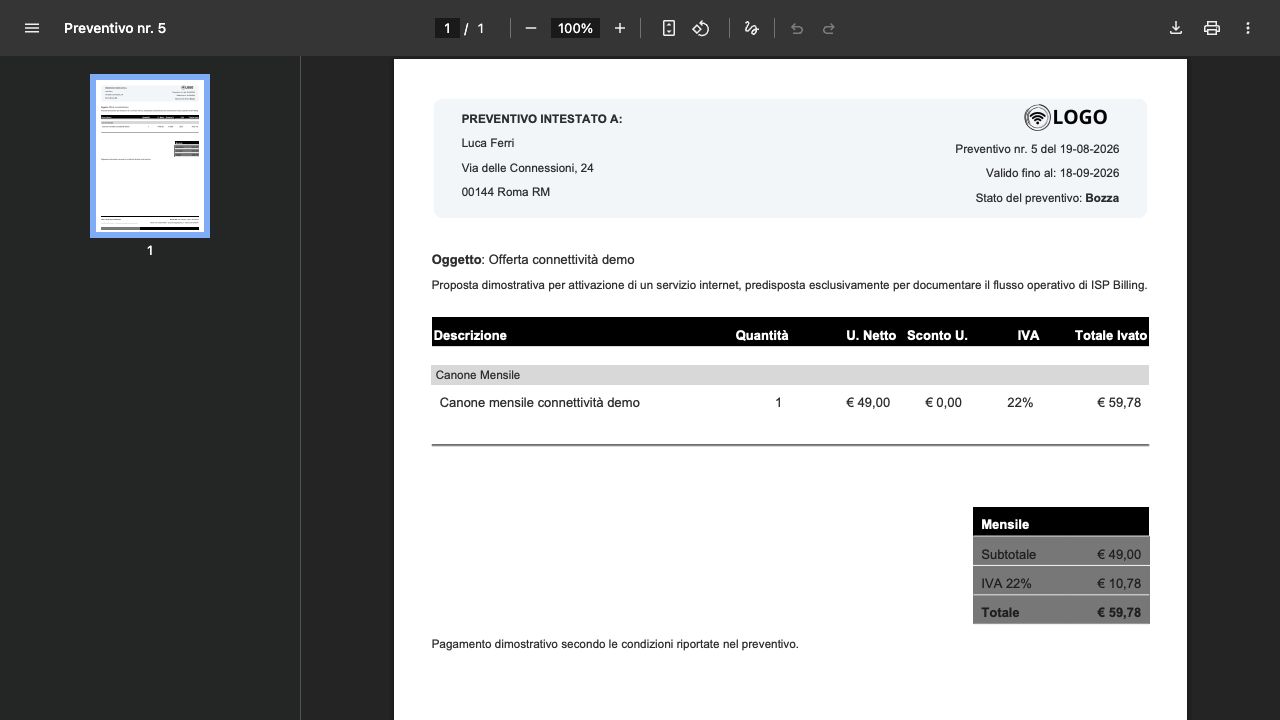
Open PDF renders the generated proposal in a browser view; Download PDF saves the same controlled document. Review issuer and customer identity, number, dates, subject, line frequencies, net values, VAT, total, footer, attachments references, and every page.
Regenerate after material content or template changes and inspect again before sending. A correctly rendered PDF is not proof of customer delivery or acceptance.
Duplicate a quote
Duplicate opens a new editable copy and assigns its own number when saved. Use it as a starting point, not as proof that the old content remains valid.
Recheck customer, subject, dates, prices, discount, VAT, recurrence, descriptions, attachments, footer, recipients, and terms before saving the copy.
Delete a quote
Deletion is explicitly irreversible. Before confirming, inspect delivery history, OTP or acceptance, attachments, generated PDFs, tasks, and any linked invoice drafts.
Use Rejected or the appropriate historical state when the proposal must remain auditable. Do not delete a quote merely to hide an expired, refused, or incorrectly sent commercial offer.
Multichannel delivery and recipients
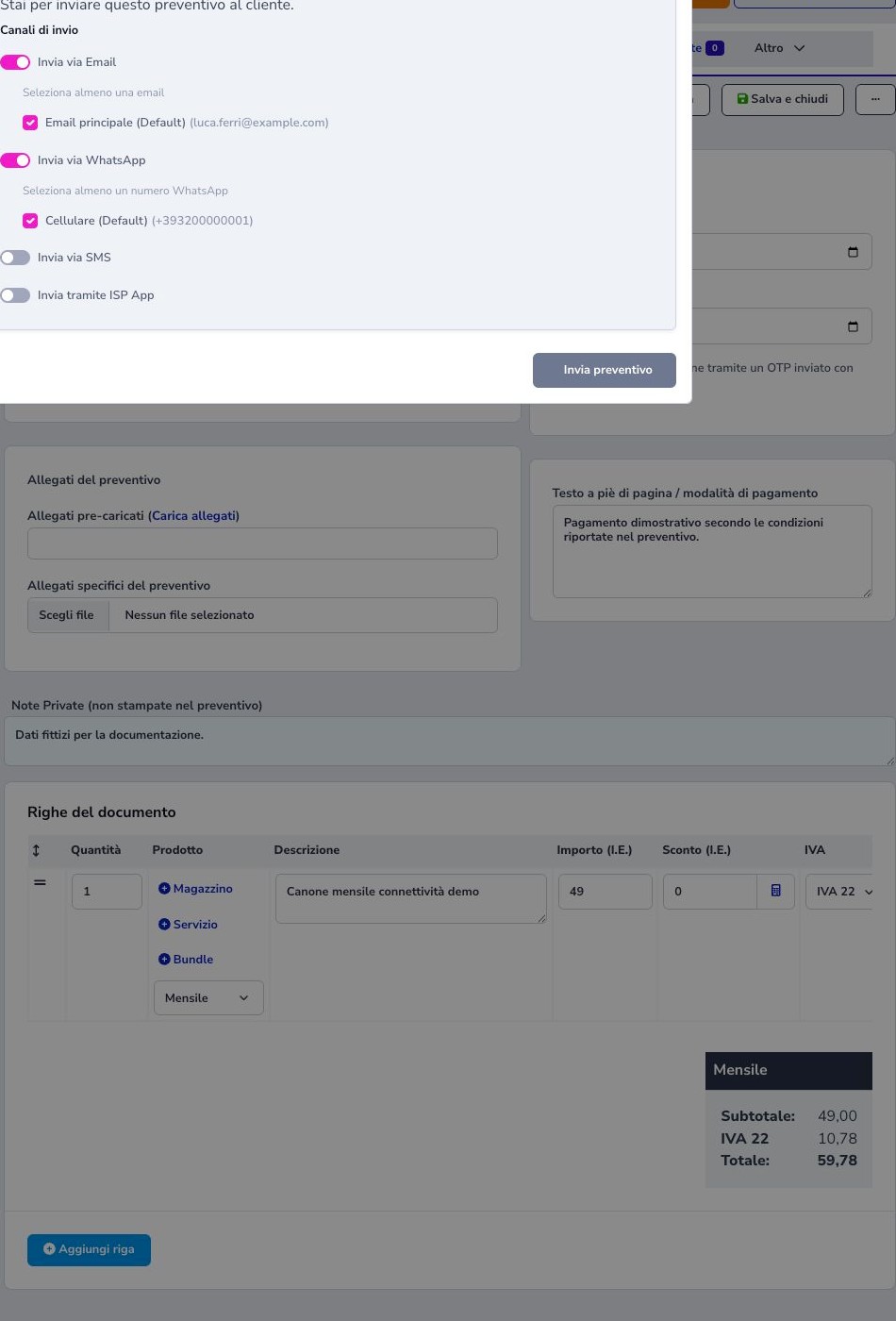
Delivery supports email, WhatsApp and, when configured, SMS and ISP App. Email, WhatsApp, and SMS require explicit recipient selection; primary contacts are marked Default and additional eligible contacts may appear.
Validate consent, email address, international phone format, Meta conversation or template requirements, device availability, and the exact PDF version. Each selected channel creates its own provider outcome.
Sent state and provider outcome
Sending can move the quote to Sent while recording the channel operation. Distinguish campaign or queue acceptance, provider delivery status, customer reading, and commercial acceptance: these are different events.
After sending, review quote state, selected recipients, communication history, queue errors, and links. Correct the failed channel before retrying and avoid resending channels that already succeeded.
OTP acceptance
When SMS OTP acceptance is enabled, the customer requests a time-limited code through the protected proposal path. Verification records the supported signature evidence, changes the quote to Accepted, and may create the configured internal follow-up task.
Requested, sent, verified, expired, and completed states are distinct. Verify the customer mobile number and never accept or enter a customer’s OTP on their behalf.
Customer Area
The Customer Area lists quote number, subject, validity, status, and total and provides detail, PDF, protected attachments, and permitted OTP controls for the authenticated customer.
Acceptance does not create payment, service activation, or provisioning automatically unless a documented downstream workflow does so. Permanent-token links are confidential and must not be published or shared with another customer.
Invoice conversion
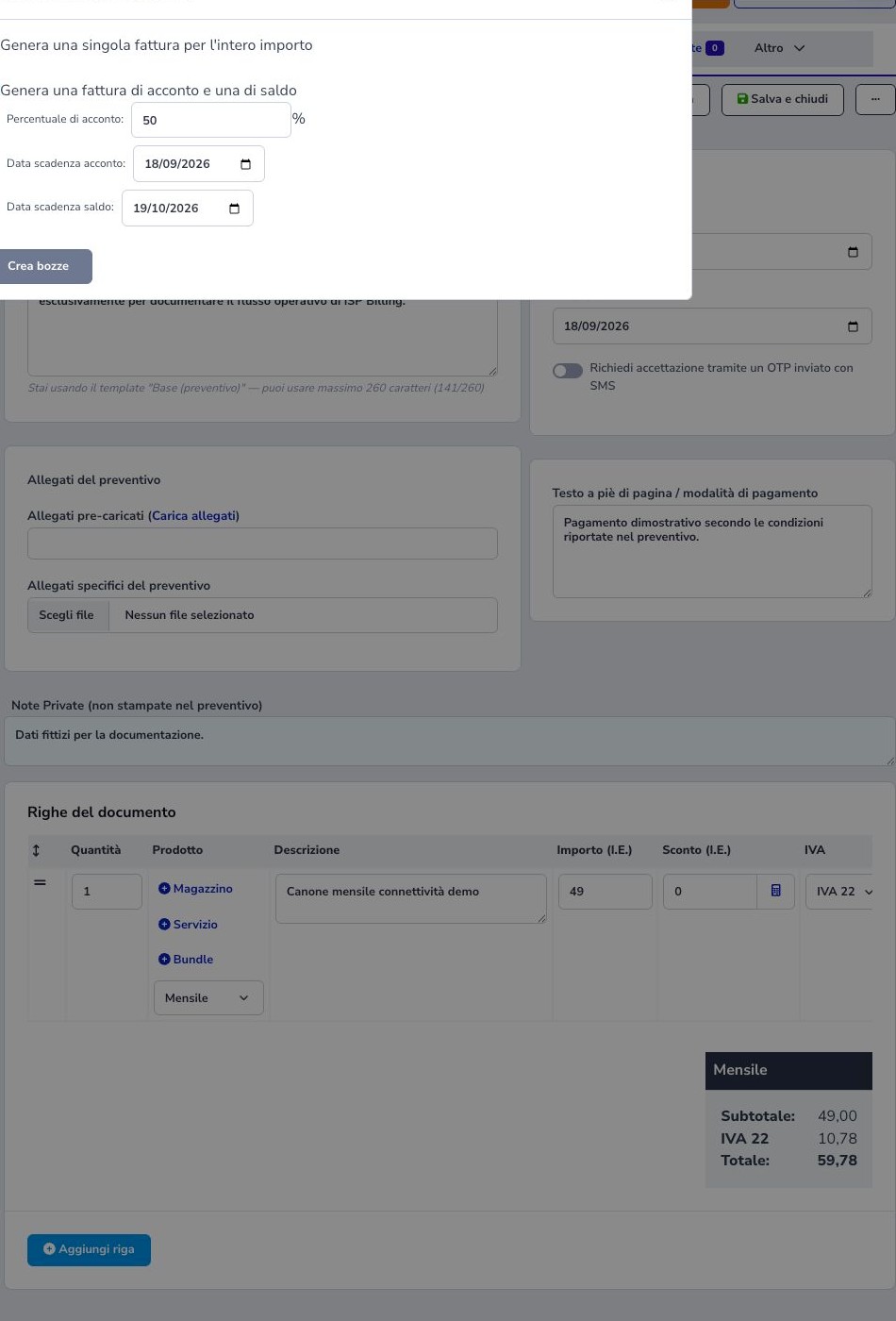
For a registered customer, conversion can produce one full-amount invoice draft with one due date or separate deposit and balance drafts with percentage and dates. A second confirmation precedes creation.
Choose the mode that matches the accepted commercial terms. After conversion, verify fiscal numbering, customer data, lines, VAT, percentages, due dates, totals, and the link back to the quote before publishing either draft.
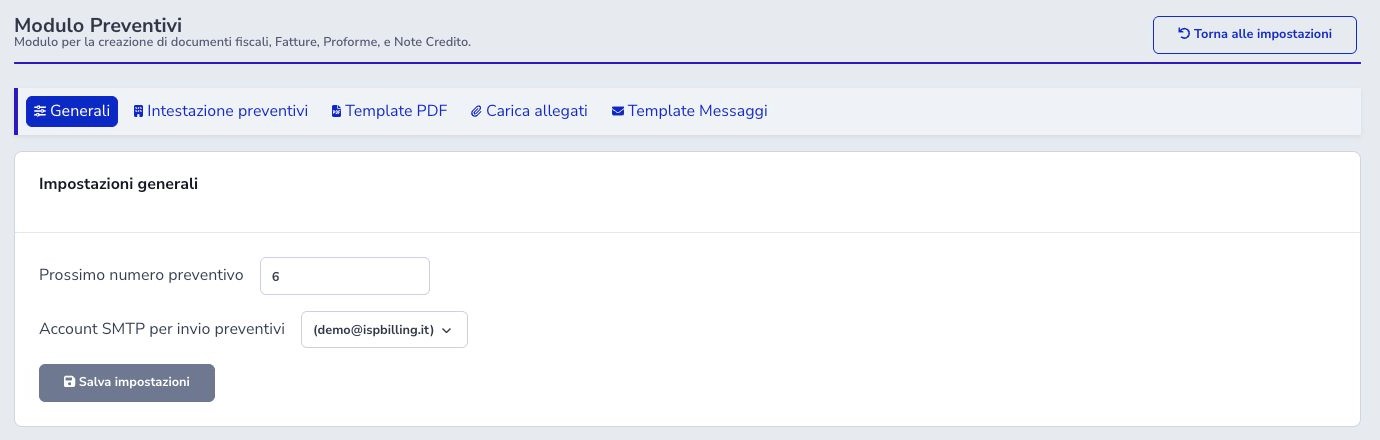
Numbering and sender
General settings define the next quote number and outbound SMTP account. A numbering change affects future sequence; no SMTP disables e-mail delivery.
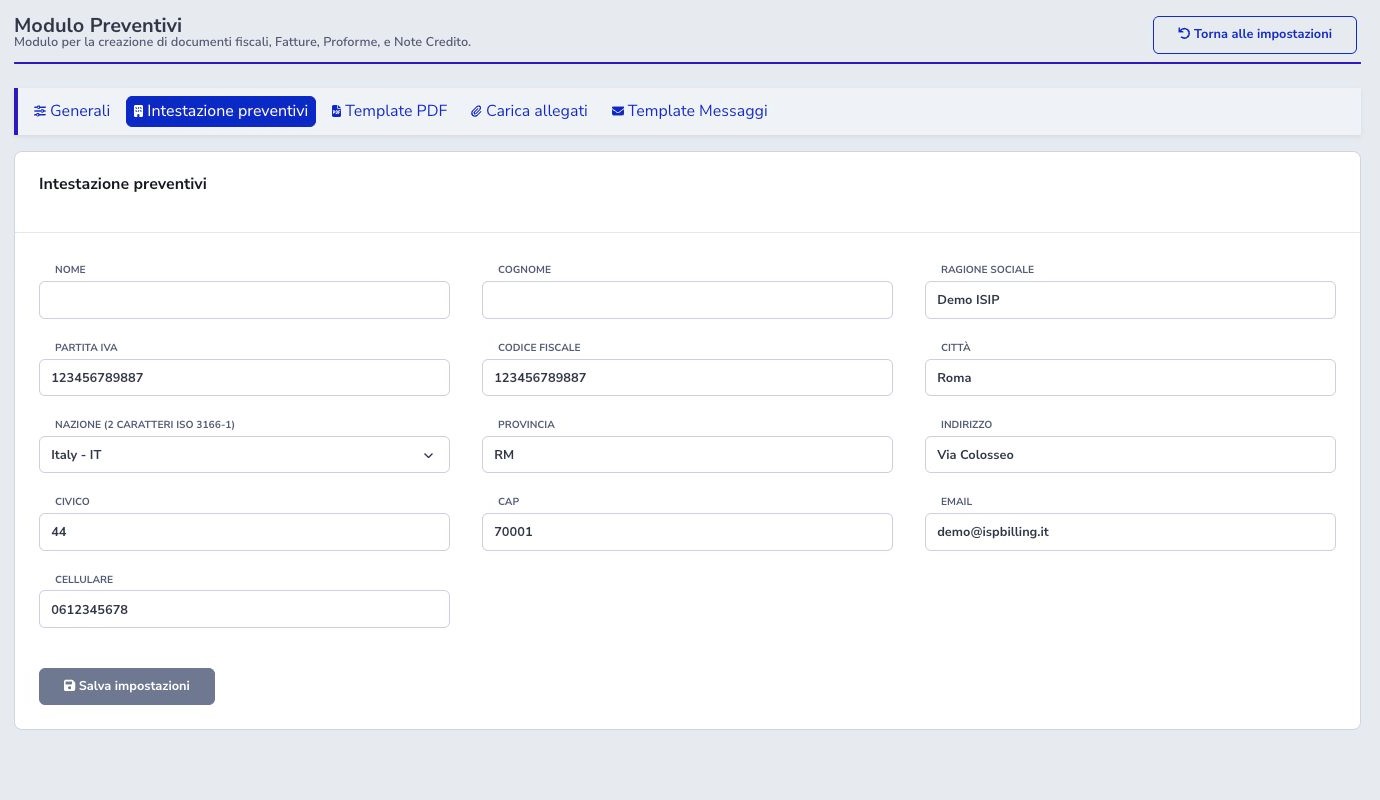
Issuer and PDF branding
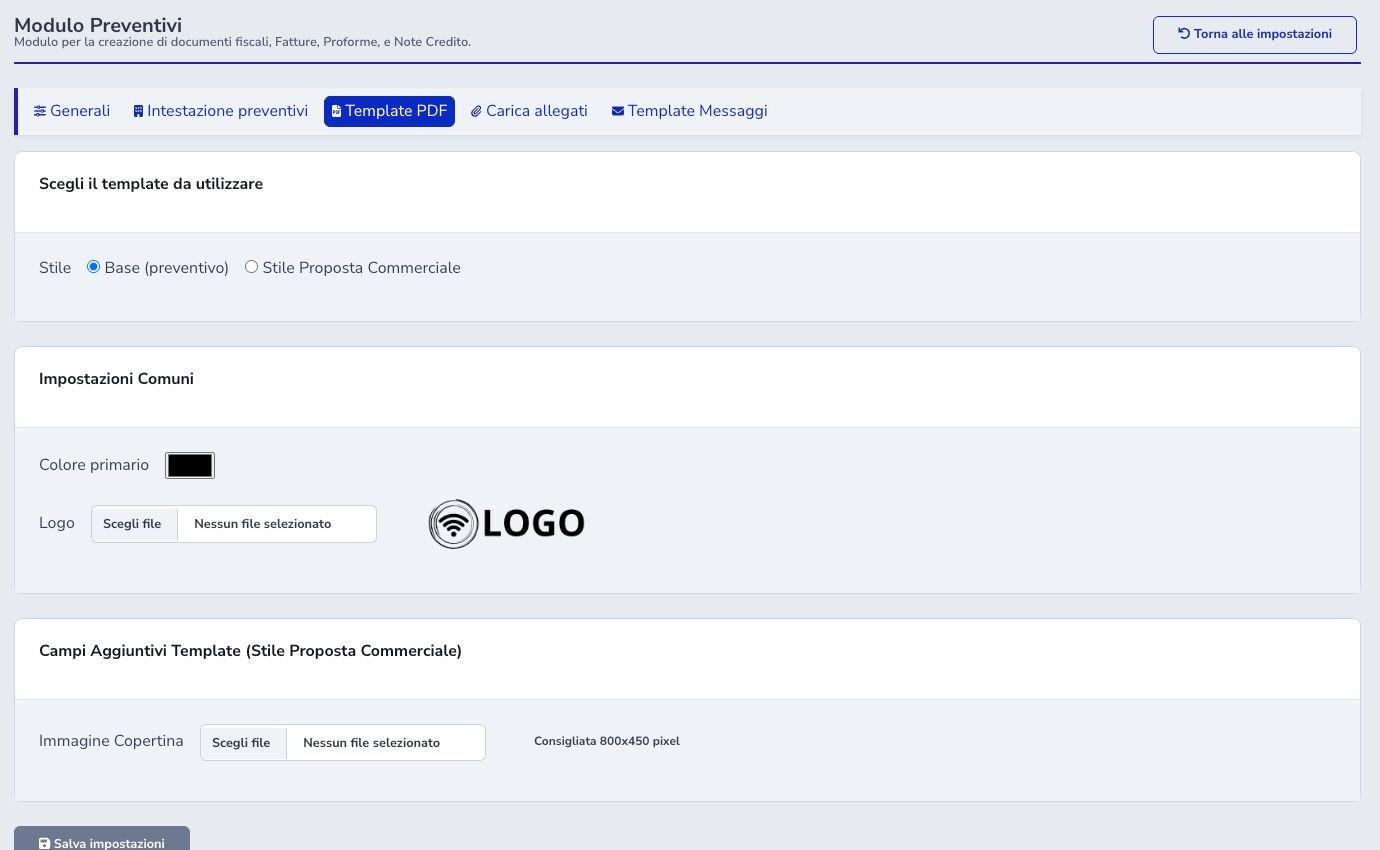
Issuer settings provide business, fiscal, address, e-mail, and phone data printed in proposals. PDF Template selects Base or Commercial Proposal style, primary color, logo, and an optional 800×450 cover image. Individual quotes may follow the default or override the style.
Reusable attachment library
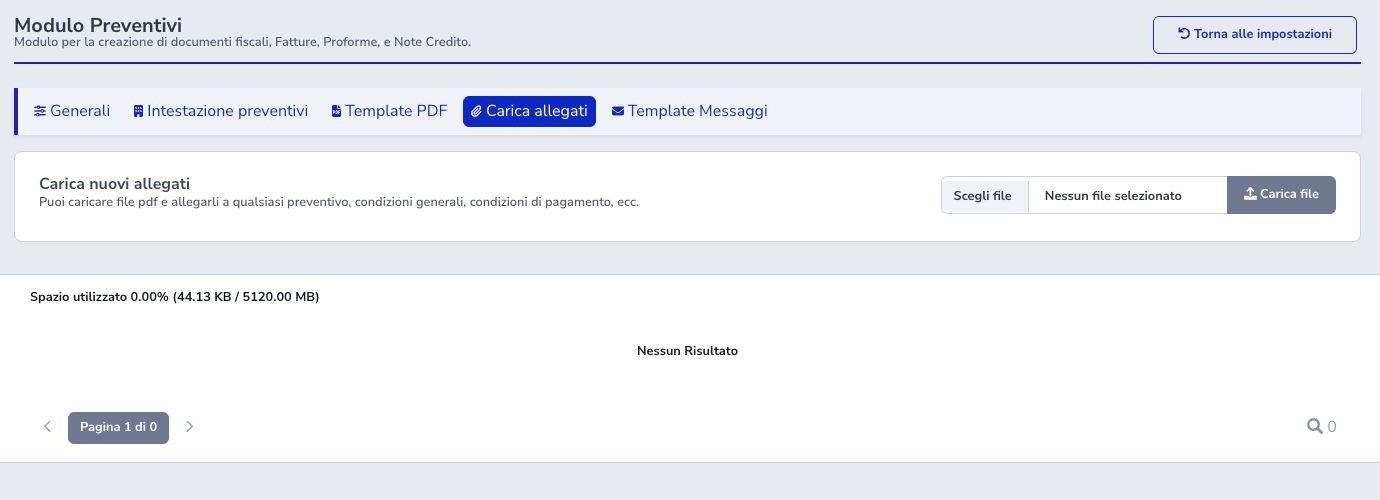
The library accepts multiple reusable PDFs, reports tenant storage usage, and lists name, size, date, and irreversible deletion. The interface states a 5 MB per-file limit.
Use a recognizable purpose and version in each filename, reopen the uploaded PDF, and inspect consuming quotes before replacement or deletion.
Message templates
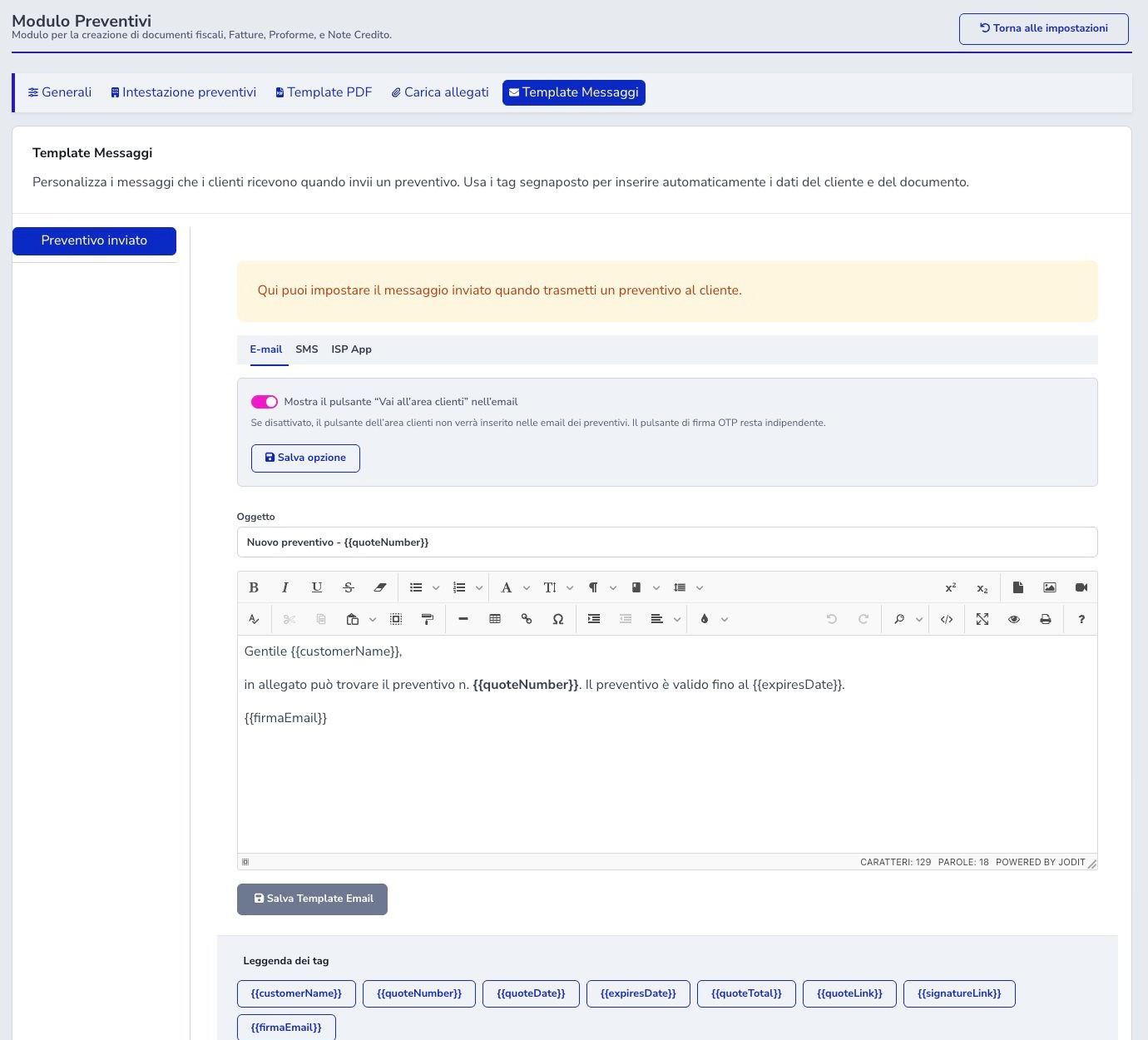
The Sent quote event provides rich E-mail subject/body, SMS with character and credit counter, and ISP App title/message. E-mail can show the Customer Area button independently from the OTP signature button.
Tags include customer, quote number/date/expiry/total, document link, signature link, and e-mail signature. Test long substitutions before saving.
Operator checklist
- Verify existing or occasional customer
- Check subject, description, and validity
- Separate recurring and one-off amounts
- Validate quantity, net, discount, VAT, and gross
- Review catalog items and service meaning
- Check footer and private notes
- Inspect branding, attachments, and every PDF page
- Select authorized channels and recipients
- Distinguish delivery, OTP, and acceptance
- Convert only after checking amounts and due dates
- Preserve required history