
SMTP and e-mail queue
Configure multiple mail transports, authenticate the sending domain, and recover queue failures without duplicate delivery.
Last updated: 2026-09-15
Why configure multiple SMTP profiles
An ISP may use separate senders for administration, billing, technical support, sales, or different verified domains. Multiple profiles keep the visible identity, credentials, reputation, and provider limits of those flows separate.
Creating a profile does not automatically route every message through it. Each module or communication setting must select the intended SMTP profile, and the default is used only by flows that explicitly rely on the default transport.
Profile fields
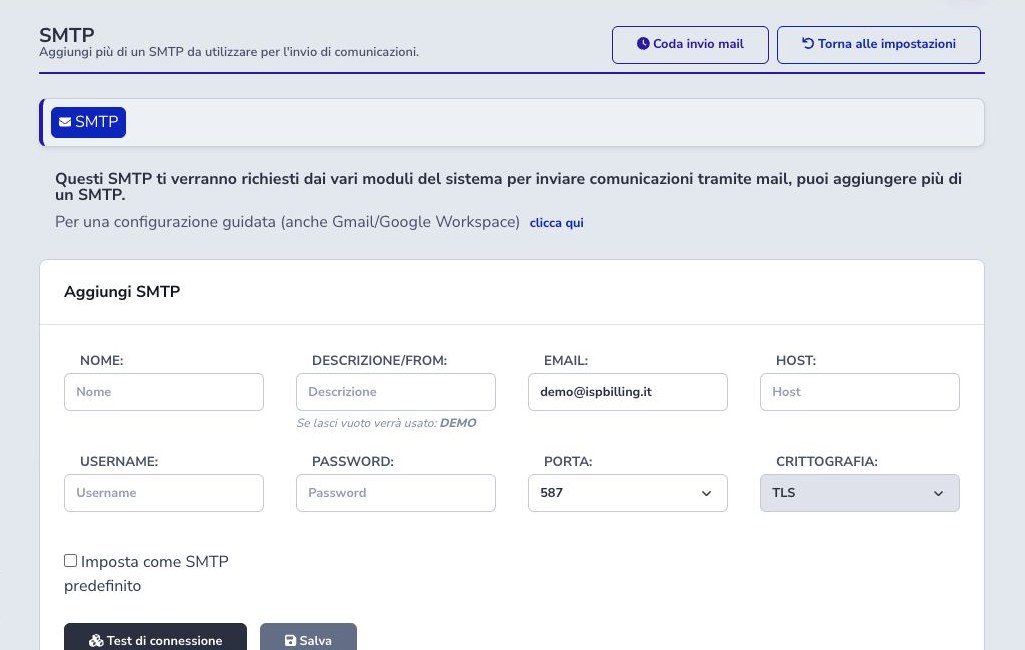
Give the profile a clear internal name, then configure the public From name and email address, SMTP host, username, dedicated application password or credential, port, encryption mode, and default status. The visible address must be permitted by the authenticated mailbox or provider policy.
Do not reuse a personal mailbox password when the provider supports application credentials. Keep host and username distinct, use the exact fully qualified server name expected by its certificate, and never place SMTP secrets in templates, tickets, screenshots, or diagnostic exports.
Port and encryption
Choose the port and encryption combination documented by the provider. Submission commonly uses STARTTLS on port 587 or implicit TLS on port 465; port 25 may be filtered or reserved for server-to-server delivery. Do not guess TLS mode from the port alone.
Keep certificate verification enabled, confirm the server hostname matches the certificate, and check whether the provider requires SMTP authentication before or after TLS negotiation. A timeout, TLS handshake failure, and invalid credentials are different problems and require different corrections.
Default profile, saving, and editing
Mark one profile as default only after it has been tested and authorized for the ISP’s normal sender domain. When another profile becomes default, review modules that inherit this choice and make sure their From name, reply handling, and templates still make sense.
Editing host, credentials, sender, port, or encryption affects future deliveries and retries. Existing queued messages may retain their event data but use the updated transport when processed, so coordinate changes with the queue and avoid rotating credentials in the middle of an unexplained backlog.
Connection test and monitoring
Run the built-in test after saving. It should verify network reachability, TLS negotiation, and authentication; then send a controlled message to an authorized mailbox and confirm Inbox or expected spam placement. Server acceptance alone does not prove that the recipient received the message.
Record the provider response without exposing credentials, monitor quota and rejection trends, and repeat a real delivery test after DNS, sender, password, firewall, hosting, or provider changes. If several profiles exist, test each independently.
SPF, DKIM, and DMARC
Publish an SPF record that authorizes the actual sending provider without exceeding lookup limits. Enable DKIM with the selector and public key supplied by that provider, then verify that the signed domain aligns with the visible From domain.
Introduce DMARC with reporting and a monitoring policy, study legitimate sources, then move deliberately toward quarantine or reject. SPF, DKIM, and DMARC are domain controls outside the SMTP form: a successful login does not prove they are configured, and an incorrect strict policy can reject genuine ISP Billing messages.
Delivery status
Open General settings → SMTP → Coda invio mail. The list shows recipient, subject, type, attempt count, failure reason and scheduled time, with In coda (pending), In invio (sending) and Errore (failed) statuses. Completed deliveries disappear from the list. After three unsuccessful attempts, the email remains failed.
Retry failed deliveries
After resolving the cause, select Riprova invii falliti (Retry failed deliveries), next to Svuota coda, and confirm. This includes every failed email belonging to your ISP with at least three attempts, across all pages and regardless of the displayed filters. Each email receives exactly one additional attempt: the counter is preserved and increases, for example, from 3 to 4 if this attempt also fails. Pending and ongoing deliveries continue normally. The confirmation reports scheduled emails, not completed deliveries.
The individual Riprova (Retry) button keeps its previous behavior: it resets the counter and starts a new cycle of up to three attempts. Rimuovi removes one email; Svuota coda removes all pending and failed emails belonging to your ISP, across all pages, excluding those being sent.
If the previous outcome is uncertain, first check whether the provider already accepted the message: retrying could duplicate it.
Understanding the failure reason
The Motivo errore (Failure reason) column identifies, when supported by the service response, authentication rejection, sending limits, a full recipient mailbox, connection or TLS failure, an invalid address, sender or recipient rejection, an inaccessible attachment, or a rejected message. Available SMTP codes are also shown for support purposes.
Correct credentials and account permissions for authentication failures; check the quota and wait for sending limits; review configuration and service availability for connection failures. A generic failure does not prove that a limit was reached.
Older failures without details show an unspecified cause; the explanation may update after the next attempt. The last known error stays visible while waiting. Explanations do not expose credentials or raw provider responses.
Checklist
- Use dedicated credentials
- Match port and encryption
- Authorize the From address
- Configure SPF, DKIM, and DMARC
- Test actual delivery
- Select SMTP in each module
- Review delivery outcomes
- Fix before retrying
- Assess duplicate risk
- Protect credentials and message data