
Supplier management
Create and maintain suppliers, addresses, classifications, delivery notes, tickets, and linked purchase invoices.
Last updated: 2026-08-19
Purpose and module links
Suppliers is the central record for companies from which the ISP purchases goods or services. It connects identity and tax data, contacts, locations, classifications, warehouse receipts, delivery notes, tickets, and Aruba FE purchase invoices.
The fictional supplier was created and explored in the visible browser. Dashboard, Details, Delivery Notes, Tickets, and Invoices retain the same supplier context.
List, search, and duplicate prevention
Search company name, VAT number, tax code, phone, and e-mail before creating a record. A duplicate would divide invoices, inventory, delivery notes, and assistance history.
Open the appropriate supplier for review or editing. Before any destructive action, inspect linked documents, stock, invoices, and references.
Save and perform the first checks
Saving assigns the supplier’s internal identifier and makes the related tabs available. Before continuing, reopen the record and verify legal name, tax identifiers, address, contacts, classification, and duplicate search results.
Creating the supplier alone does not send communications, create purchase invoices, move warehouse stock, or record a Cashbook transaction. Those effects belong to their respective workflows and must be carried out only when the underlying business event exists.
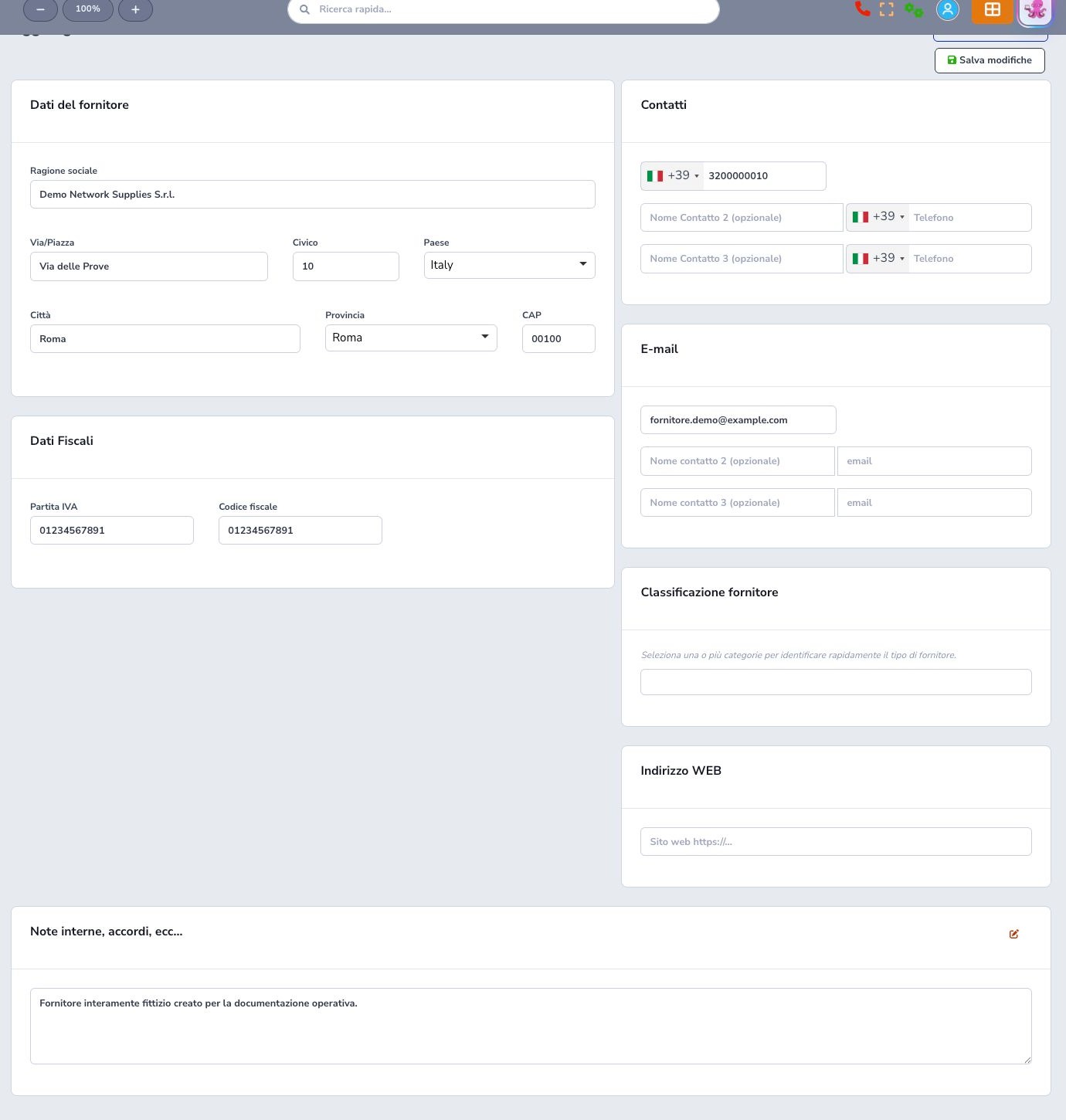
Identity and tax data
The supplier record contains its internal code, legal or company name, street, number, country, city, province, postcode, VAT number, and tax code. Enter data from an authoritative commercial or fiscal source and use the registered entity that will issue invoices and delivery documents.
Check country-dependent identifiers, spelling, address completeness, and duplicates before saving. These values can feed purchase documents, XML association, warehouse records, searches, and reports; changing them later does not necessarily rewrite historical documents.
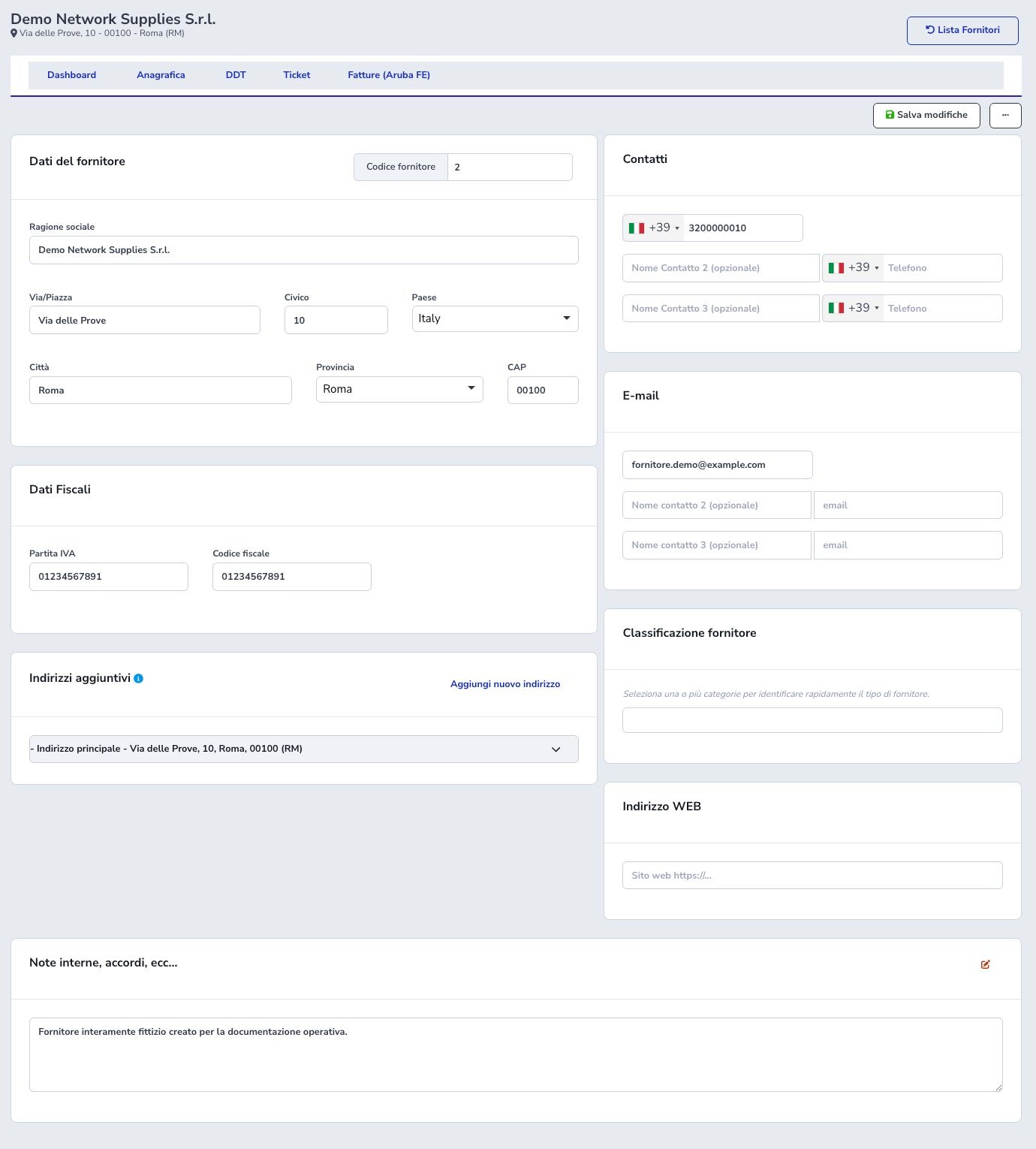
Contacts, website, and internal notes
The record supports a primary phone and e-mail plus two named secondary contacts, allowing administration, sales, logistics, technical support, or another responsibility to be distinguished. Use recognizable contact labels and confirm that addresses and numbers belong to the supplier organization.
The website provides a navigation reference; internal notes should contain only useful operational information such as order procedures or agreed contacts. Never store passwords, API tokens, bank-access credentials, full card data, or unnecessary personal information in free text.
Main and additional addresses
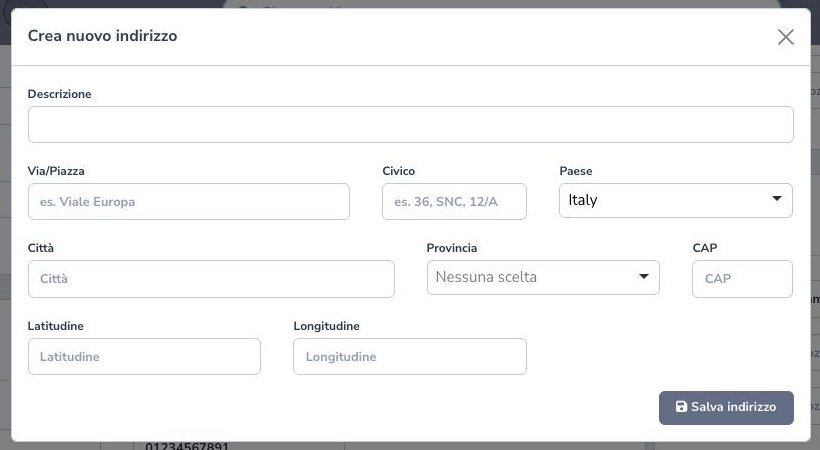
The main address belongs to the supplier identity. Add new address opens a separate form with description, street, number, country, city, province, postcode, latitude, and longitude. Use descriptions such as Spare-parts warehouse or Collection point.
An additional location does not automatically replace the fiscal address. Verify coordinates and maintain each location individually.
Supplier classification
Assign one or more categories that describe what the supplier provides, such as connectivity, hardware, logistics, professional services, or utilities used by the ISP. Classification improves filtering, reporting, and operator orientation but does not grant permissions or prove that a supplier is commercially approved.
Keep the category list controlled and avoid spelling variants that fragment reports. Before removing a category, inspect all linked suppliers and decide which replacement classification preserves the intended meaning.
Supplier dashboard
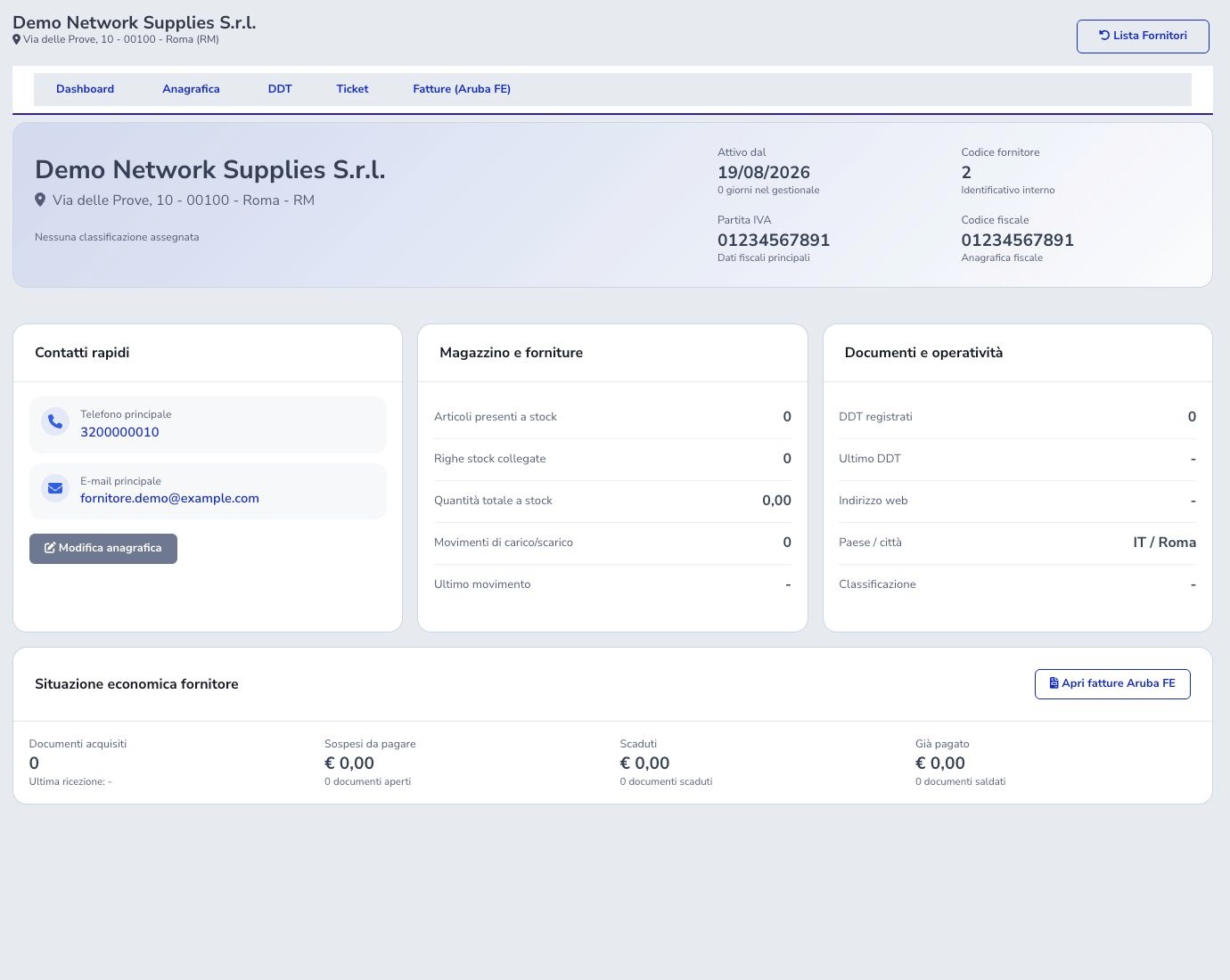
The supplier Dashboard summarizes identity, contacts, relationship age, warehouse stock and movements, delivery notes, location, classification, invoices, payments, and economic position where the corresponding modules provide data.
Counters and totals are navigation aids: open the underlying delivery note, stock movement, invoice, or Cashbook transaction before making a payment or reconciliation decision. A zero value may mean that no linked record exists, that filters exclude it, or that the integration has not yet supplied the source.
Supplier delivery notes
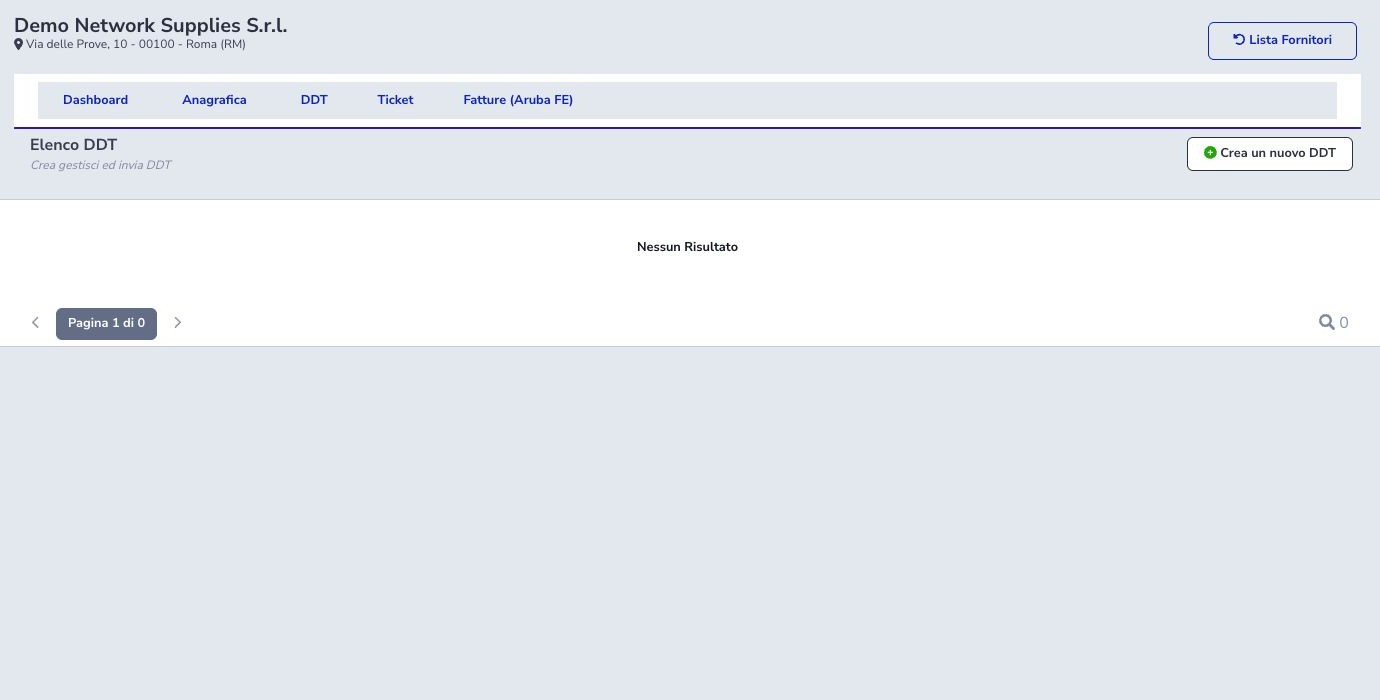
The Delivery Notes tab lists documents for this supplier and links to the Warehouse flow with the supplier and transport-document context preselected. Record document number and date, reason, destination site, items, quantities, and required serials.
A delivery note alone does not prove that stock is correct; reconcile its lines with posted movements.
Supplier tickets
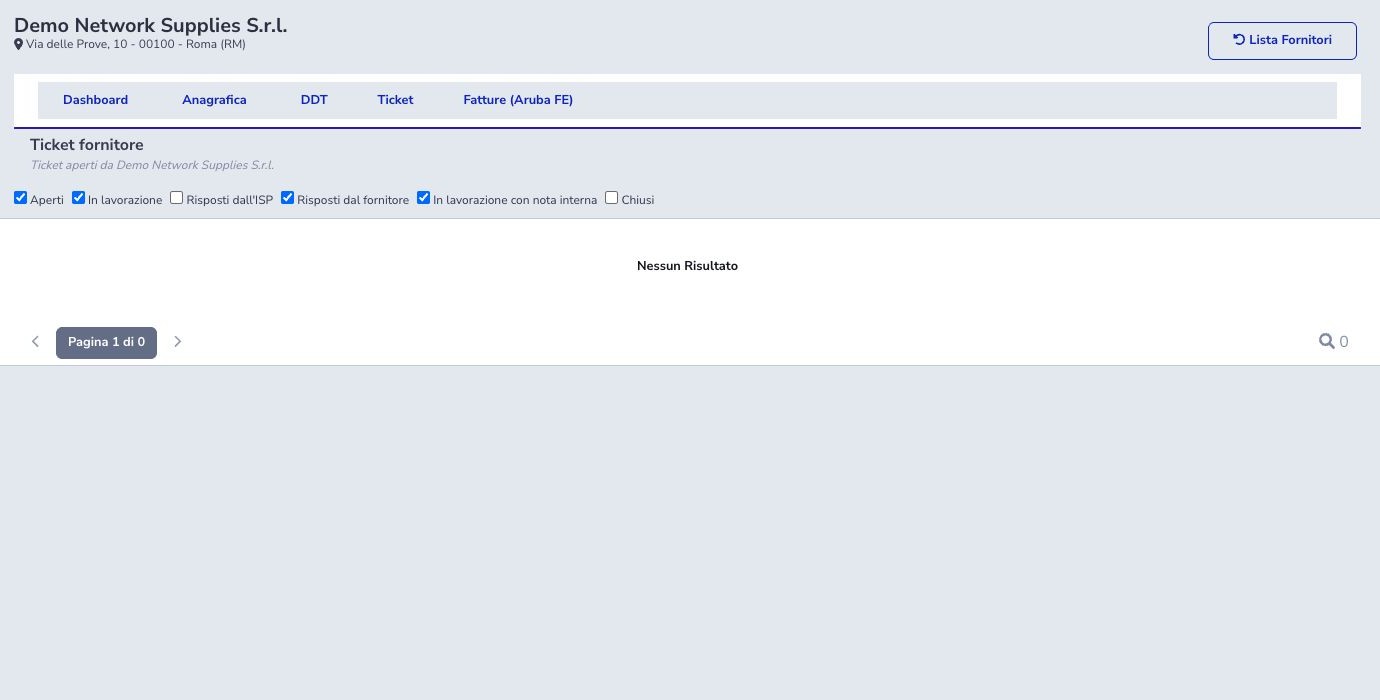
Ticket filters distinguish Open, In progress, Replied by ISP, Replied by supplier, In progress with internal note, and Closed. State and latest-reply author are different concepts; internal notes must never be confused with supplier-visible replies.
The example record is empty and no external message was sent.
Aruba FE purchase invoices
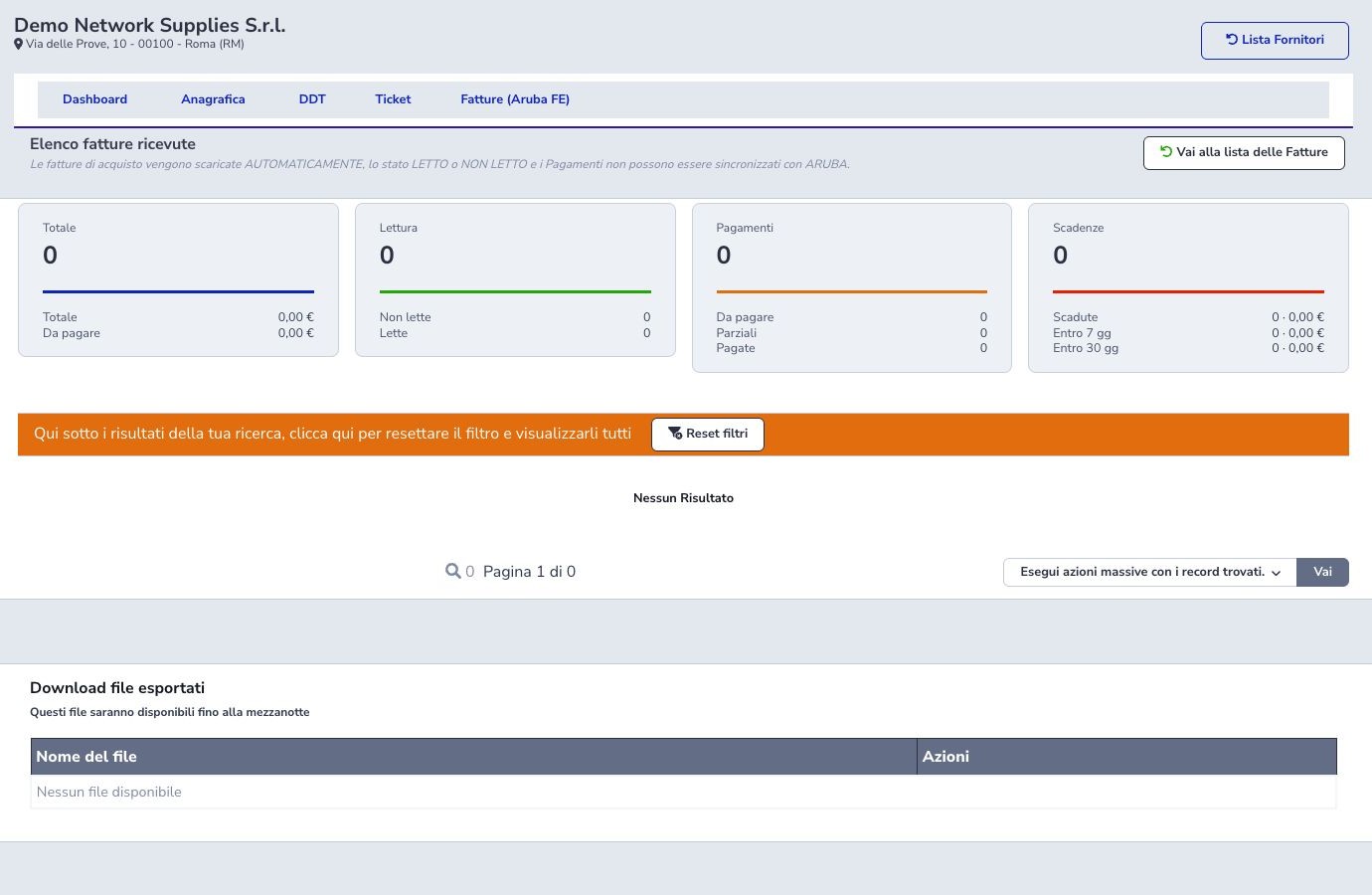
Purchase invoices are downloaded automatically. Read/Unread and payment states cannot synchronize back to Aruba and are maintained locally. Summary cards show totals, outstanding amount, reading state, unpaid/partial/paid records, overdue documents, and upcoming 7- and 30-day deadlines.
Use the general-list link deliberately because it removes the supplier-only context. Reset filters restores all results.
Payments and XML export
A local Paid state is not independent bank proof. Reconcile invoice amount and deadlines with payments and cashbook movements. Bulk Export XML (ZIP) uses the currently found records; verify filters before generating it.
Generated downloads remain available until midnight. Protect exported fiscal data and remove unnecessary copies under the organization retention rules.
Warehouse and cashbook relationship
Supplier receipts populate inventory movements and Dashboard counters. Editing the supplier name must not create a second party or detach existing serials and documents.
A purchase invoice records the payable document, while Cashbook records financial movement. Invoice state, recorded payment, and account transaction must be reconciled instead of treated as automatically equivalent.
Safe maintenance and deletion
Save changes updates the current identity. Reopen the Dashboard and linked records after material changes. Do not delete a supplier whose invoices, delivery notes, stock, tickets, or audit references must remain available.
Operator checklist
- Search for duplicates
- Validate identity, country, and tax data
- Separate fiscal and operational addresses
- Use stable classifications
- Separate administration, sales, and logistics contacts
- Keep secrets out of notes
- Reconcile delivery notes and stock
- Interpret ticket state and reply author separately
- Distinguish Aruba synchronization from local states
- Reconcile invoice, payment, and cashbook
- Inspect links before deletion